Chapter 3: Multiple Users Accessing a Chassis
How Does the Multi-User Feature Work?
30 SmartBits System Reference
SmartBits programs that support the multi-user feature identify the available and
unavailable ports:
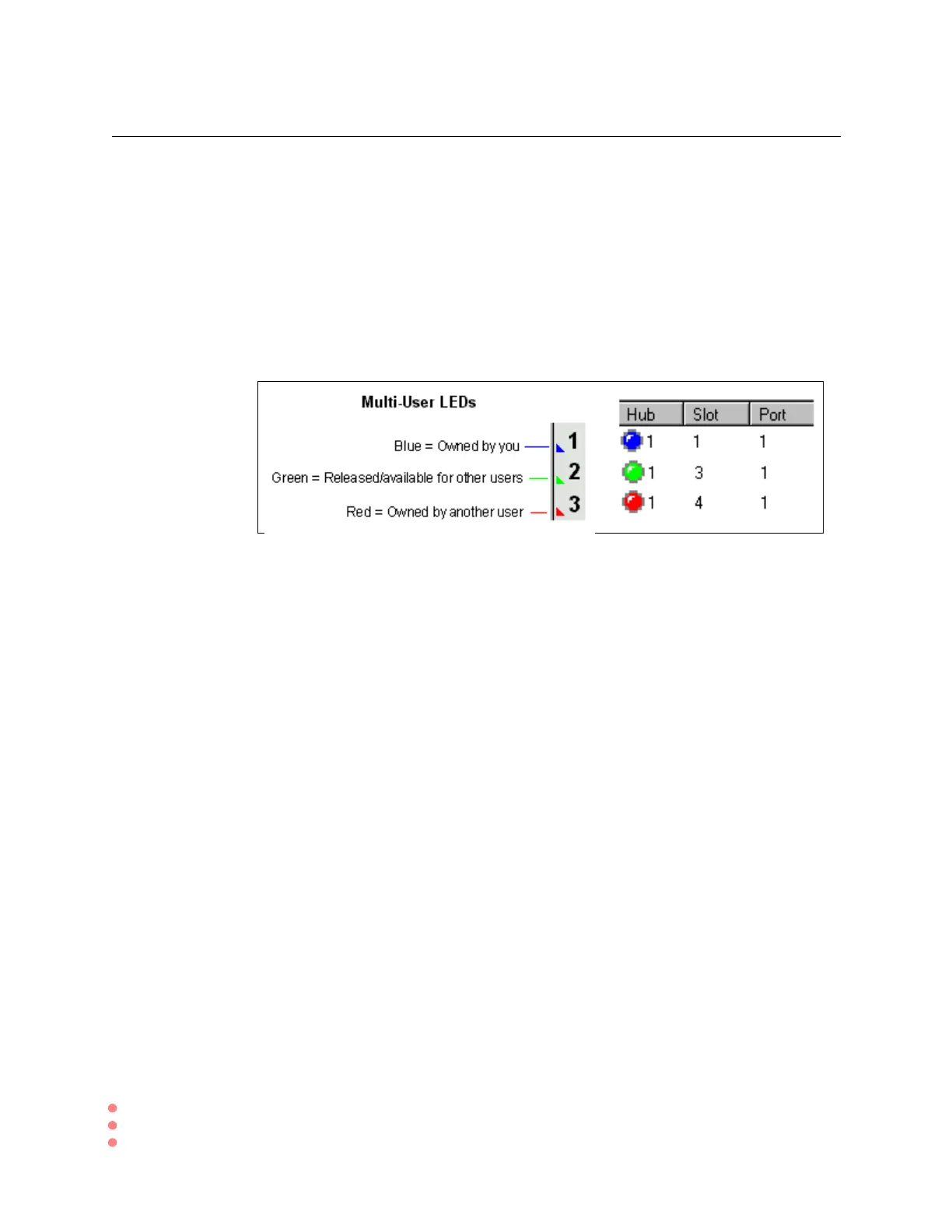
• through ownership LEDs on the main window of the program, or
• through ownership LEDs in reservations windows, or
• through multi-user checkboxes in card setup windows
The color convention of triangle LEDs (SmartWindow and SCMT) or circle LEDs (other
applications) next to port numbers or hub/slot/port numbers provides the following status
informatio shown in Figure 3-1:
Figure 3-1. Multi-User LEDs
Multi-user operation provides current status of each port and allows the user to change the
status by releasing reserved ports.
The following examples of multi-user functions demonstrate how the feature is used. For
more details, please refer to the user guide or online help for each supporting application.
• All reserved cards are released when you disconnect from the SmartBits chassis.
• You can connect SMB-200s, SMB-2000s, SMB-600s, and SMB-6000Bs via the
synchronizing Expansion RJ-45 ports. If you include an SMB-200 in the connected
series of chassis, all the chassis are disabled from the multi-user function. The SMB-
200isdesignedtobesingleuseronly.
• All connected SmartBits chassis must be multi-user ready in order to perform the
multi-user function.
• If you are working in a multi-user SmartBits chassis environment, you cannot test or
configure a port if you do not have ownership of that port.


 To Next Page