1656 & 1657 Battery Element Tester Owner’s Manual
STS Instruments Page 79 of 88
10.7 Updating Instrument Firmware Revision
The firmware revision of the 1656/1657 Battery Element Tester can be updated by re-flashing
the main processors Flash Memory over the USB interface. This requires the use of a Windows
Flash Loader utility which is available free of charge through STS Instruments’ website.
(www.stsinstruments.com
)
To update from your existing revision, a binary file (HEX file) with the latest firmware binary
image is required. These firmware files are available from STS Instruments by request. Contact
STS Instruments Customer Service to obtain the most current revision. See Section 10, “Service”.
10.7.1 Downloading and Installing Flash Uploader
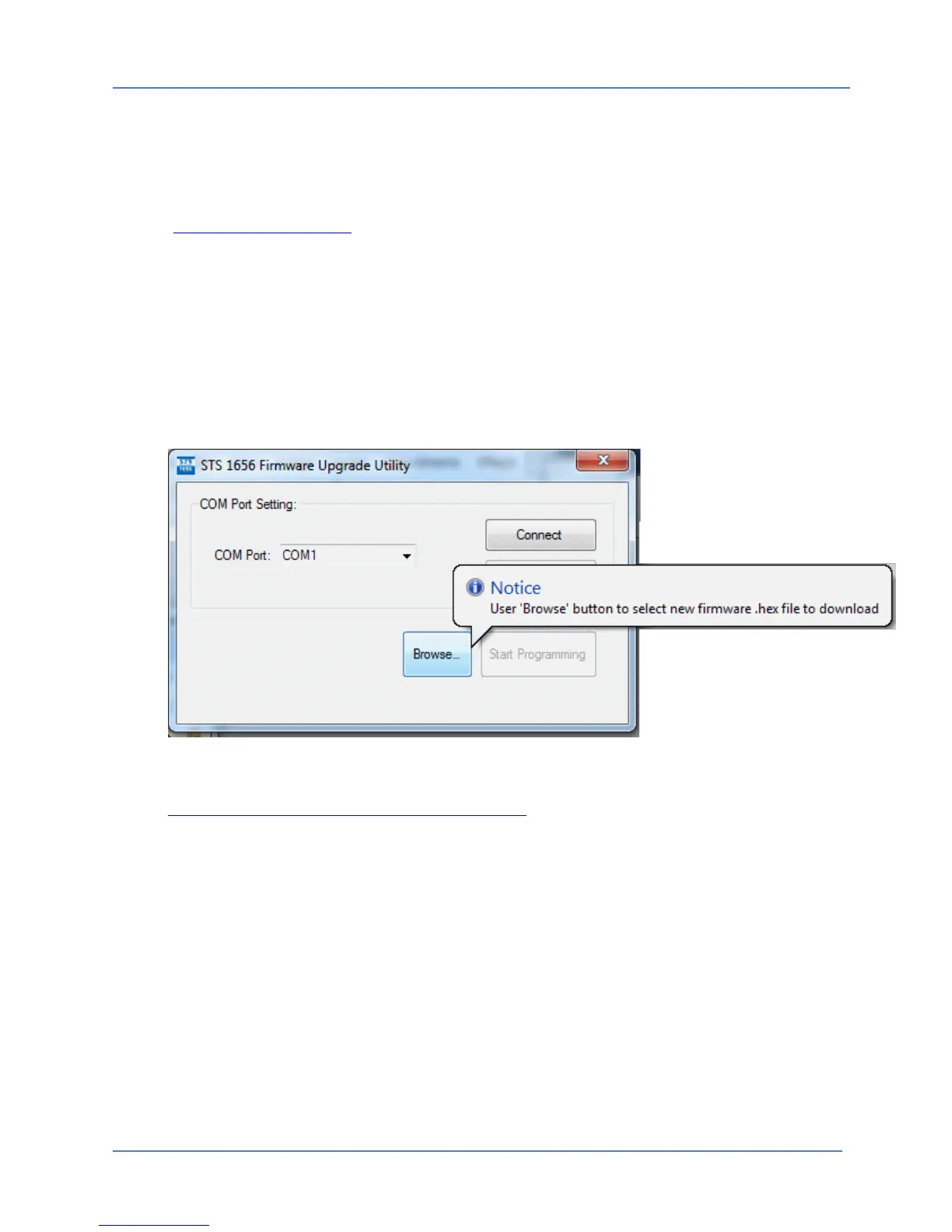
To perform a firmware upgrade of the 1656 or 1657, you will need to download the Flash loader
utility program for Windows. This utility communicates with the 1656/1657 using either the
USB or RS232 interface and performs the transfer of the upgrade firmware HEX file to the
processor Flash memory.
This utility can be downloaded free of charge from the STS Instruments website in the Technical
Resources section at:
http://www.stsinstruments.com/lang-en/resources
Download the STS1656_FlashLoader_Setup.zip file from the STS website and unzip the setup
program. Run the setup program to install the utility on a Windows PC equipped with either a
RS232 or a USB interface. Once installed, launch the Flash Loader utility.
10.7.2 Installing New Firmware
To download new firmware, you must establish a communication connection with the
instruments. Select the COM port that the 1656 or 1657 is connected to. This can be Com1
through Com4 if the PC you are using has a native RS232 port. If you are using the virtual com
port (VCP) driver to connect to a USB port on the PC, locate the correct COM number from the
list. If you are not sure what com port number was assigned to the USB port, use the Windows
Device manager to locate the correct virtual com port number.
On the 1656 or 1657 instrument itself, make sure the corresponding interface type (USB or
RS232) is selected correctly in the UTILITIES menu.



 To Next Page