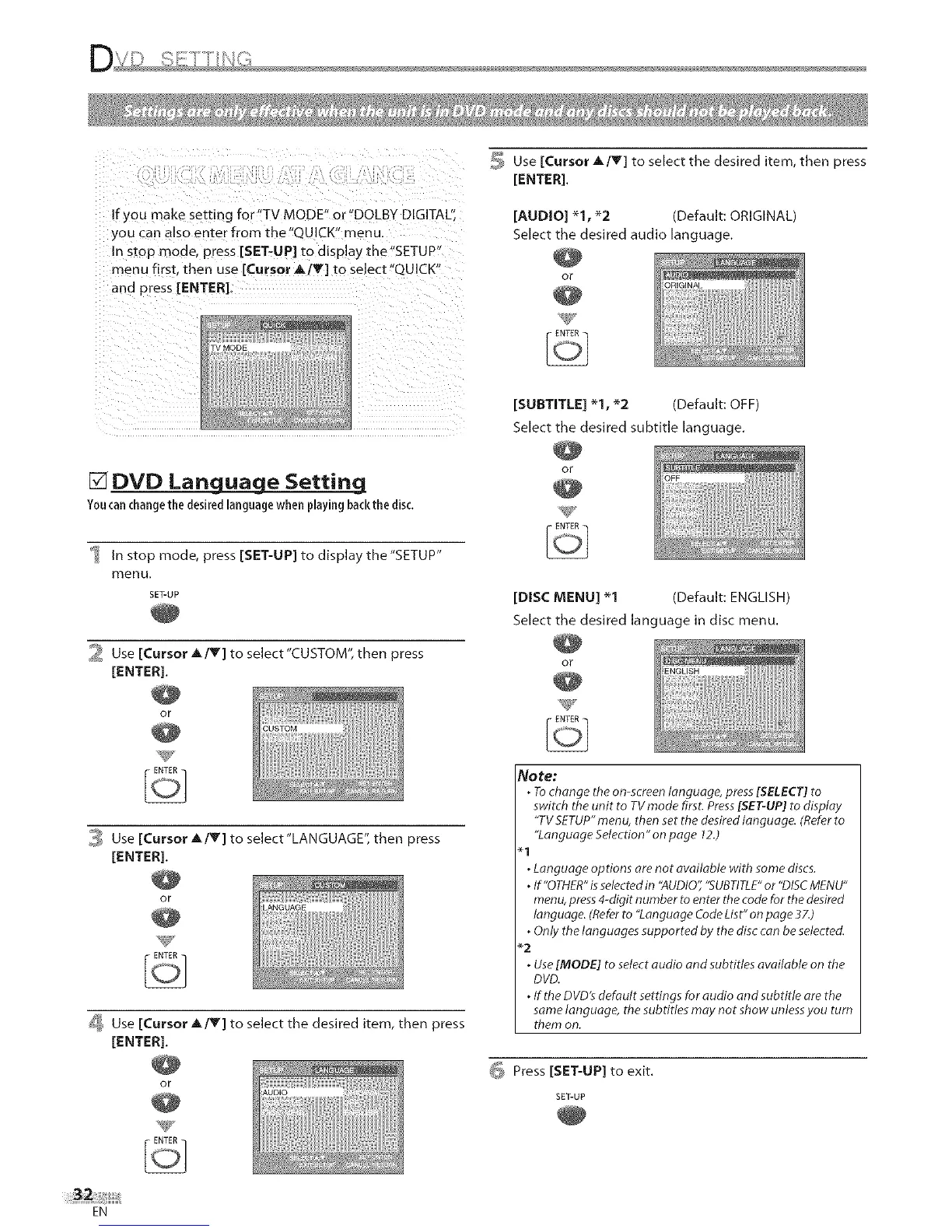
If you make setting for"TV MODE" or "DOLBY DIGITAL':
you can also enter from the"QUICK" menu.
In stop mode press [SET-UP[ to display the"SETUP"
menu first, then use [Cursor A/V[ to select"QUICK"
and press [ENTER].
_ Use [Cursor _,/Y] to select the desired item, then press
[ENTER].
[AUDIO] _1, _2 (Default: ORIGINAL)
Select the desired audio language.
or
[SUBTITLE] _1, _2 (Default: OFF)
Select the desired subtitle language.
[] DVD Language Setting
Youcanchangethe desiredlanguagewhen playingbackthe disc.
In stop mode, press [SET-UP[ to display the "SETUP"
menu.
SET-UP
2 Use [Cursor _,/Y] to select"CUSTOM", then press
[ENTER],
OF
3 Use [Cursor A/V] to select"LANGUAGE'; then press
[ENTER],
or
_6Y
_ Use [Cursor A/TI to select the desired item, then press
[ENTER].
or
O[
[DISC MENU] _1 (Default: ENGLISH)
Select the desired language in disc menu.
or
Note:
° Tochange the on-screen language, press [SELECT] to
switch the unit to TV mode first. Press [SET-UP[ to display
"TV SETUP" menu, then set the desired language. (Refer to
"Language Selection" on page 12.)
. Language options ore not available with some discs.
. If "OTHER" is selected in "AUDIO" "SUBTITLE" or "DISC MENU"
menu, press 4-digit number to enter the code for the desired
language. (Refer to "Language Code List" on page 37.)
. Only the languages supported by the disc can be selected.
_2
. Use [MODE] to select audio and subtities available on the
DVD.
. If the DVD's default settings for audio and subtitle ore the
same language, the subtities may not show unless you turn
them on.
_ Press [SET-UP] to exit.
SET-UP
EN



 To Next Page