Scheduling Events with Calendar
July 29, 2002 T-Mobile Sidekick Owner’s Manual 136
You can set your reminder to happen a number of minute(s), hour(s), or day(s) before the event.
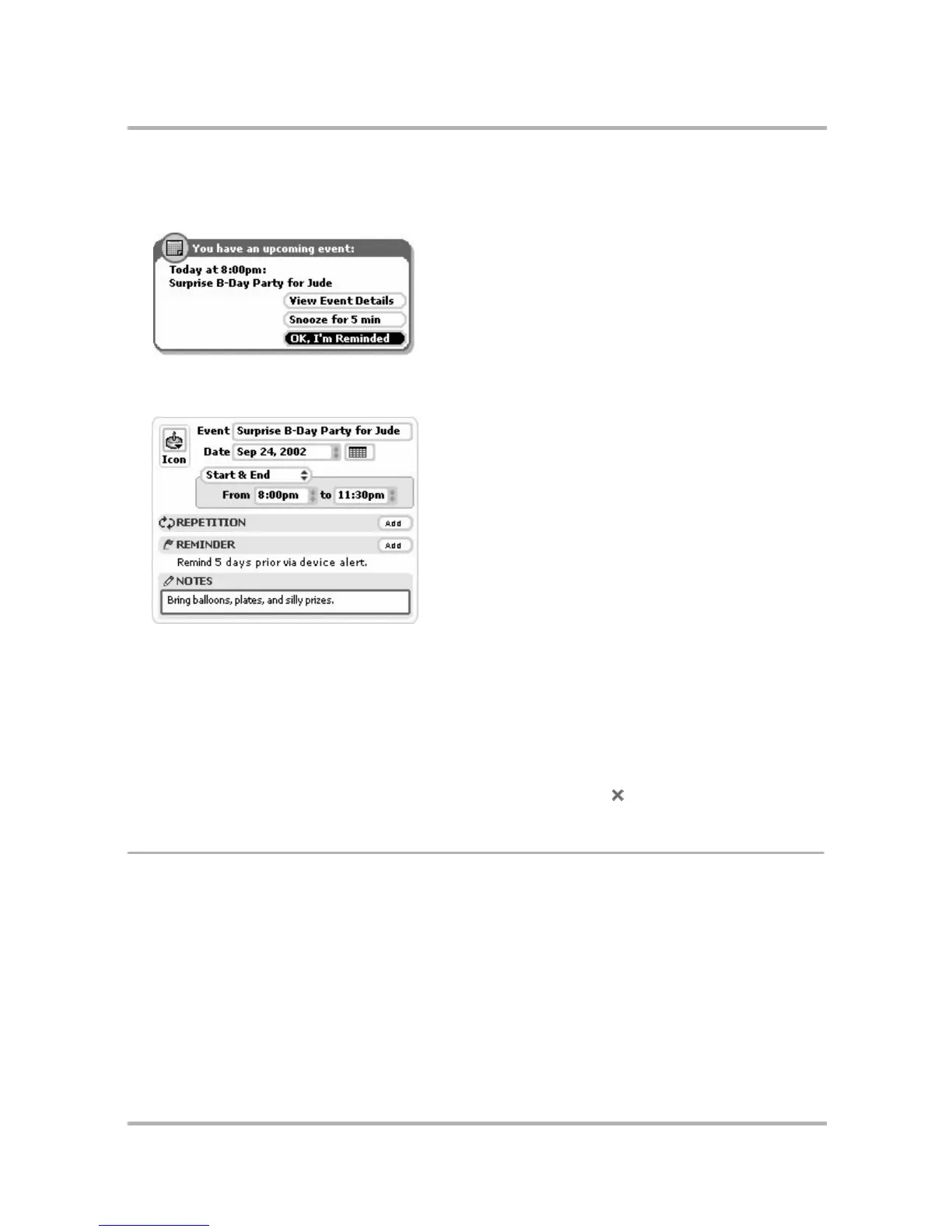
You are reminded by a device alert (sound and on-screen message). Depending on what you set for the
remind time, you’ll receive a reminder like the following before your event:
9 To can also add a note to your event. Simply highlight the Notes box and type. Your note can be any length.
10 Here’s an example of a filled-in event:
Copy an Existing Event
1 From an Upcoming, Day, or Week view, rotate the wheel to highlight the event you want to duplicate, then
press to open its Events Details screen.
2 Open the menu and select Duplicate Event. The screen appears to remain unchanged; however, you are
really looking at a copy of the original event.
3 Make your edits on the Event Details screen to reflect the details of your new event.
4 When you’ve finished editing the screen, open the menu and select Done .
Move an Event
If you have an event that occurs within a one-day time frame and the time for that event changes, you can
adjust its time from either the Day or Week view:
1 From the menu, select Today or Week.
2 Use the wheel to highlight the event you want to move, then open the menu and select Move Event.
3 Rotate the wheel to position the event at the new time.
4 Press the wheel to save the move.



 To Next Page