Keeping Contacts in the Address Book
July 29, 2002 T-Mobile Sidekick Owner’s Manual 127
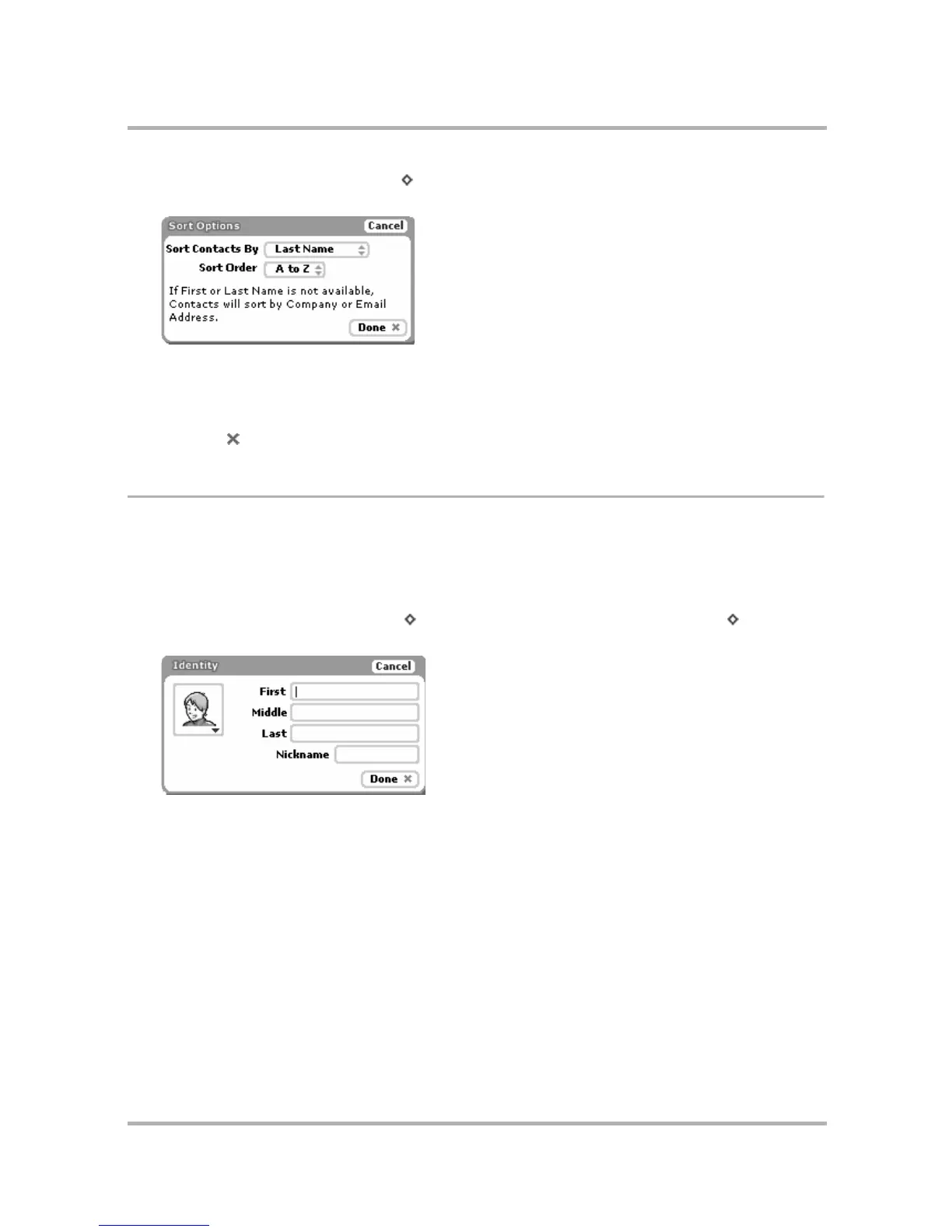
1 From the Browse Contacts screen, press to open the menu, then select Sort... The Sort Options dialog box
opens:
2 Highlight the Sort Options By field; press and hold the wheel to open the pop-up menu. Scroll to highlight
either the Last Name or First Name option; press to select.
3 Highlight the Sort order field; again, hold the wheel down to open the pop-up menu. Then scroll to highlight
either the A to Z or the Z to A order; press to select.
4 Press Done when finished, or press Cancel to cancel any changes you’ve made to the sort options.
Create a Contact
You can add a contact to your Address Book by starting from scratch; or by duplicating an existing contact’s
information, then editing it. Both methods are described below.
Add a New Contact from Scratch
1 From the Browse Contacts screen, press to open the menu, then select New Contact... [ + N]. The
New Contact, Identity screen opens:



 To Next Page