Browsing the Internet
July 29, 2002 T-Mobile Sidekick Owner’s Manual 60
View History
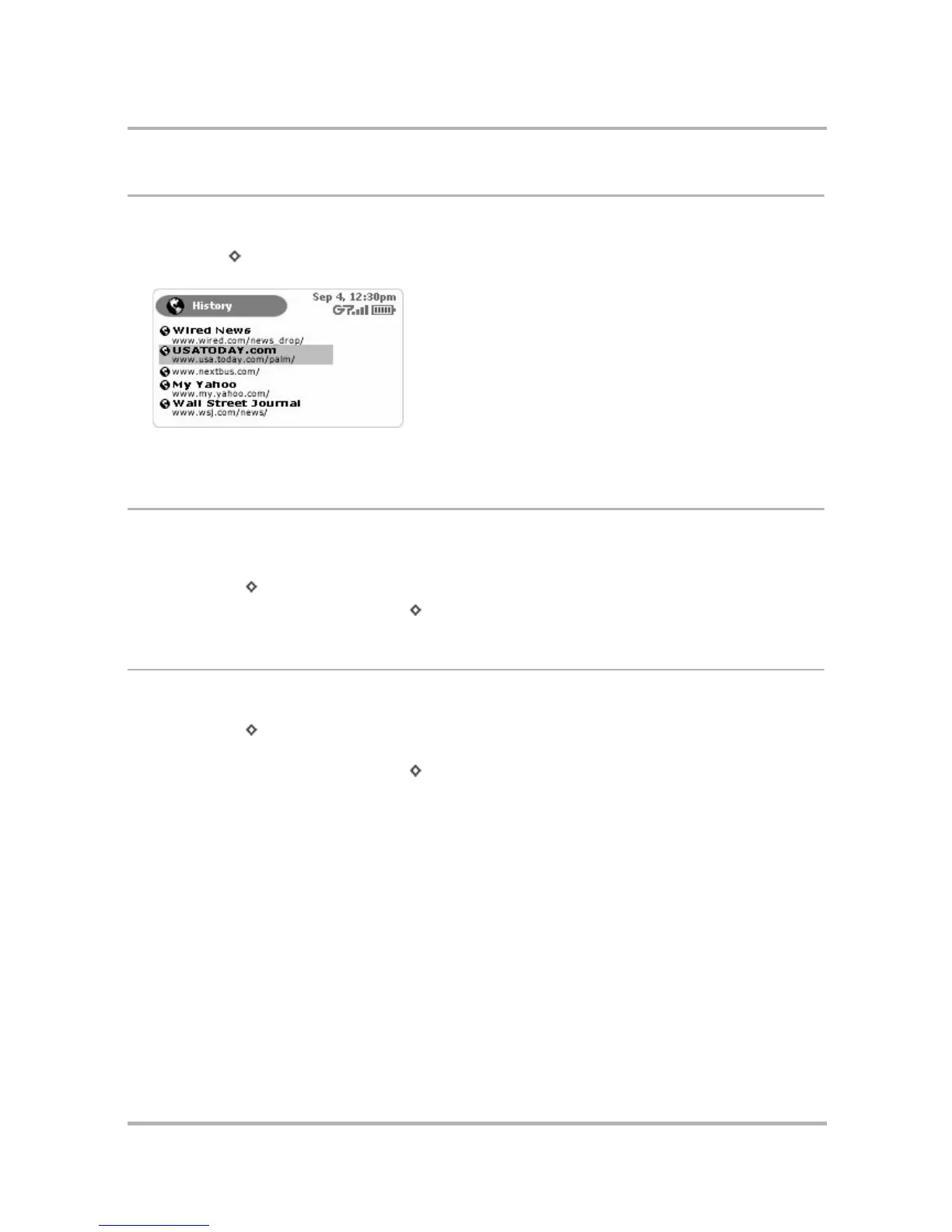
To see a chronological list of Web pages you have visited (up to 100), open the History screen:
1 Press Menu to open the Web Browser menu. Use the wheel to scroll to highlight History, then press. The
History screen opens:
2 To return to any of the pages listed, simply use the wheel to scroll to highlight the URL and press.
Refresh a Web Page
You can refresh (reload from the originating server) the Web page you are currently viewing in either of two
ways:
• Press Menu to open the Web Browser menu. Use the wheel to scroll to highlight Refresh, then press.
• Use the keyboard shortcut by pressing + R.
Stop a Web Page from Loading
You can stop a Web page from loading in either of two ways:
• Press Menu to open the Web Browser menu. Use the wheel to scroll to highlight Stop Loading, then
press.
• Use the keyboard shortcut by pressing + ..



 To Next Page