Browsing the Internet
July 29, 2002 T-Mobile Sidekick Owner’s Manual 59
Edit and Discard Bookmarks
You can change the address (URL), name, or folder of an existing bookmark, or discard a bookmark by doing the
following while in the Web Browser:
1 Open the Web Browser menu and select Bookmarks [ + K]. The Bookmarks screen opens.
2 Use the wheel to scroll and highlight the bookmark you wish to modify.
3 Press Menu to open the Bookmarks menu, and then:
• To edit a bookmark name, select Edit Bookmark to open the Edit Bookmark pane. Change the
bookmark name, URL, or folder as you wish; then press Done .
• To discard a bookmark, select Discard Bookmark. You will be asked to confirm your action before the
bookmark is actually removed.
Add/Edit/Delete Bookmark Folders
You can organize your bookmarks into folders that you name. To add, edit, or delete a bookmark folder, do the
following from the Web Browser:
1 Open the Web Browser menu and select Bookmarks [ + K]. The Bookmarks screen opens.
2 Scroll to highlight the folder you wish to modify. If you are adding a folder, don’t worry about what folder is
highlighted.
3 Press Menu to open the Bookmarks Folders menu:
• To edit a folder name, select Edit Folder to open the Edit folder pane. Change the folder name as you
wish and press Done .
• To discard a folder, select Discard Folder. You will be asked to confirm your action before the folder is
discarded.
• To add a folder, select New Folder... The New Folder pane appears. Type the new folder name and press
Done .
See Recently-Viewed Web Pages
To see a list of Web pages that you have visited recently, relative to the page you are currently viewing, use the
Recent Pages screen:
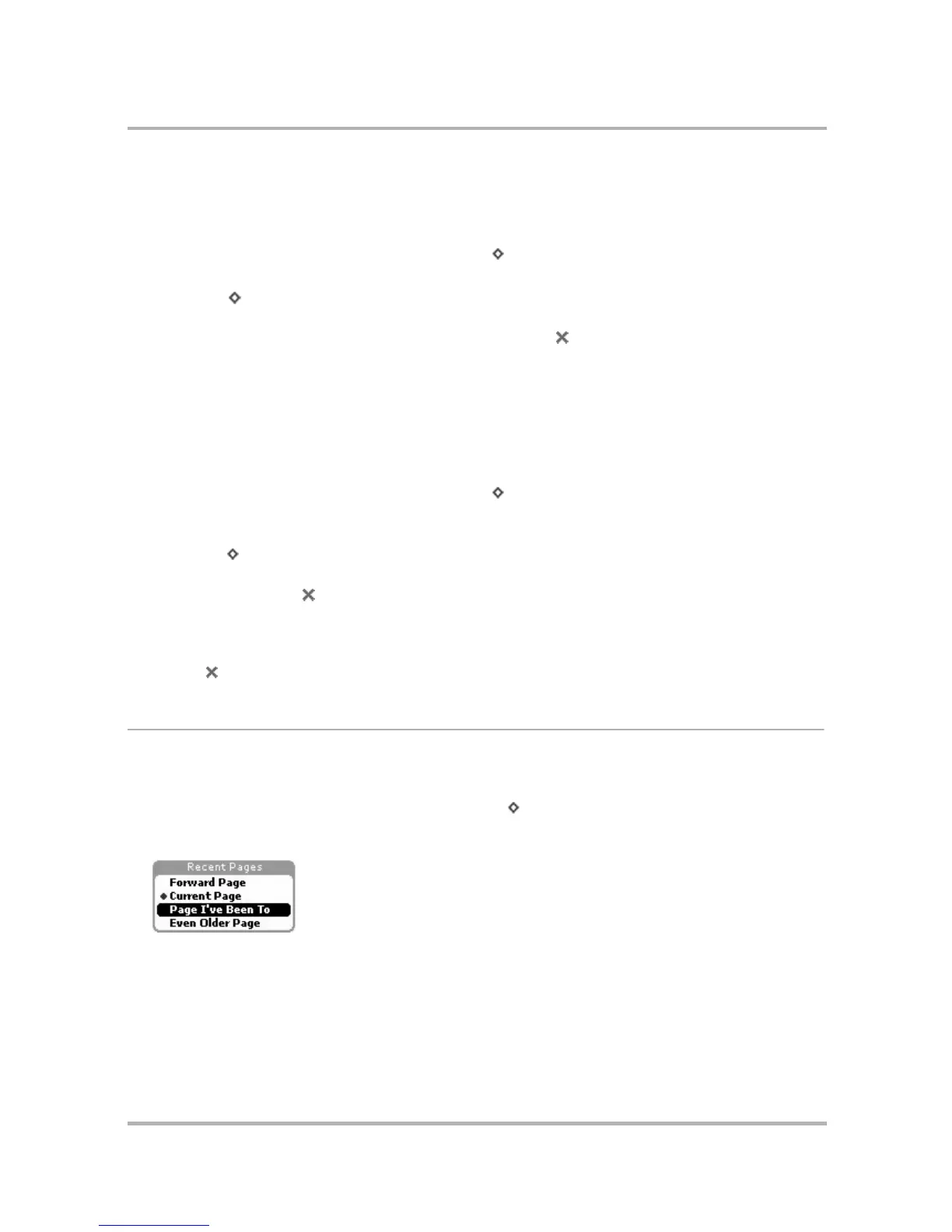
1 Open the Web Browser menu and select Recent Pages [ + L]. The Recent Pages pane opens.
2 Use the wheel to scroll to highlight a page you wish to return to, and press. Notice that the page you are
currently viewing is marked with a diamond and its listing is positioned relative to where you’ve been:
By using Recent Pages, you can easily navigate forward and backward among pages you’ve visited.



 To Next Page