Sending Email from the Web
July 29, 2002 T-Mobile Sidekick Owner’s Manual 175
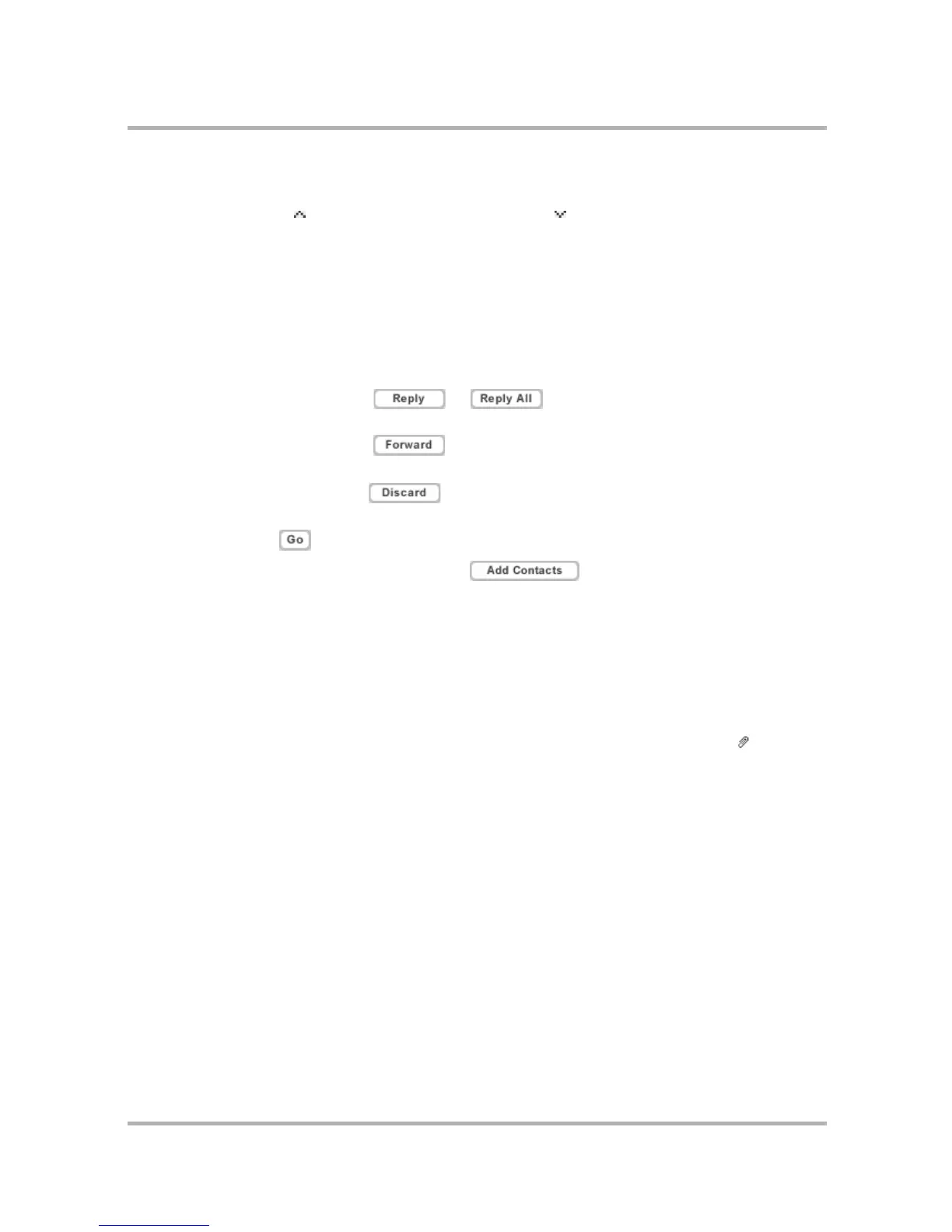
To change the sort arrangement, simply click the heading name on which you want to sort the email. To reverse
the order to descending, simply click the heading name again. The arrow indicates whether the sort is ascending
(new messages at bottom ), or descending (new messages at top ).
Note: If you change the sort order from the default (ascending by date), after you leave the Email application
and then return to it, the sort order will remain the way you last set it.
Read an Email
1 From your Inbox (or another folder), click either the From or Subject of the message.
You can also open an email directly from the Jump page by clicking the email’s From, Subject, or Date.
2 Once you’ve read your email, you can take any of the following actions:
• Reply to the message by clicking or ; this opens a New Message page, with the
From and To fields automatically filled in.
• Forward the message by clicking ; this opens a New Message page, with the forwarded
message included.
• Discard the message by clicking .
• Move the email to a different folder by highlighting a folder in the Move to box at the top or bottom of the
page and clicking .
• Add the sender to your address book by clicking after their email address in the From
field.
• Proceed to your next message by clicking > Next Message at the top of the page; or go to the previous
message by clicking < Previous Message at the top of the page (these options will only appear if you
have a next or previous message).
3 To close the email and return to a folder, simply click the folder name in the Email sidebar.
Open an Attachment
You know an email has an attachment if there is a paper clip icon just to the left of the message ( ). All
attachments are listed as links and display below the message body. Click the link to open or save the
attachment.
Graphic attachments of the following formats are displayed under the message body:
•.gif
•.jpg, .jpeg
•.png



 To Next Page