72 MPH200 series video encoders WebUI user manual
Quality of service (QoS) – introduction
QoS conguration enables the switch to use resources more efciently
to ensure high-quality performance for critical applications. QoS is a
mechanism which is used to prioritize certain trafc as it is moves
through the switch. Trafc can be classied as High, Medium, Normal or
Low priority. This switch features both strict priority-based and weighted
round-robin (WRR) forwarding, with guaranteed bandwidth allocation for
the different QOS classes.
QoS conguration
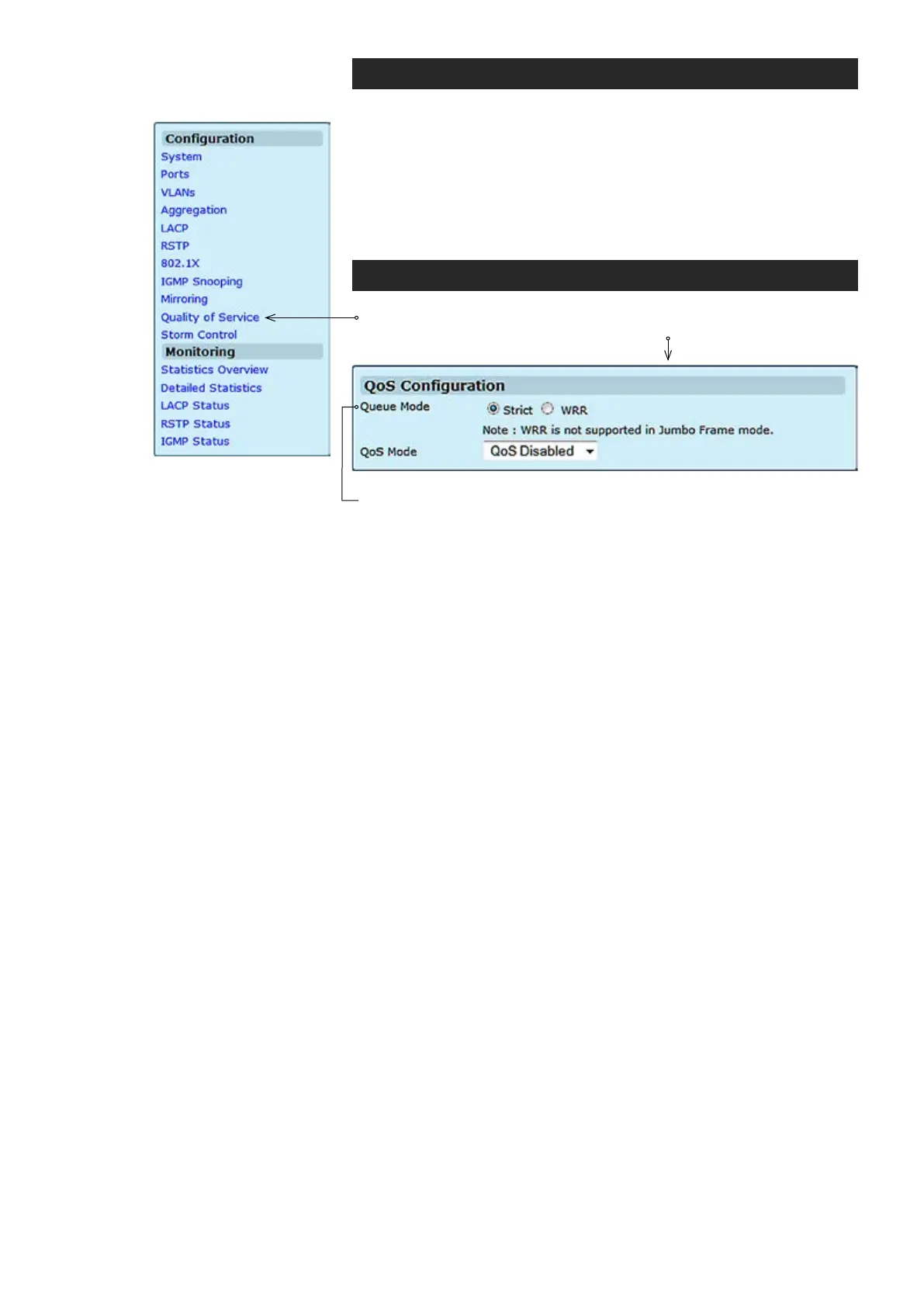
Click “Quality of Service” under the Conguration menu. QoS
Conguration page appears on the screen.
The Queue Mode can be selected by ticking the radio button:
Strict
: Higher priority frames take precedence over lower priority frames
during forwarding. In case of congestion, the lowest priority trafc is dropped
before higher priority frames. Head-of-queue blocking maybe encountered
by using this mode.
WRR
: In this mode, all priorities can be guaranteed a share of the band-
width when the system is overloaded. The bandwidth sharing percentage
can be adjusted by specifying the four QOS class with different ratio in WRR
Weight, which appears after WRR is enabled in Queue Mode
.
Note! WRR is selectable only when Jumbo Frame is disabled in
Ports / Settings.
The QoS Mode can be selected using the QoS Mode drop-down list:
QoS Disabled: QoS is turned off and all packets have equal priority.
802.1p: Packets are prioritzed using the content of the VLAN-tag.
DSCP/DiffServ : Packets are prioritized using the DSCP/DiffServ
(Differentiated Services Code Point) value.
Note: Only one QoS mode can be active at one time. It is not
possible, for example, to prioritise trafc using the DSCP/DiffServ
and 802.1p.
Queue Mode
:
QoS Mode
:



 To Next Page