76 MPH200 series video encoders CLI user manual
Connection methods - local serial connection
This chapter describes how to connect to CLI locally (via
serial cable) using Putty terminal emulator application.
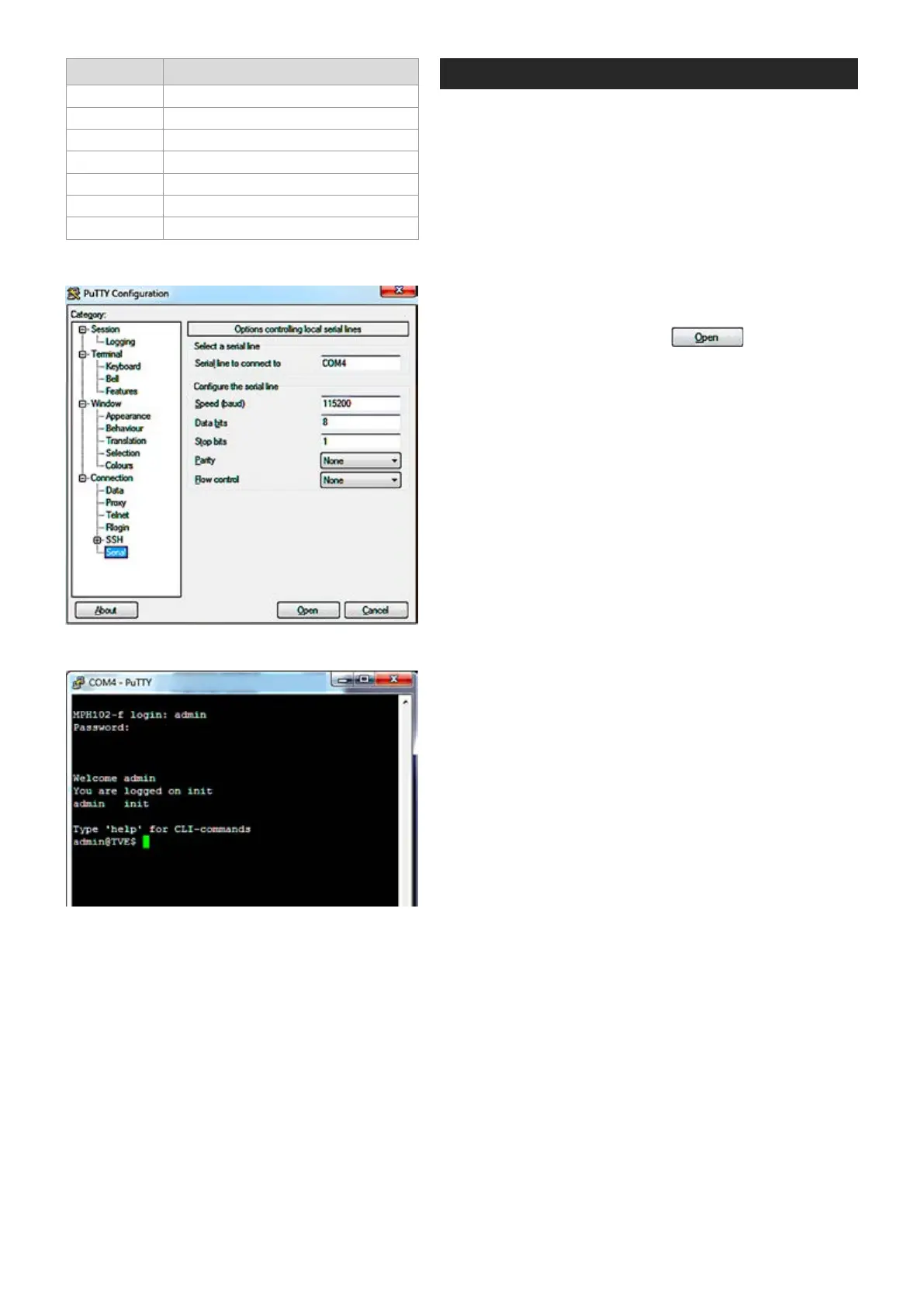
1. Start the Putty terminal emulator application. Wait until
the following “Putty Conguration” window appears on
the screen.
2. Select Serial category to continue. The following “Op-
tions controlling local serial lines” window appears on
the screen.
3.
Choose COM port where the serial (RS232) cable is
connected, e.g. COM4 port and then set here the values as
described in table beside. Click OPEN to continue. The
blank “COM4 - PuTTY” window appears on the screen.
4. To activate the terminal connection rst press Enter -->
“MPH241-f login:” appears on the screen (MPH name
depends on device in question).
5. Enter the required user name and the password (admin/
admin
for administrator)
. The MPH Hyper Terminal
window appears on the screen. The terminal connection
to MPH series video encoder device is now completed
and you can now use the CLI commands to management
the device.
The terminal connection can be terminated by selecting File/
Exit, Alt+F4 or clicking x on the right upper corner of Hyper
Terminal window.
Port settings to local serial (RS-232) connection.
Setting Value
Emulation VT100, VT102 or ANSI
Protocol RS232 (serial)
Baud rate 115 200 kbps
Data bits 8
Parity None
Stop bits 1
Flow control None
Serial (COM port) settings in Putty.
COM port settings in Putty.



 To Next Page