BRAVO – Wireless Alarm Control Panel
37
8. Arm and Disarm Management
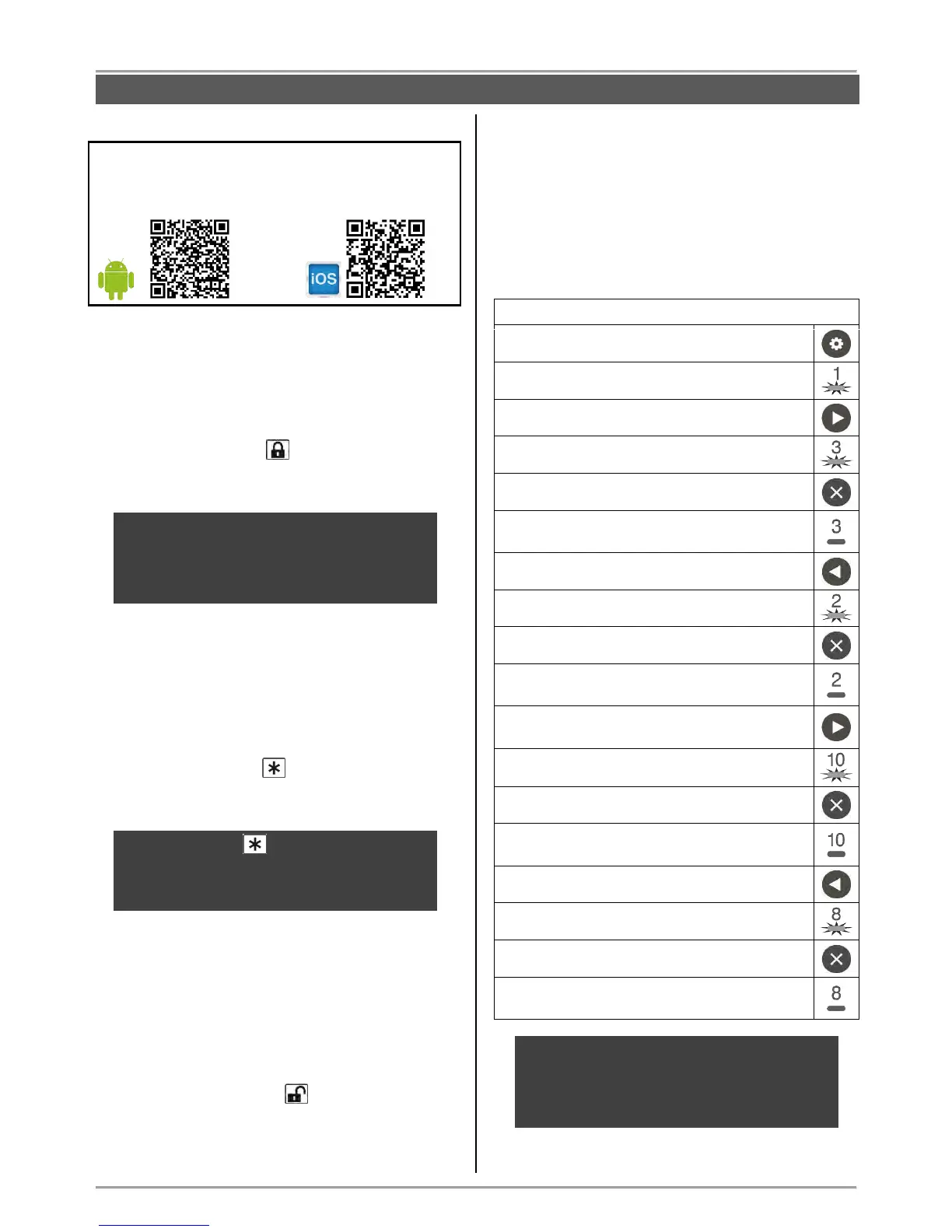
IMPORTANT: To arm/ disarm and to check the status
of your BRAVO panel via smart phone you should install
the mobile application Mobile TTE, which is available for
download and installation from here:
8.1. Full Arming Mode
Full arming mode means all zones are secured exept
the bypassed ones.
The arming is performed with a key fobs, mobile
application Mobile TTE or user web interface AjaxWEB.
To arm the system, press button of the key fob.
An exit time starts running during which the user must
leave the premises.
ATTENTION: The arming can be instant without
exit time for leaving the premises. This depends
on the set default type configuration of the zones
– see the settings of dip-switch 6 in the object
card, item 11!
8.2. Stay Arming Mode
Stay arming mode means the user is allowed to stay at
certain zones – this is a partial arming of the system.
The zones which will stay disarmed in this mode are
programmed via ProsTE software (see item 7.9. –
menu “Stay ARM Settings”).
To arm the system, press button of the key fob. An
exit time starts running during which the user must
leave the premises.
ATTENTION: The button must be enabled
for operation with setting the “Stay ARM” option
via ProsTE software – check the setting in the
object card, item 11!
8.3. Disarming
Going in the entrance zone the user must disarm the
system during the entry time running. The user can
disarm the system with a key fobs, mobile application
Mobile TTE, user web interface AjaxWEB or via panels’
buttons.
8.3.1. Disarming via key fob
To disarm the system, press button of the key fob.
8.3.2. Disarming via panel buttons
Attention: This functionality is available only if a
special disarm code is set via ProsTE software!
Use the arrow buttons to enter digits from 1 to 9,
and 10 for 0.
Example
For illustration of the specialized code entering we will
present entering of Disarm code 3208:
The system is in Full or Stay ARM mode.
Zone 1 is blinking in yellow
Press the “Forward” arrow button to digit 3
Zone 3 is blinking in yellow
Confirm – Press and hold the button for 2-3 sec.
Zone 3 will light for short in green – the digit is
confirmed
Press the “Back” arrow button back to digit 2
Zone 2 is blinking in yellow
Confirm – Press and hold the button for 2-3 sec.
Zone 2 will light for short in green – the digit is
confirmed
Press the “Forward” arrow button to digit 10
(10 is used for entering of 0)
Zone 10 is blinking in yellow
Confirm – Press and hold the button for 2-3 sec.
Zone 10 will light for short in green – the digit is
confirmed
Press the “Back” arrow button back to digit 8
Zone 8 is blinking in yellow
Confirm – Press and hold the button for 2-3 sec.
Zone 8 will light for short in green – the digit is
confirmed
ATTENTION: Entering of the specialized disarm
code can be canceled at any time by pressing
the “Programming” button – that will reject the
entered digits and the user can restart the code
performing.



 To Next Page