BRAVO – Wireless Alarm Control Panel
36
Reading the Log memory file
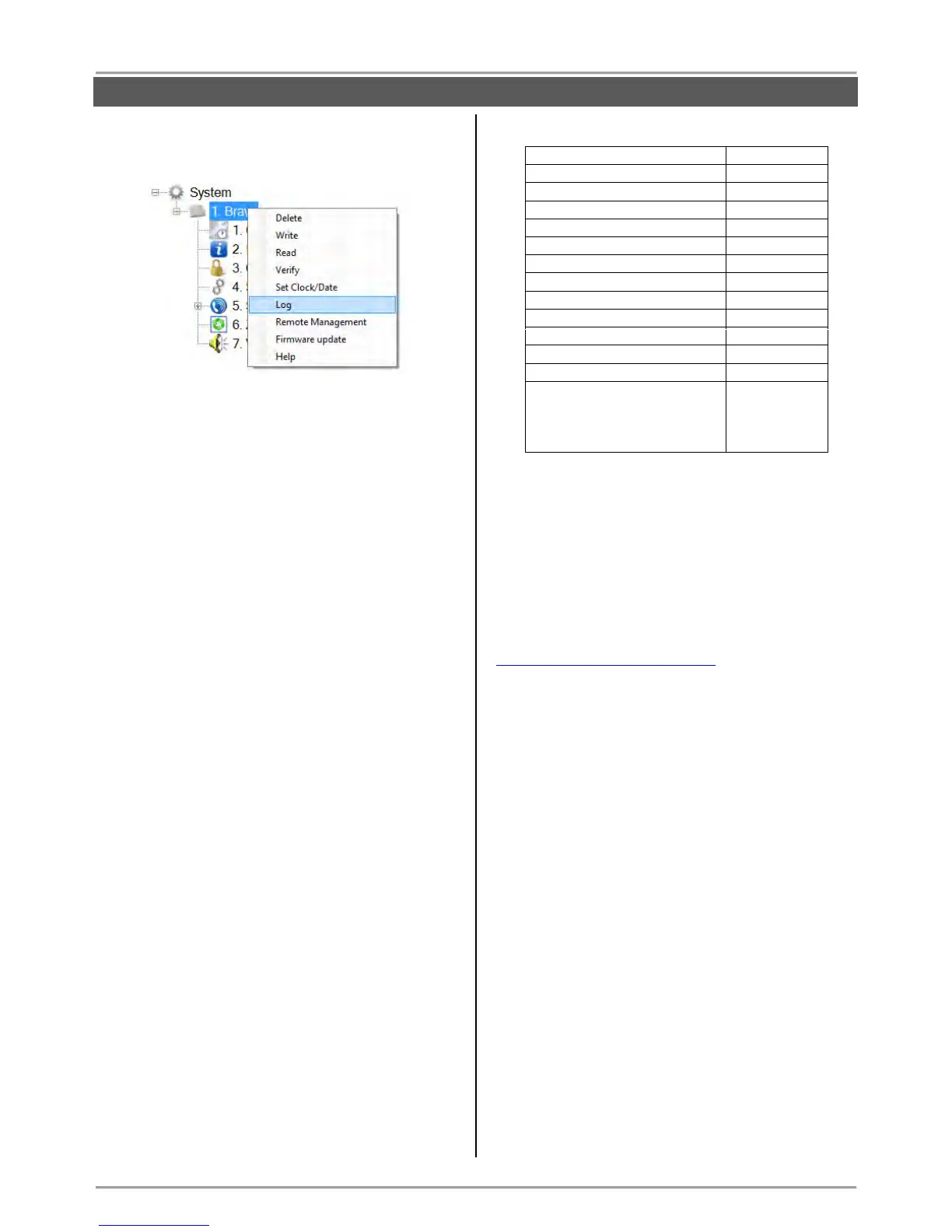
Select the BRAVO panel and use the right mouse
button to open a list with control options:
Select “Log” option. In the “Log” window select the
“RS232” tab. Enter the COM port number to which
you are physically connected. Press the “OK” button.
Enter a valid PC ID (1234 by default) and Valid User
Code (7777 by default) in the “Additional
Parameters”.
In a new window are listed the events in the memory
log file with time and date of occurring. The first
event in the list is the newest one.
7.10. Default Parameters after Hardware Reset
After realizing a hardware reset of BRAVO panel by
default are restored the settings at “General Settings”
menu, the combinations of all user codes, settings of
communication modules, as and the bypassed zones in
“Stay ARM” mode.
7.11. Firmware Update
Actual files (SPF) for firmware update are available for
download for registered users only from the official web
page of the manufacturer:
http://www.teletek-electronics.com
ATTENTION: The firmware update does not affect
on the current system settings and the
configuration parameters of the panel.
During the firmware update process the LEDs for device
groups are blinking together.
To do a firmware update of your BRAVO panel:
1. Download the last actual file for firmware update from
the official web page of the manufacturer and save it to
your local computer or laptop.
2. Connect the BRAVO panel to the computer and run
the ProsTE software.
3. Choose BRAVO system from the drop down menu,
as described in the beginning of item 7.9.
4. Click with the right button of the mouse and choose
from the option list “Firmware update” menu.
5. In the new dialogue window press the Browse button
and select the SPF file from your local computer.
6. Enter in “Device Enrollment” mode on the panel.
7. Press the Update button in the dialogue window.
8. In the dialogue window “Communication” choose a
COM port (to which the panel is physically connected)
and press OK button for confirmation.
9. Wait until the firmware update process is complete -
BRAVO panel will return in normal operation mode.
10. Press the Finish button in the dialogue window..



 To Next Page