48
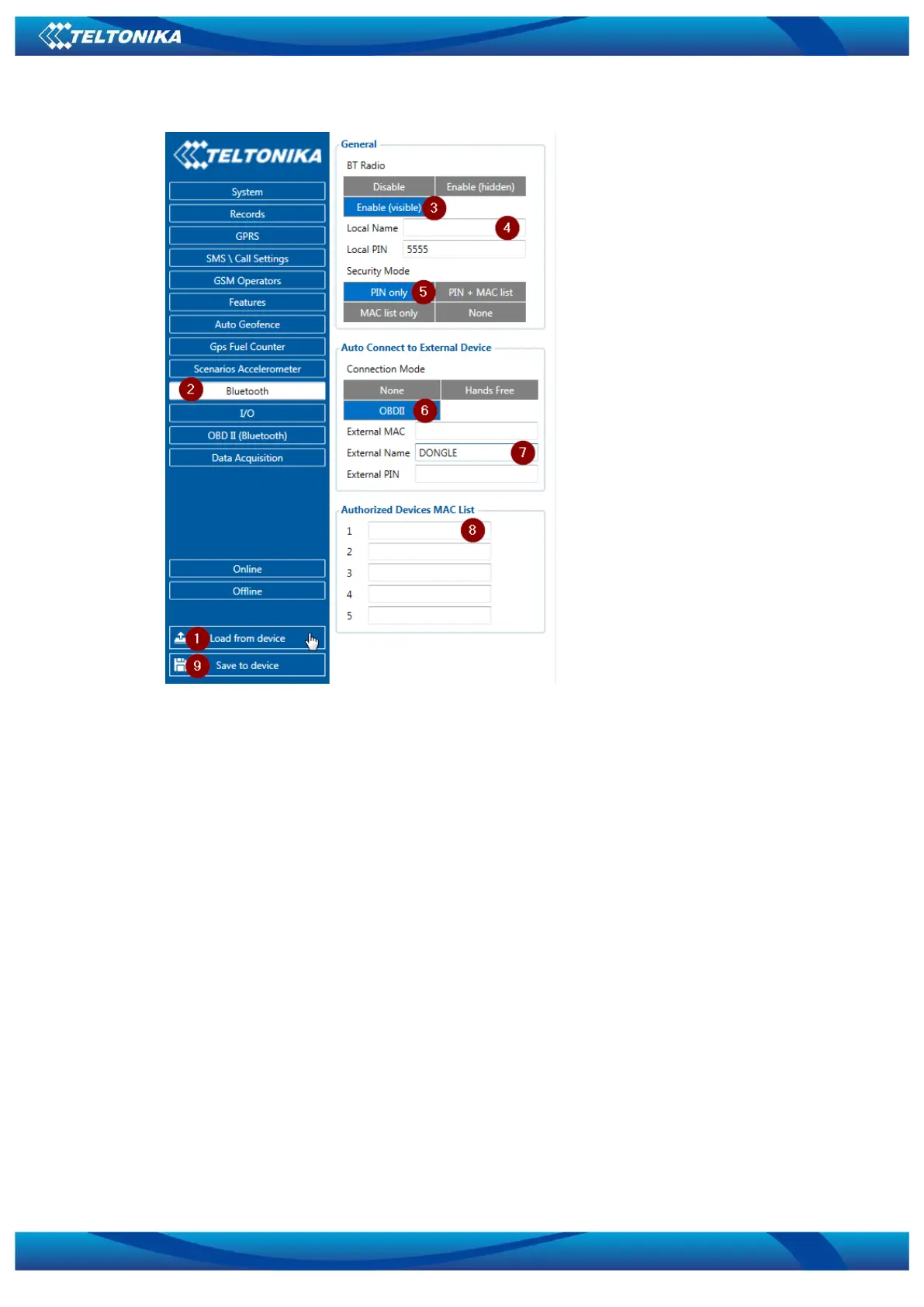
Figure 2.1 Load
configuration from device; 2.2
Bluetooth settings; 2.3 Enable
Bluetooth; 2.4 Bluetooth local
name; 2.5 Bluetooth security
mode 2.6 OBD II connection mode;
2.7 External OBD II Bluetooth
device name; 2.8 Authorized
Devices MAC List; 2.9 Save device
configuration
4. When device configuration is loaded press „Bluetooth“ settings (Figure 2.2).
5. Turn on BT Radio by pressing „Enable (visible)“ (Figure 2.3). You could leave “Local
name” (Figure 2.4) box empty (then device name will automatically be “FMBxx_last 7
IMEI digits”) or type your own name.
6. Set Security Mode (Figure 2.5) to “PIN only” or “None” (you could select “PIN + MAC
list” or “MAC list only” security mode but in this case you need to type external
device MAC address in “Authorized Devices MAC List” (Figure 2.8).
7. Set connection mode to “OBDII” (Figure 2.6).
8. Set „External Name“ as your Bluetooth OBD II device name for proper device
identification and connection to it. In this example OBD II device name is „DONGLE“
but at least 2 characters are needed to recognize it and connect to it. For better and
faster adapter identification in network you could enter a full device name. You could
check your OBD II adapter Bluetooth name by scanning nearby Bluetooth devices
using mobile phone or computer with Bluetooth adapter.
9. Go to “OBD II (Bluetooth)” in left menu and select priority and others parameters
visible at Figure 3.



 To Next Page