74
18.4. Uploading/Downloading Unit Setting File (Use Switch 3.)
Insert the memory card into a PC after downloading the unit setting le from the EV-700 to the memory card,
and you can conrm the setting le on the EV-700 Setting software.
Also, write the unit setting le to the memory card using the EV-700 Setting software in advance, then upload
the setting le from the memory card to the EV-700 after inserting the card into the EV-700, and you can change
the EV-700's settings.
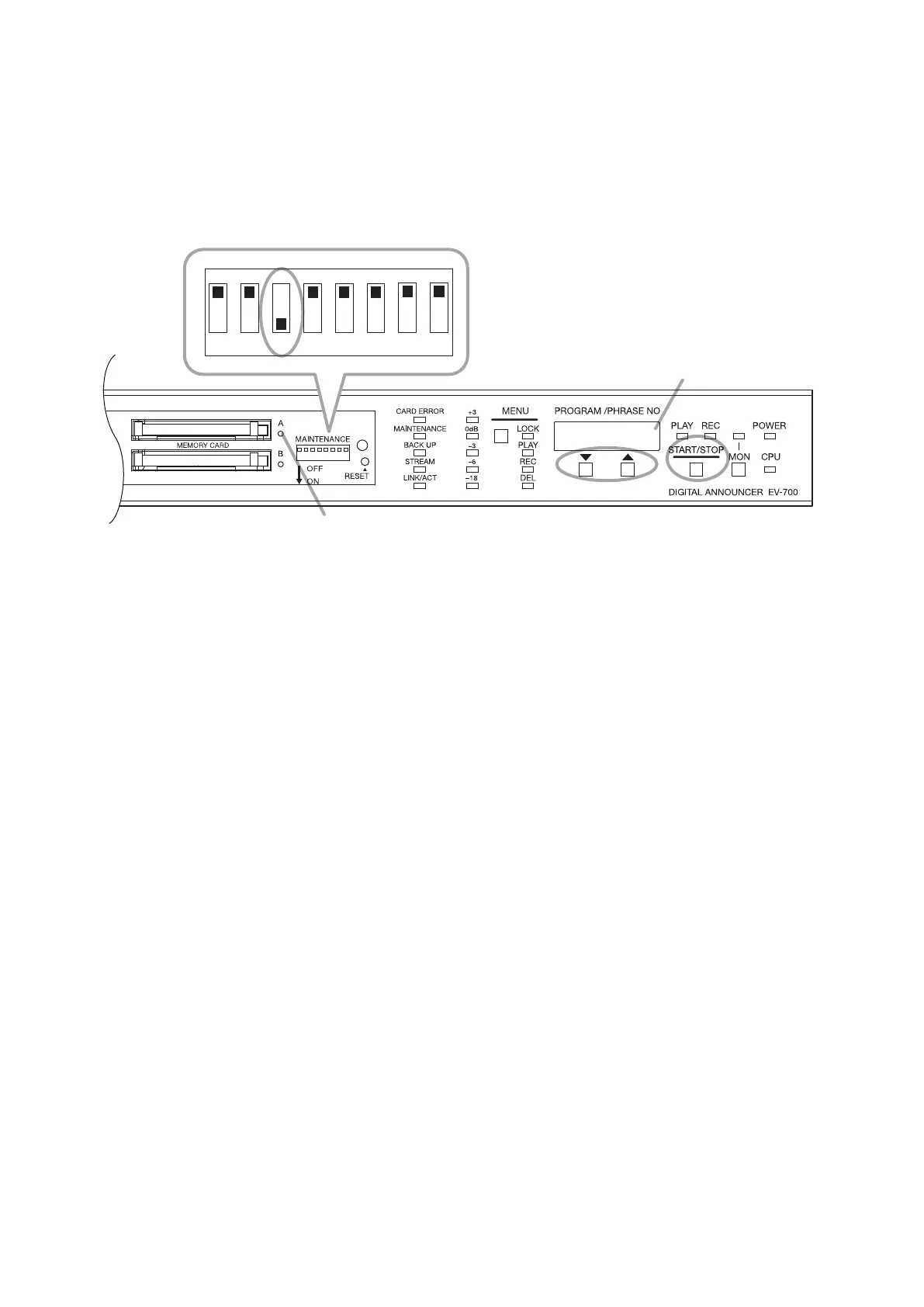
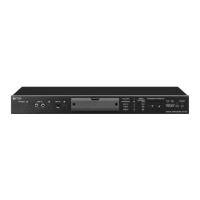
Memory card Slot A access indicator
Status display
1 2 3 4 5 6 7 8
[Downloading the unit setting file to the memory card]
Step 1. Set Switch 3 to the ON position.
Step 2. Press either the Up or Down key to select the "SEtdL" indication on the Status display.
Step 3. Press the Start/Stop key.
Unit setting le is downloaded to the Memory card A.
The Memory card slot A access indicator ashes during download.
Step 4. When the Memory card slot A access indicator stops ashing, return Switch 3 to the OFF position.
[Uploading the unit setting le from the memory card]
Step 1. Set Switch 3 to the ON position.
Step 2. Press either the Up or Down key to select the "SEtuL" indication on the Status display.
Step 3. Press the Start/Stop key.
Unit setting le is uploaded from the Memory card A to the EV-700.
The Memory card slot A access indicator ashes during upload.
Step 4. When the Memory card slot A access indicator stops ashing, return Switch 3 to the OFF position.
3
1, 4
2


 To Next Page