►
Press SHIFT + the pad assigned with a Cue Point.
→
The Cue point is deleted and the pad is unlit.
Snapping to the Beats
You don’t have to worry about being precise enough to set a HotCue directly on a beat; by de-
fault, TRAKTOR will make sure this happens automatically. This is because the Snap mode is
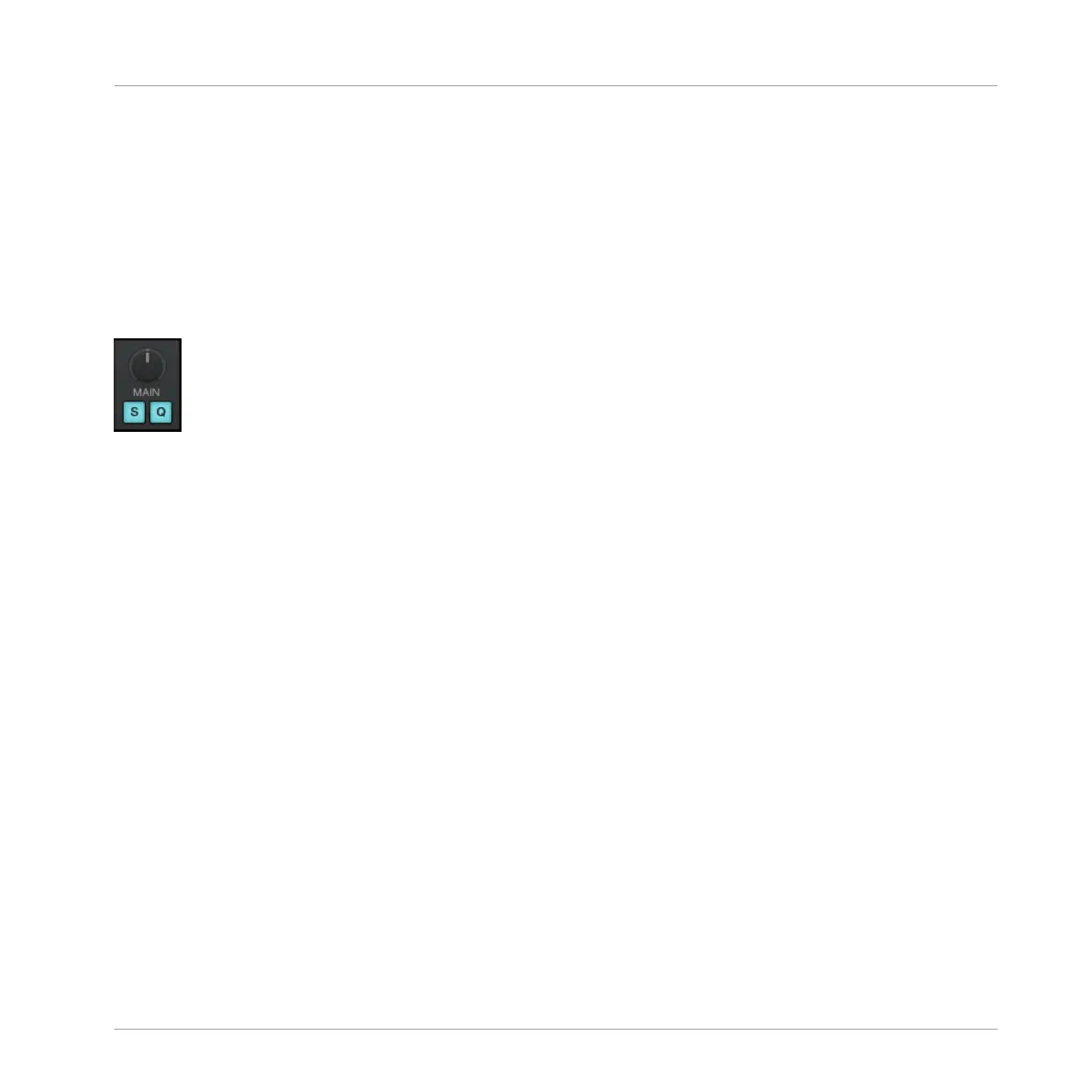
on, indicated by the lit S button located in the top-mid in the TRAKTOR software:
The S and Q button in the TRAKTOR software.
With Snap mode on, any HotCue you set in the track will snap to the closest beat, thus ensur-
ing that recalling a CuePoint will always trigger a downbeat.
2.5.2 Aligning Tracks using HotCues
Aligning two tracks is straightforward:
1. Make sure that Deck C is playing.
1. When you hear a downbeat in the other track, press the pad with the HotCue you just
used to store the downbeat position.
→
The playback position on Deck B jumps to the stored Cue Point, and the playback contin-
ues from there. Both tracks now are perfectly aligned and ready to be mixed.
2.6 Adjusting Deck-specific tempo
Deck-specific tempo adjustments can be made by using BPM mode:
Using Your D2—Getting Started
Using Cue Points
TRAKTOR KONTROL D2 - Manual - 33


 To Next Page