EasyManua.ls Logo

Tripp Lite B030-008-17-IP - User Manual

Tripp Lite B030-008-17-IP
107 pages
Print Icon
To Next Page IconTo Next Page
Loading...
1
Owner’s Manual
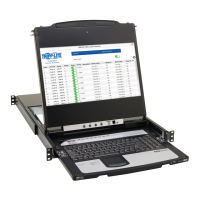
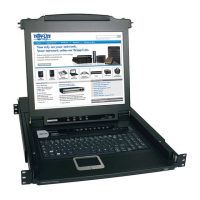
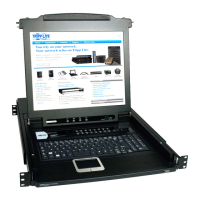
Console KVM Switch
with IP Access
Model: B030-008-17-IP
PROTECT YOUR INVESTMENT!
Register your product for quicker service and ultimate peace of mind.
You could also win an ISOBAR6ULTRA surge protector—a $100 value!
www.tripplite.com/warranty
1111 W. 35th Street, Chicago, IL 60609 USA • www.tripplite.com/support
Copyright © 2016 Tripp Lite. All rights reserved.

Table of Contents

Questions and Answers

  • J
    Joseph SullivanAug 18, 2025
    How to fix web page display issues on Tripp Lite Switch viewer?
    • D
      Debra SullivanAug 18, 2025
      If the web page does not display properly when you open a viewer and you receive an error message about problems with the web page on your Tripp Lite Switch, try the following: 1. Enable Active Scripting, ActiveX Controls, and Java Applets in Internet Explorer's security settings. 2. Verify that Active Scripting, ActiveX Controls, and Java Applets are not blocked by Internet Explorer or another program (e.g. antivirus, firewall, etc.) on your client computer. 3. Verify your anti-virus program is not set to scan the Temporary Internet Files or Downloaded Program Files folders. 4. Delete all temporary internet related files. 5. Make sure you have the latest version of Microsoft DirectX installed. 6. Make sure that you have the latest version of Java installed.
  • S
    Spencer LawrenceAug 20, 2025
    How to resolve 404 error when logging into Tripp Lite B030-008-17-IP Switch?
    • T
      Teresa LopezAug 20, 2025
      If you receive a '404 Object Not Found' message when logging in from a browser to your Tripp Lite Switch, and a login string has been set, make sure to include the forward slash and correct login string when specifying the KVM’s IP address.
  • C
    Christine JacksonAug 23, 2025
    Why are there two mouse pointers on Tripp Lite B030-008-17-IP after remote access?
    • A
      Amanda Chung DVMAug 23, 2025
      If there are two mouse pointers after the remote system is accessed on your Tripp Lite Switch, note that the KVM automatically defaults to show both the local and remote mouse pointers. You can choose to display both mouse pointers at the same time or only the remote mouse pointer.
  • T
    Tara NicholsAug 26, 2025
    What to do if mouse and/or keyboard are not responding on Tripp Lite B030-008-17-IP?
    • A
      Abigail StaffordAug 26, 2025
      If your mouse and keyboard are not responding while accessing the Tripp Lite Switch via local console, try unplugging and re-plugging the cable(s) from the console port(s). Also, try turning the connected computer/server off and then back on. Ensure that all connected devices are powered off when connecting to the KVM.
  • J
    Jennifer KellyAug 28, 2025
    Why can't I access Tripp Lite Switch KVM with correct IP and port?
    • B
      Benjamin SmithAug 28, 2025
      If you cannot access the Tripp Lite Switch even after correctly specifying the IP address and port number, ensure that if the KVM is behind a router, the router’s Port Forwarding (also referred to as Virtual Server) feature must be configured.
  • S
    Stephen CraigAug 30, 2025
    What to do if I have sudden loss of network connection to Tripp Lite Switch?
    • M
      Mark FinleyAug 30, 2025
      If you experience a sudden loss of network connection with your Tripp Lite Switch, close your KVM connection, wait approximately 30 seconds, and then log in again.
  • V
    vjensenSep 2, 2025
    Why I am unable to login to Tripp Lite B030-008-17-IP Switch with my account?
    • T
      thomasmartinezSep 2, 2025
      If you are unable to login to the Tripp Lite Switch with your account, first, make sure you have correctly entered your username and password. Second, make sure your System Administrator has given you proper access to the KVM switch.
  • D
    Dr. Maria SullivanSep 4, 2025
    What to do if there is no video display on Tripp Lite Switch remote console?
    • C
      Colin GouldSep 4, 2025
      If there is no video display on the remote console of your Tripp Lite Switch: * Make sure the monitor resolution displaying the remote computer/server is higher than the remote computer/server. * Make sure the OSD toolbar is closed because mouse movement is often required to bring the screen out of sleep mode, and if the OSD toolbar is open, your mouse input is not being received by the remote computer/server. * Check the Server Interface Unit (SIU) firmware version number to make sure it is the most current. If not, upgrade the SIU’s firmware. * Press and release the left [Alt] key, then press and release the right [Alt] key.
  • C
    cmiddletonSep 7, 2025
    What to do if Tripp Lite Switch remote console display is distorted?
    • J
      Joshua MitchellSep 7, 2025
      If the remote console display is distorted and performing Autosync does not resolve the problem on your Tripp Lite Switch: * Switch to a port with a different resolution, then switch back. * Lower the resolution and refresh rate for the computer/server connected to the port.
  • E
    Eric JonesSep 9, 2025
    Why is my Tripp Lite B030-008-17-IP Switch operating erratically?
    • K
      Keith ParksSep 9, 2025
      If the Tripp Lite Switch is operating erratically, and a KVM switch is cascaded from it, ensure the upper-level KVM is always powered on before the lower-level KVM. If the cascaded switch was turned on first, resetting it may resolve the issue. If not, power off the installation and power everything on according to the installation instructions. You can also reset the unit by pressing and holding the Reset button on the front of the unit for longer than three seconds.

Summary

Important Safety Instructions

General Safety Instructions

Essential guidelines for safe device operation and handling.

Rack Mounting Safety Instructions

Safety precautions specifically for installing the KVM in a rack.

Installation

Standard Rack Mounting

Procedure for installing the KVM in a standard 1U rack.

KVM Switch Installation

Step-by-step guide for connecting computers to the KVM switch.

Network Setup - IP Address Configuration

Steps to configure the KVM switch's IP address.

KVM Operation

KVM Web Interface

User Management

Creating, managing, and assigning permissions to user accounts.

Network Settings

Advanced Network Management Settings (ANMS)

Advanced network configuration options and event settings.

Security

Maintenance

Upgrade Main Firmware

Procedure for updating the KVM switch's firmware.

Backup; Restore

Saving and loading KVM configuration and user profiles.

Remote Session Operation

Control Panel

Tools for optimizing and controlling remote KVM sessions.

Tripp Lite B030-008-17-IP Specifications

General IconGeneral
Device TypeKVM Switch
Number of Ports8
IP AccessYes
RackmountableYes
Power over Ethernet (PoE)No
Input Voltage100-240V AC
Form Factor1U
Management TypeWeb Smart
Operating Temperature32 to 104°F (0 to 40°C)
Dimensions (W x D x H)17.3 in x 6.7 in x 1.73 in

Related product manuals