43
6.4 Clean the printer
For the best print results it is important to keep the Ultimaker S5 clean while using it. It is advised to not use the
Ultimaker S5 in a room where it can easily be covered with dust, and to remove small pieces of material that might be
in the printer. Besides this, there are a few parts in the Ultimaker S5 that might require more regular cleaning.
Clean the glass/aluminum build plate
After printing, there might be print leftovers or excess glue stuck to the build plate. This can cause an uneven print
surface. Potential sources of contamination are dust or fatty substances such as finger grease. Removing a print may
also reduce the adhesion quality of a layer of glue. It is advised to regularly clean the build plate and reapply glue (if
applicable).
Before starting a new print, always check the surface of the build plate. At least once a month, clean the build plate
thoroughly by taking the following steps:
Always make sure that the build plate has cooled down and is lowered to the bottom of the Z axis.
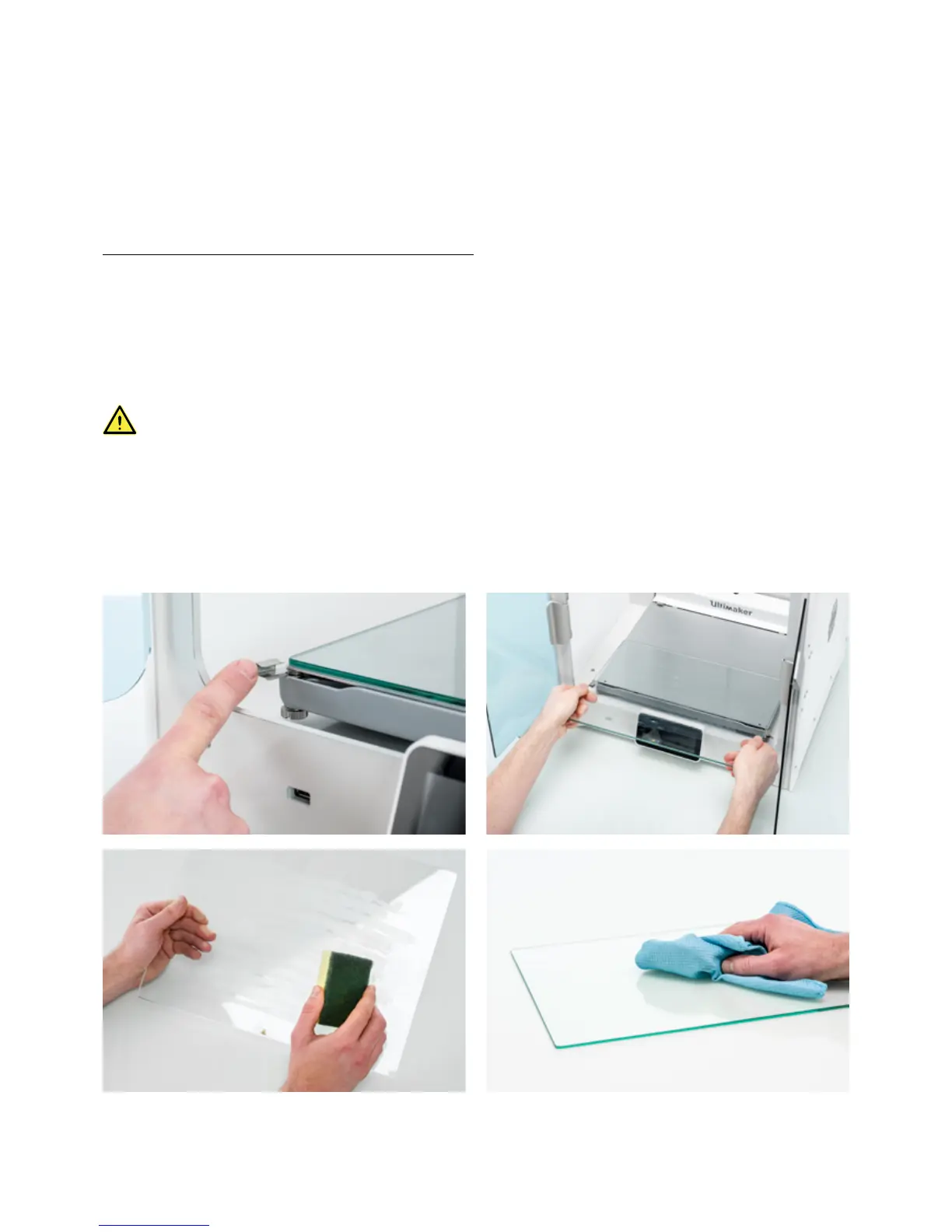
1. Open the build plate clamps at the front, slide the glass or aluminum build plate forward, and take it out of the printer.
2. Use lukewarm water and a non-abrasive sponge to clean the build plate and to remove any adhesives. If necessary,
some detergent can be used to remove adhesives, or alcohol gel can be used to get rid of any fatty substances.
3. Dry the build plate with a clean microfiber cloth.
4. Place the glass or aluminum build plate on the heated bed with the warning sticker facing upwards. Ensure that it
snaps into the build plate clamps at the back and close the build plate clamps at the front to secure it.














 To Next Page