30
5.4 Start a print
Print with Cura Connect
The Ultimaker S5 offers the possibility to print over a network, either via Wi-Fi or Ethernet. This can be done with Cura
Connect in Ultimaker Cura when your Ultimaker S5 and computer are connected to the same network.
To start a print via Cura Connect:
1. Connect your Ultimaker S5 to a network (if not done yet) via Wi-Fi or Ethernet:
• Wi-Fi: Install Wi-Fi by going to Preferences g Network g Start Wi-Fi setup and follow the steps on the touchscreen.
See chapter 4.4 Network installation and firmware update for more information.
• Ethernet: Connect the Ethernet cable to the socket at the back of the Ultimaker S5 and the other end of the cable
to a router or modem.
2. Enable Wi-Fi or Ethernet in the network menu.
3. In Ultimaker Cura go to Settings g Printers g Manage printers.
4. Click on the Connect via network button.
5. Select your Ultimaker from the list of printers that are shown and click Connect. This printer is now the group host.
6. Slice your 3D model in Ultimaker Cura.
7. Press Print over network to start the print.
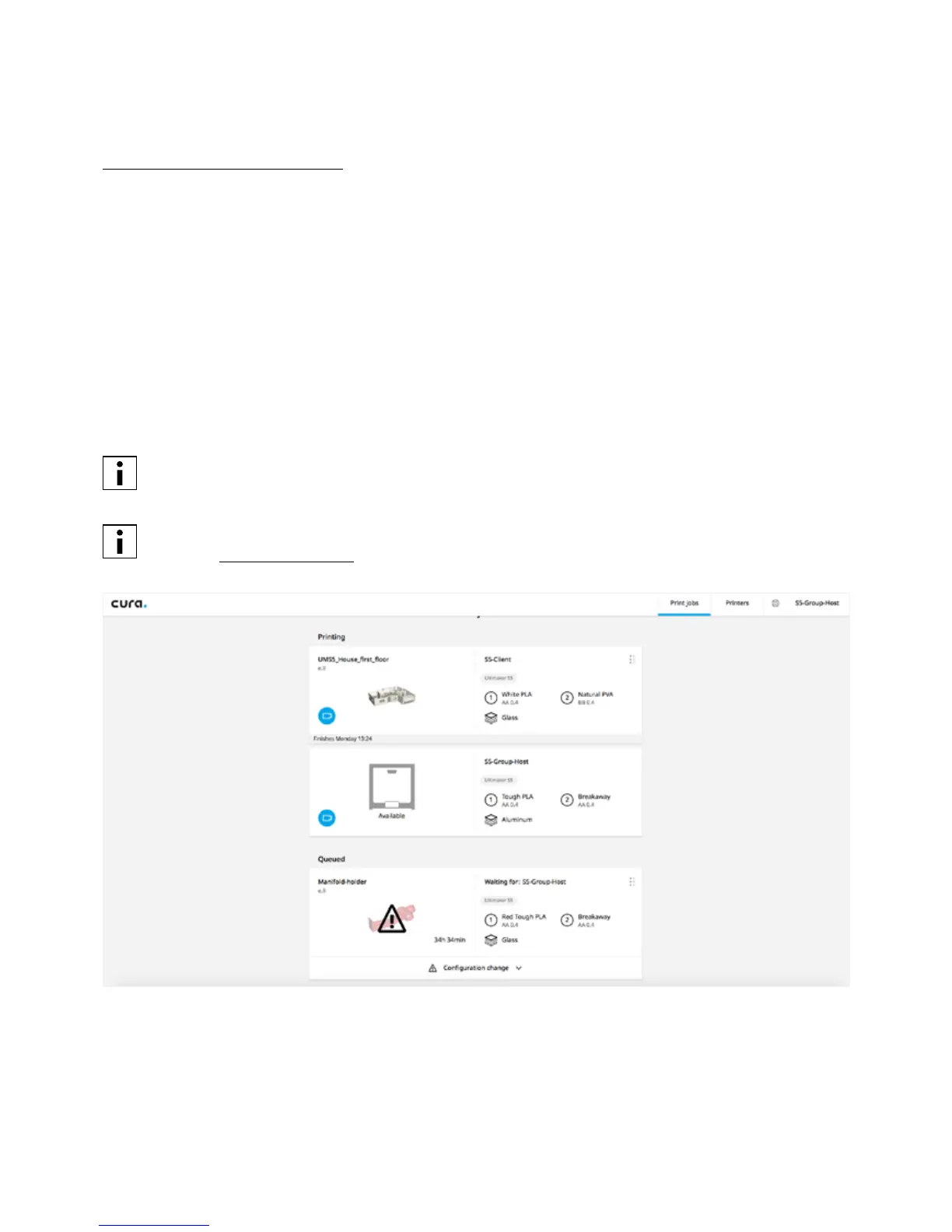
Once the print is running you can monitor it by opening the Monitor tab at the top of the screen in Ultimaker
Cura or via the Cura Connect app. This allows you to view the progress of your prints and to control your
Ultimaker S5(s) at a distance.
When sending multiple print jobs, Cura Connect will automatically add them to a queue.
View the Cura Connect manual for a more elaborate description of all features.














 To Next Page