20
4.3 Load materials
Before you can start printing on the Ultimaker S5, you need to load materials into the printer. For the first use, it is
recommended to use the spools of Tough PLA and PVA that come with the Ultimaker S5.
Load material 2
Material 2 will be loaded first because this is the material that must be placed closest to the back of the printer. Select
Material 2 from the list shown on the touchscreen, select Start, and then take the following steps to load the material.
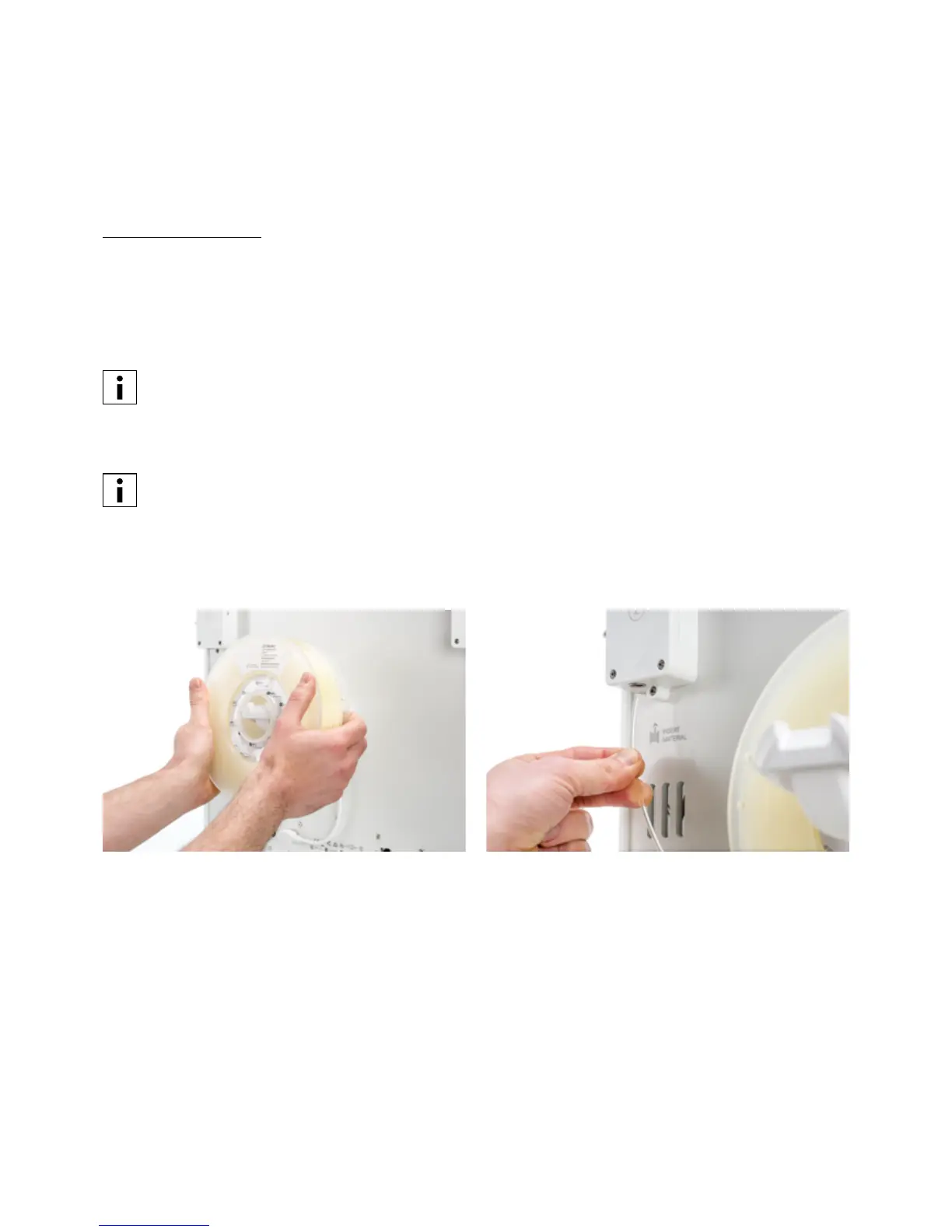
1. Place the spool with material 2 (PVA) onto the spool holder and select Confirm. Make sure the end of the material
points in a clockwise direction, so that the material can enter feeder 2 from the bottom.
2. Wait until the Ultimaker S5 detects the material and Confirm.
When using a third-party material you can select the material type manually.
3. Insert the end of the material into feeder 2 and gently push it until the feeder grips it and the material is visible in
the Bowden tube. Select Confirm to continue.
You can straighten the end of the material a bit so it can enter the feeder easier.
4. Wait for the Ultimaker S5 to heat up print core 2 and load the material into the print head.
5. Confirm when the new material extrudes consistently from print core 2.
6. Wait a moment for print core 2 to cool down.














 To Next Page