17
BarcodeGuy.com® - UnionNet SP2100 User’s Guide
IMPORTANT! In a production environment with multiple SP2100’s in the same area, it’s a good idea pair one SP2100 with one host.
Multiple host pairings can cause headaches if you turn on an SP2100 & it pairs with an unintended host. Multi-host works best for an
individual (i.e. pairing to Joe’s laptop, Joe’s iPad and Joe’s Android phone). Make sure just the host you want is the only one available.
3.6 - HID Tips & Tricks with the SP2100, con’t
Your SP2100 is programmed so you can manually disconnect the active bluetooth connection. This not only gives you the
ability to save battery power on the scanner and tablet, smart phone or laptop, it allows you to do remote data collection
with the scanner only. As mentioned above, in many SP2100 installations, it is used without a host, storing barcode data in
memory for download later. With its rugged design, convenient size and long battery life, remote data collection is an ideal
use for the SP2100.
IMPORTANT!
In rare instances, barcodes may be incorrectly received by the host or even skipped due to lags in bluetooth
communications. In such cases, refer to
Section 3.7 - Setting Transmission Delays
To Disconnect from the Current HID Connection: PRESS & HOLD the Bottom Side button for 3-5 seconds. The
SP2100 double-beeps, the Staus Bar displays the default “MUX” configuration and the LED indicator flashes red.
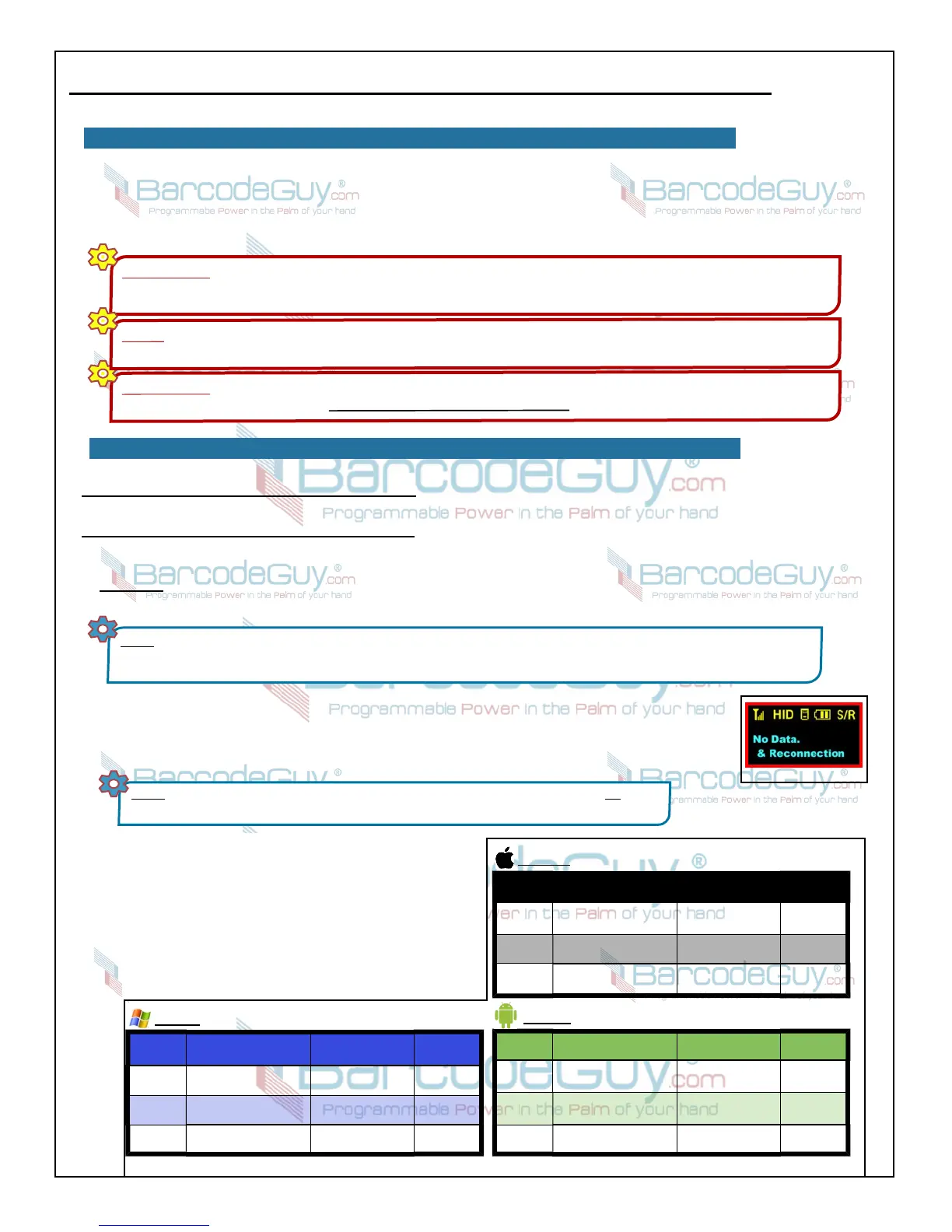
To Reconnect to the Last Active HID Connection: PRESS the Bottom Side Button for less than a second and release
it. The SP2100 will beep, the Status Bar will change from MUX to HID and “No Data & Reconnection” will be briefly
displayed on the screen (figure 3.13). The green LED Indicator flashes indicating an active bluetooth connection.
In Section 2.8, we discussed different bluetooth connection modes. The Bottom Side button disconnect feature works with
HID, SPP and MFI connections. UnionNet provides Android and Apple iOS sample applications that use SPP and MFi to
3.7 - Disconnecting / Reconnecting Bluetooth
control the SP2100 on a “granular” level. The demos are provided for software developers and are
meant to demonstrate the features of the SDK.
Refer to figure 31 for Bottom Side button press results in HID, SPP and MFi bluetooth connection
types.
NOTE: You’ll probably also find that the SP2100 is so convenient that you’ll walk out of the 30 foot bluetooth connection radius with
it in your pocket or hanging around your neck. Don’t worry, the SP2100 is smart enough to shut down the bluetooth radio by itself to
save power. When you come back in range, just follow the reconnect instructions below.
NOTE: If your SP2100 has been connected to multiple hosts and the bluetooth radio of the last
connected host is not available, the SP2100 will not connect to any of the other hosts, even if available.
figure 3.14
Bluetooth
Profile
To Disconnect To Reconnect
Toggle Soft
Keypad
HID
Bottom Side Button PRESS
& HOLD 3 seconds
Bottom Side Button
PRESS & RELEASE
N/A
SPP
Bottom Side Button PRESS
& HOLD 3 seconds
Bottom Side Button
PRESS & RELEASE
N/A
Mfi - not
recognized
N/A N/A N/A
Android
Bluetooth
Profile
To Disconnect To Reconnect
Toggle Soft
Keypad
HID
Bottom Side Button PRESS
& HOLD 3 seconds
Bottom Side Button
PRESS & RELEASE
Press &
Release
SPP - not
recognized
N/A N/A N/A
MFi
Bottom Side Button PRESS
& HOLD 3 seconds
Bottom Side Button
PRESS & RELEASE
Press &
Release
Apple iOS
Bluetooth
Profile
To Disconnect To Reconnect
Toggle Soft
Keypad
HID
Bottom Side Button PRESS
& HOLD 3 seconds
Bottom Side Button
PRESS & RELEASE
N/A
SPP
Bottom Side Button PRESS
& HOLD 3 seconds
Bottom Side Button
PRESS & RELEASE
N/A
Mfi - not
recognized
N/A N/A N/A
Windows
Dropped / changed barcode characters or missing barcode
strings is an uncommon occurrence with the SP2100 and the
universe of different device OS’s, core processors, memory,
keyboard buffer processing speeds and the precedence of HID
bluetooth input processing by the host. The SP2100 defaults
normally work flawlessly. Changing the delay options are
sometimes necessary when the host application program is
slow. Examples of slower host applications could be delayed
response web or database programs or RDM (remote desktop
management) where the tablet of smart phone is running a PC
NOTE!
When the SP2100 is set to MFi mode, it may not be able to connect (or have the features of) the normal HID connection. MFi
Mode is strictly for Apple AppStore application programs (including B2B) that communicate using MFi (secured SPP) bluetooth protocols.
figure 3.13


 To Next Page