23
BarcodeGuy.com® - UnionNet SP2100 User’s Guide
5.8 - Summarizing Custom Prefixes and Suffixes
Prefixes are designed and implemented in the same way as the suffix example shown above. If you’re just starting
with barcode scanning, it may be difficult to imagine how the SP2100’s ability to add keystrokes before and after the
barcode characters is often essential in getting the scanner to integrate and work well with the software you’re using for
data collection. The example usage of suffixes serves as only an introduction to what can be done using only the
SP2100’s three character Prefix & Suffix. It may be hard to image when you’re first starting, but the ability to add a
prefix and suffix to the scanned barcode data is sometimes essential to get the barcode scanner to integrate properly as a
HID into the software you’re using.
Don’t forget, if there’s something you need the SP2100 to do in the area of formatting, prefixes or suffixes, we’re only a
phone call away. We love challenging problems and all the BarcodeGuy(s) are experienced and love a challenge!
6.0- SP2100 Factory Defaults
There are many options accessible through the SP21000’s System Menu. Each setting comes from the factory set what’s
thought as the most useful settings for you to get started with a HID connection. The default settings are shown in
Appendix B. Each setting is accessible through the System Menu and how they are set when the barcode scanner is
delivered to you.
You can customize the settings in the System Menu however you want or need to in order to set up the SP2100 and we
encourage you to do so. Just be aware that changing some settings in combination with others may lead to some
unpredictable and surprising results. Just take your time and be methodical about the way you make the System Menu
changes on your SP2100.
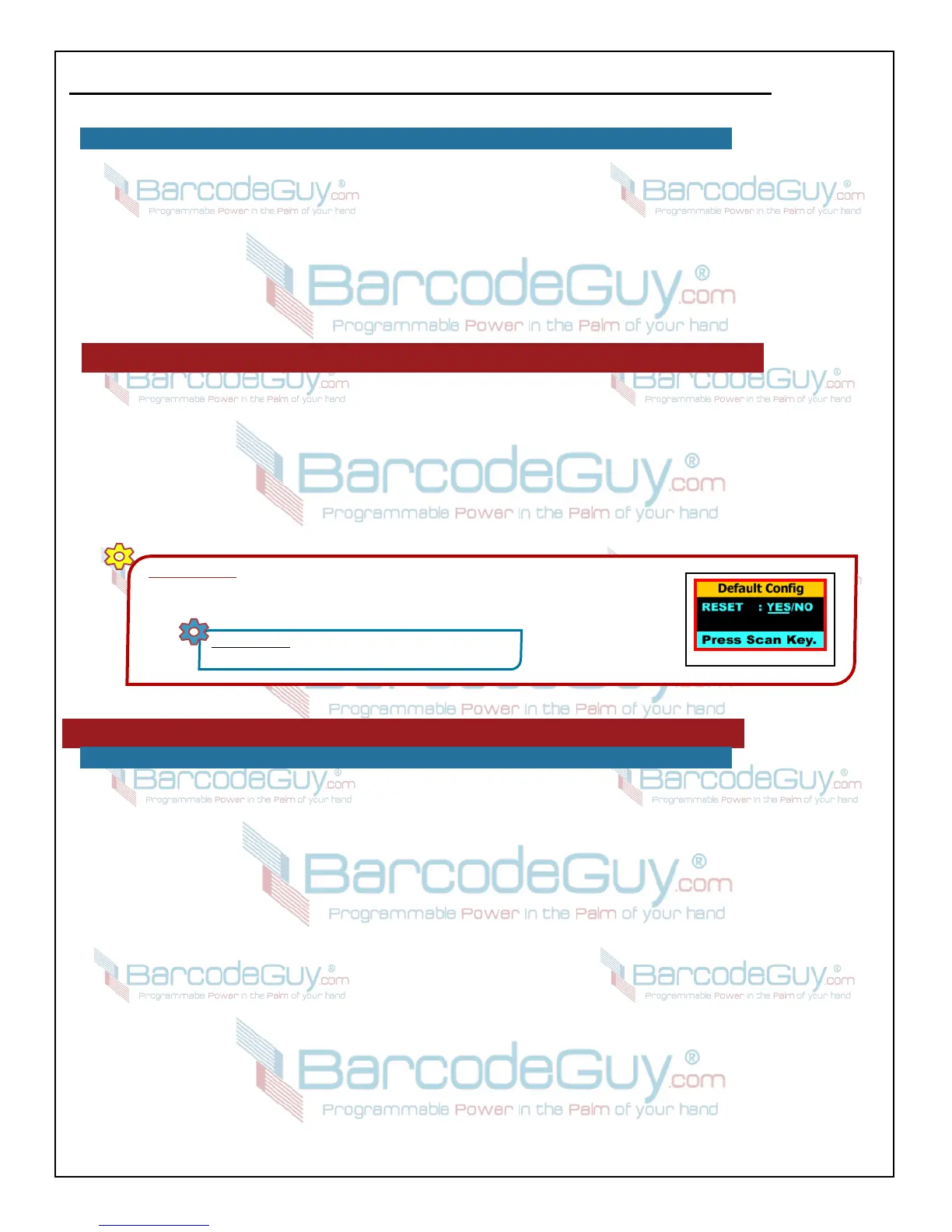
IMPORTANT! If you’ve made changed to your SP2100’s System Menu and its not acting like it
did when you started initially or the way you’d expect it to with the System Menu changes you’ve
made, just reset the Factory Defaults. Here’s how - refer to figure 42:
SHORTHAND: SM>>2.Settings>>9.Default Config>>
Side Buttons “YES”>>Scan Button
figure 42
7.0 - Barcode Symbologies - Setup Barcodes
7.1 - Why are there Barcode Symbology Setup Options?
The decoder is the part of your SP2100 imager that does the mathematical analysis of the different barcode symbologies that it
sees. Think of the work symbology as the language of the particular barcode being used. The SP2100 2D imager can read 26
different barcode symbologies, each with rules for the orientation and scale of the printed and non-printed areas of the code and
mathematical rules that allow the decoder to translate the printed and blank areas into the actual characters the barcode represents.
The SP2100 1D Laser Scanner can read all major 1D barcodes. But just as humas need the text under the barcode to understand
what is encoded, the SP2100 decoder has rules that allow it to understand and translate the barcode into characters. The barcode
symbologies that the SP2100 can decode can be found in Appendix H of this Guide.
Because most of the symbologies are enabled by default, you can improve the overall speed and performance of the decoder by
turning on only those symbologies that you use in your application and disabling the rest. For example, if you had a order pick /
inventory application, you may only have UPC, Code128 and Code39 barcodes available. In a attendance / venued event
application, you may be reading QRCodes directly from a client’s cell phone. You can make scanning faster and more reliable if
you shut off those barcode symbologies that you’re not using. Further, limiting the symbologies that can be scanned adds a level
of validation to the input, eliminating the chance of error.
Some barcode symbologies contain check digits, the remainder of a mathematical operation on the ASCII equivalent like a sum
or a product of the digits together, as well as other options specific to the symbology itself. Changing the configuration of the
symbology is another way to customize your SP2100 specifically to your application and needs.
The setup barcodes for the decoder of the SP2100 2D Imager are found in Appendix B. Appendix C contains the setup barcodes for
the SP2100 1D Laser.


 To Next Page