75
BarcodeGuy.com® - UnionNet SP2100 User’s Guide
APPENDIX K- System Menu / Firmware Set Options by Barcode, con’t
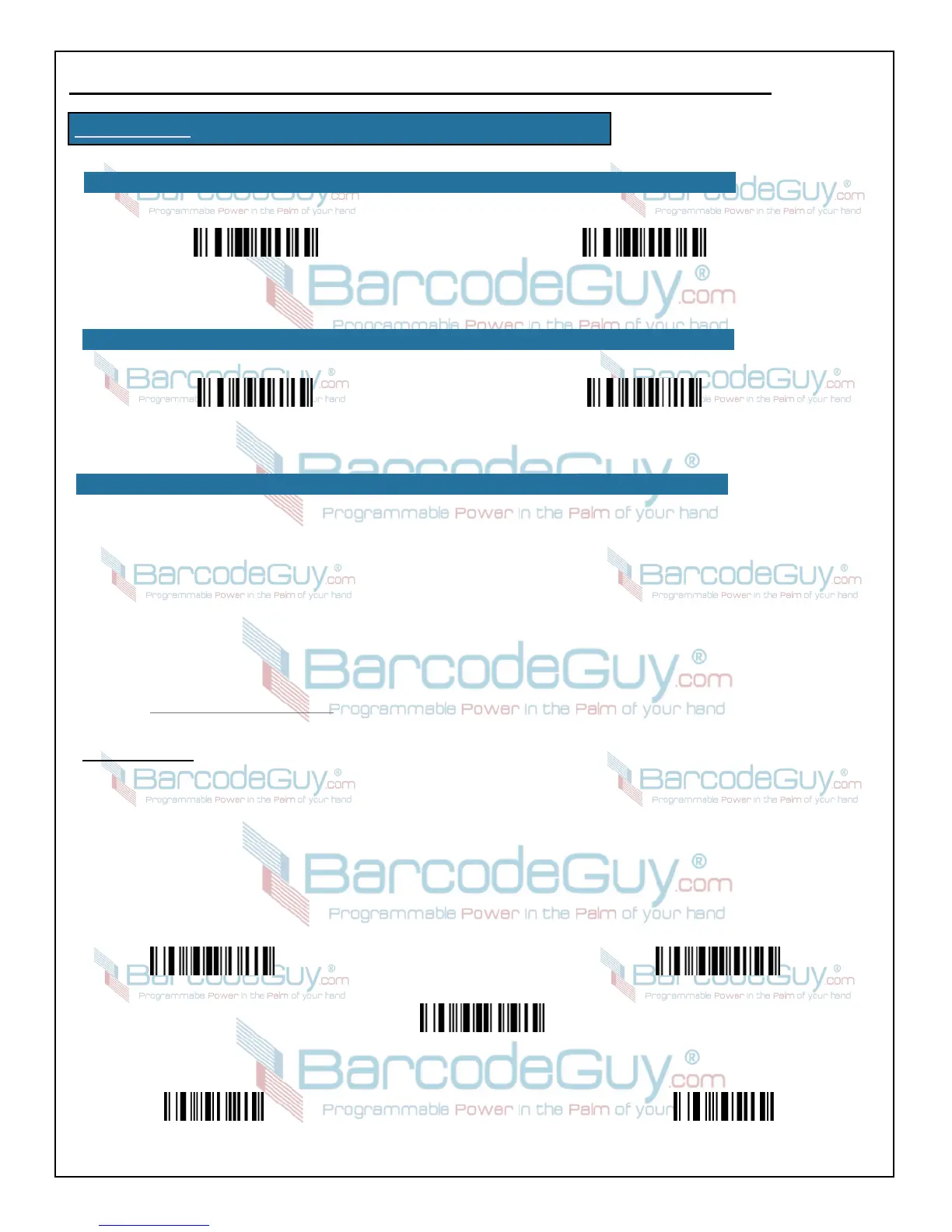
Program BundleID
Start Characters
Program AppleID Program ProtocolID
End Characters
K.12 - Bluetooth>>Program Mfi Bundle, Protocol or Apple ID
Normally, setting the Bundle, Protocol and AppleID is done by scanning a barcode representing the proper settings. Take a look at the
BundleID and ProtocolID as shown for the iOS Unilinker installation and demo from Appendix D. Note that the format for these settings
are as follows:
1. The BundleID begins with the characters “^ikr.”, followed by the BundleID
2. The ProtocolID begins with the characters “^pkr.”, followed by the ProtcolID
3. Although not required to make the association between the SP2100 and your iOS App, the option to set the AppleID is provided.
As a primary source, we recommend generating a barcode with the appropriate iOS ID’s as a fail safe method for entering these into the
scanner’s firmware. There are many online barcode generators available. You can also use a barcode font, readily and inexpensively
available at Carolina Barcode Barcode Fonts. Although we highly recommend this method, the manual method below is provided to allow
iOS App ID settings in the field where a printer may not be available.
INSTRUCTIONS:
1. Scan the barcode for the ID you want to set, either the “AppleID”, “ProtocolID” or “BundleID” barcodes below.
2. Scan the “Start Characters” barcode to signal the scanner that you will be scanning the characters that make up the ID
3. From the barcodes that follow, scan each character of the ID you are entering. You must ensure that you include the up cap, periods
and all the characters of the appropriate ID.
4. Finally, scan the “End Characters” barcode below. You will see an acknowledgement on the screen of the SP2100 indicating that the
appropriate ID was set successfully.
Enable
K.11 - System Menu>>Bluetooth>>Auto Reconnect
Disable
K.10 - System Menu>>Bluetooth>>MFi Mode
EnableDisable


 To Next Page