63
BarcodeGuy.com® - UnionNet SP2100 User’s Guide
D.3 - Set Bluetooth MFi Mode on the SP2100, con’t
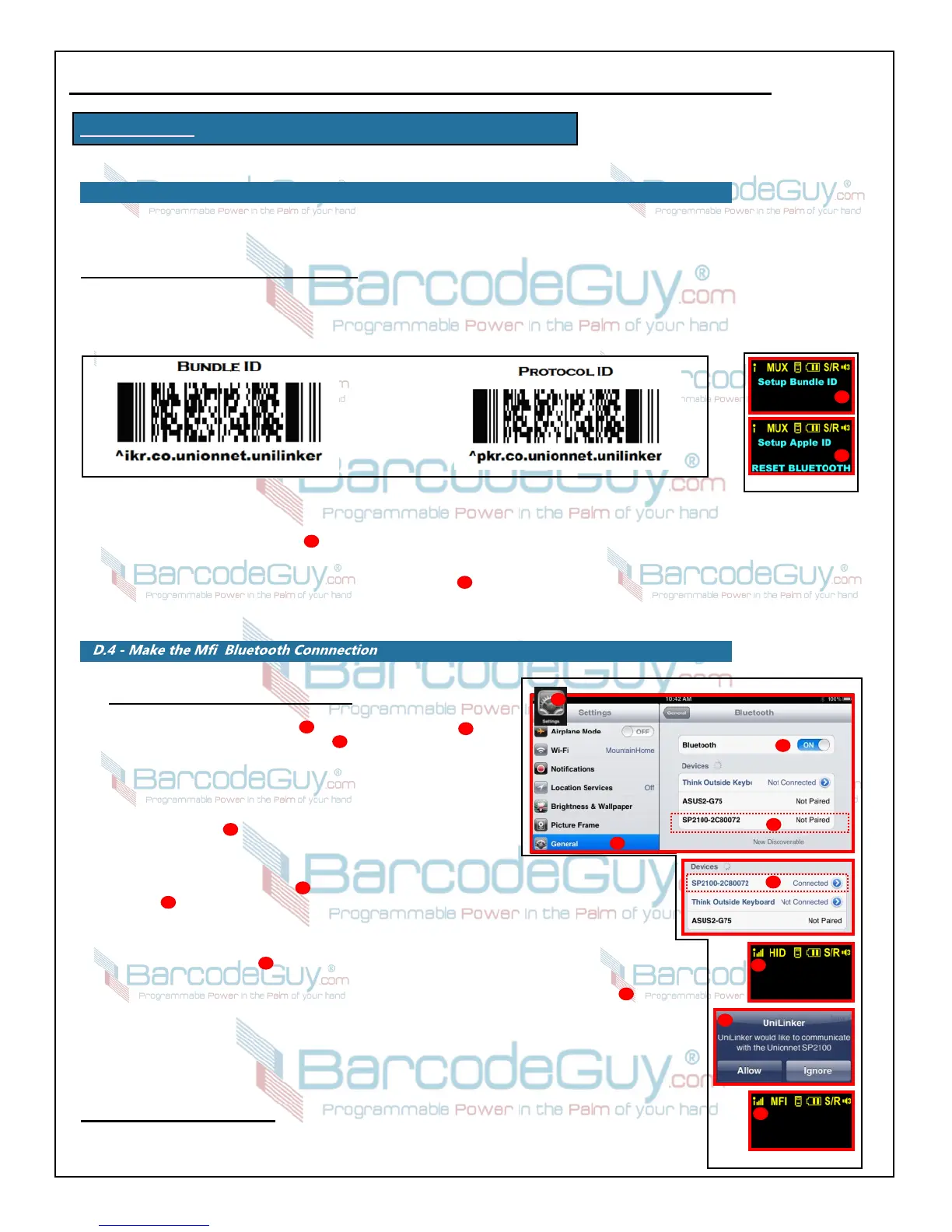
If the SP2100 displays MUX and there is an “i” on the far left of the Status Bar as circled in green in figure D2, continue by
scanning the Bundle and Protocol barcodes in the instructions below.
Set the Bundle and App (protocol) ID’s -
In order for the SP2100 to recognize that it supposed to work with the UniLinker application, the iOS device needs to know
the Bundle and App ID’s. An App ID is the ID number of the Unilinker program in the AppStore, and the BundleID is
used by iOS on the host to uniquely identify the application. We’ll scan barcodes to set each.
Refer to figure D3 and figure D4 above:
1. Scan the BundleID barcode on the left side of figure D3 above. The SP2100 will momentarily display the
“Setup Bundle ID” screen , then return to the main screen and Status bar.
2. Scan the AppID barcode on the right side of figure D3 above. The SP2100 will momentarily display the
“Setup Apple ID - RESET BLUETOOTH” screen.
You can now set up the bluetooth connection between the SP2100 and your Apple mobile device.
figure D4
2
1
1
2
On the iPad - iPhone - iPod Touch - Refer to figure D5
1. Select the “Settings” icon , then select “General”
Make sure the Bluetooth slider is set to on.
2. The iPxx will search for new bluetooth devices as
indicated by the swirling circle .
3. The iPxx will find the SP2100 and list it as “SP2100-
XXXXXXX” where the last 7 digits are the serial
number of the barcode scanner.
4. Press on the “SP2100” line. After a few moments the iPxx
will display “Connected” . The SP2100 will beep and display HID in the Status
Bar .
5. A few moments after the HID connection is displayed on the SP2100, the iOS
device will display a message “UniLinker would like to communicate with the
2
1
4
3
5
6
UnionNet SP2100. Press the “Allow” button
6. The SP2100 will beep once and the Status Bar will change from HID to MFi .
UniLinker will automatically launch.
The UniLinker program is mostly self-explanatory. We suggest that before you scan anything, that
you go into the settings tab at the bottom of the program and play around there to start. And don’t
forget, if you have any questions, don’t hesitate to give us a call.
END OF PROCEDURE
7
8
2
4
3
6
1
5
7
8
figure D5
figure D5
APPENDIX D - iOS UniLinker and SP2100 in MFi Mode - con’t
figure D3


 To Next Page