14
Getting Started (Cont.)
Step Two:
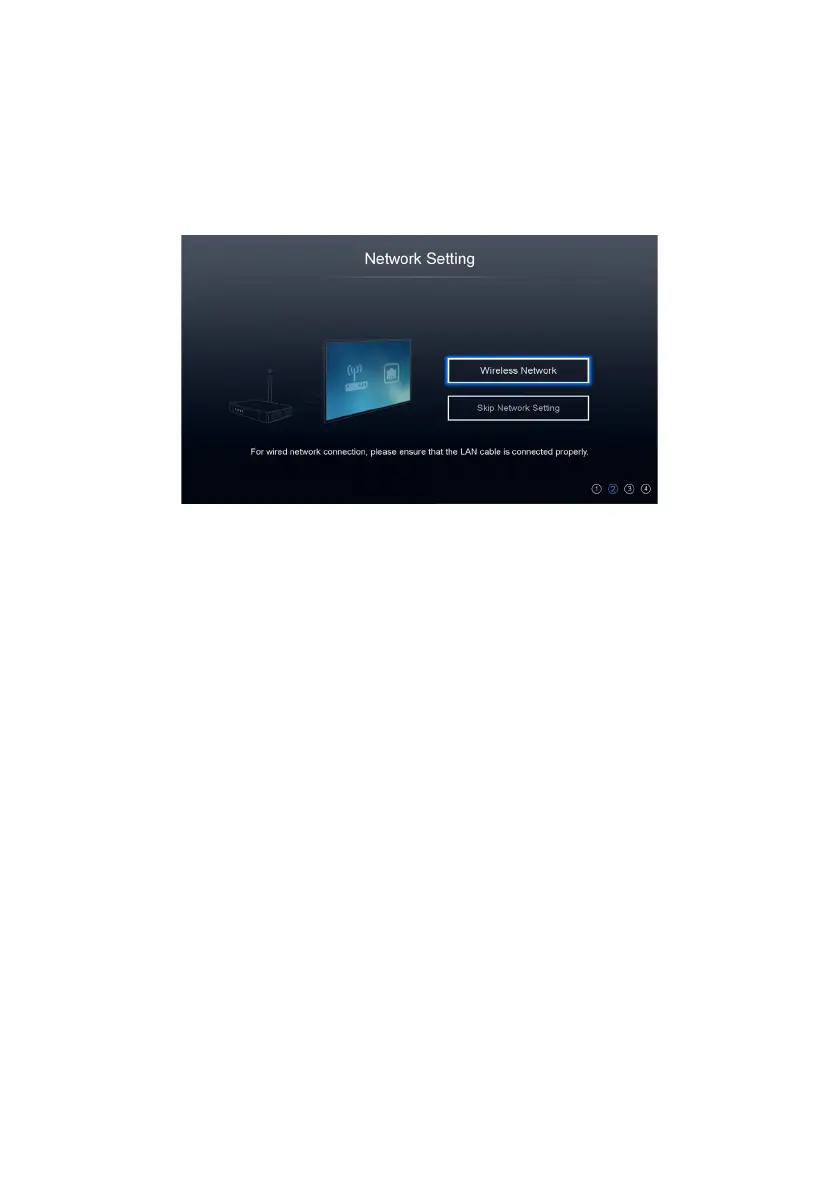
Network Setup:
NOTE: Make sure your Cable/DSL modem/router is turned on.
• If an Ethernet cable is already connected to the TV, the TV will automatically
connect to the Internet. Select ‘OK’ and press ‘OK’ to move to the next
step.
• If an Ethernet cable is not connected, connect the cable. Then select ‘Try
Again’ and press the OK button. The TV will automatically connect to the
Internet. Select ‘OK’ and press the OK button to move to the next step.
• If you want to connect via Wi-Fi, select ‘Use Wireless Network’ and press the
OK button. The TV will search for nearby wireless access points.
• Select the name of your wireless access point and press the OK button.
• Enter your wireless access point’s password using the remote control’s
keyboard or the on-screen keyboard and press the OK/ENTER button.
• When successfully connected, press the OK button to move to the next
step.
• Press the Menu button to go back to the previous step.
• Select ‘Skip’ and press the OK button to skip the network setup process
and move to the next step. You can set up the network later on via the user
menu. (See page 39.)



 To Next Page