48
Smart TV (Cont.)
3. Apps
Downloading and installing apps
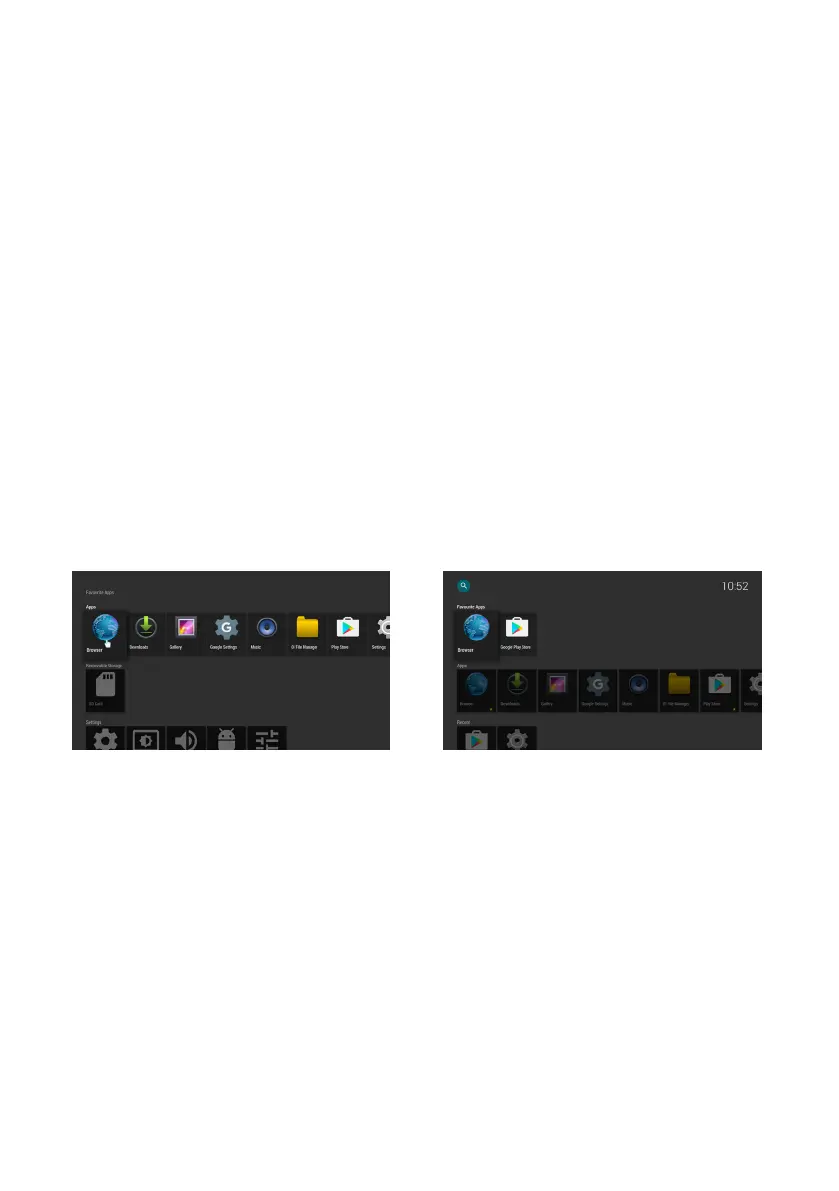
• To install apps, click on Google Play Store to browse or search for the
desired app.
• Click on INSTALL and follow on-screen instructions to install the app.
• Once installed, click on the app icon to start the app.
Saving an app to Favourites
• Select the app that you would like to add to your favourites.
• While it’s selected, press and hold the OK button.
• Select ‘‘Add to Favourites’’. The app will appear in your Favourites
Managing your apps
To manage an installed app, select (Settings>Apps) on the home page and
press the OK button. From here you can delete the app by following the on-
screen instructions.
4. File Manager
• Insert your USB memory device before following operations.
• Use the navigation buttons to move the cursor to the URL input field.
NOTE: Read and accept the Terms and Conditions to open the File Manager.
• Use the navigation buttons to select desired option/folder/file and press
the OK button to confirm your selection.



 To Next Page