20
• First, insert your USB memory device into the USB port.
When Watching a Program in DTV Mode:
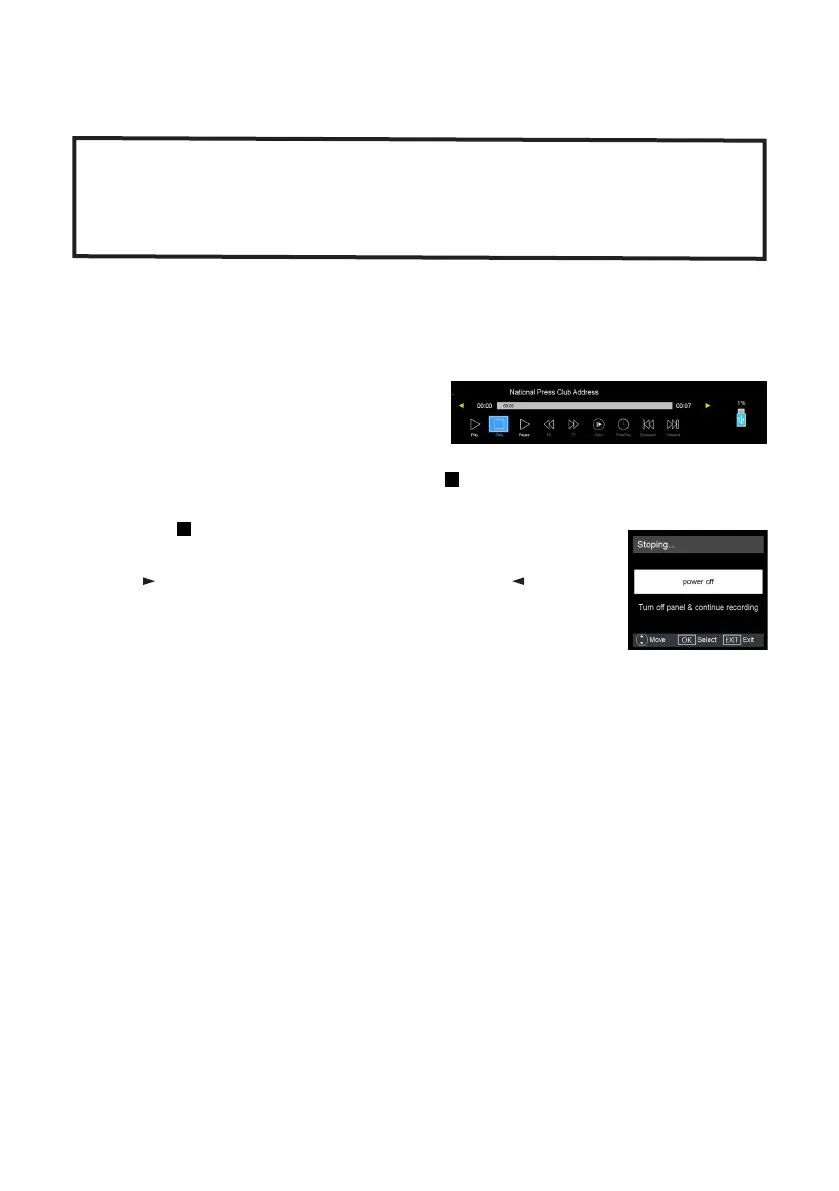
• Press the RECORD button on the
remote control to start recording
directly. Press the RECORD button
again to minimise the information bar
at the bottom of the screen.
• Press the RECORD button again or the STOP button to display
information about the current recording.
• Press the STOP button twice to display a dialogue box:
‘Do you want to stop PVR?’
• Press for ‘NO’ and cancel the warning. Press for ‘Yes’
and stop recording.
• If you wish to turn off the TV and continue recording, press
the POWER button on the remote, select ‘Turn off panel &
continue recording’ and press OK.
• Select ‘Power off’ to stop recording and turn off TV.
• Press the EXIT button to cancel the dialog box and continue recording.
Scheduled Recording (in DTV mode only)
See the instructions under EPG on the previous page.
Recording
IMPORTANT!
Before you can record with this TV set (including time-shift recording), you
must insert a FAT32 formatted USB storage device into the USB (TV) port.
USB storage devices do not come with the TV.



 To Next Page