23
Media Mode
Media Playback
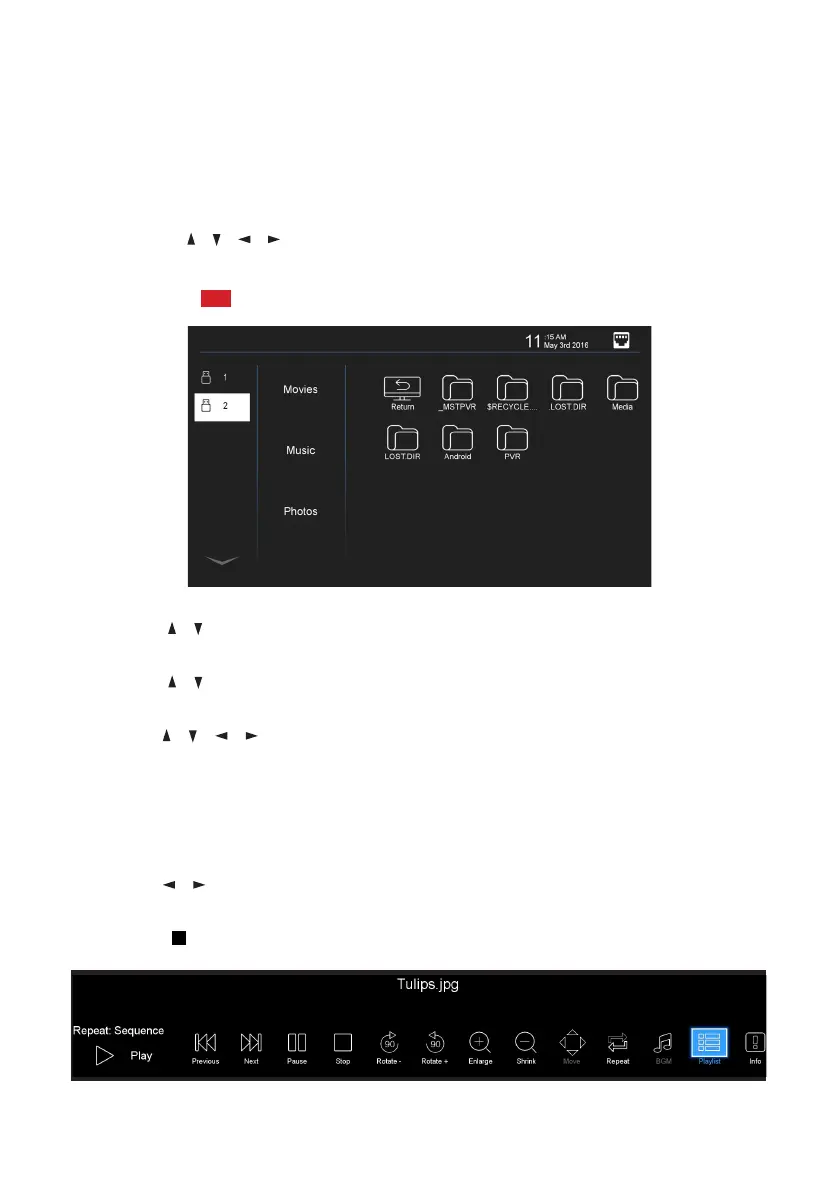
• First insert a USB memory device into the USB port.
• Press the MEDIA button to switch the unit to Media mode.
• Use the / / / buttons to move the cursor.
• Press the EXIT button to return to the previous menu page.
• Press the RED button to change the device.
Photo
• Use the / buttons to select the desired USB drive (when you have multiple
USB drives available).
• Use the / buttons to select “Photos” in the main menu, then press OK
to enter it. Photo files can only be played in this menu category.
• Use the / / / buttons to select the desired folder or file, then press
OK to select files and press the OK button to play files in full screen.
When Playing Photo Files:
• Press the MENU button on the remote control to hide/display the on-screen
tool bar.
• Use the / keys to select a function such as Previous, Next, Rotate and
Enlarge from the on-screen tool bar. Press the OK button to apply.
• Press the STOP or EXIT buttons to exit playback and return to the file list.



 To Next Page