115
Working with Audio Selecting Audio Sources
Selecting Audio Sources
Select audio sources the same way you select video sources, using the
CUT
and
NEXT
buttons and the highlights at the top of the Preview screen.
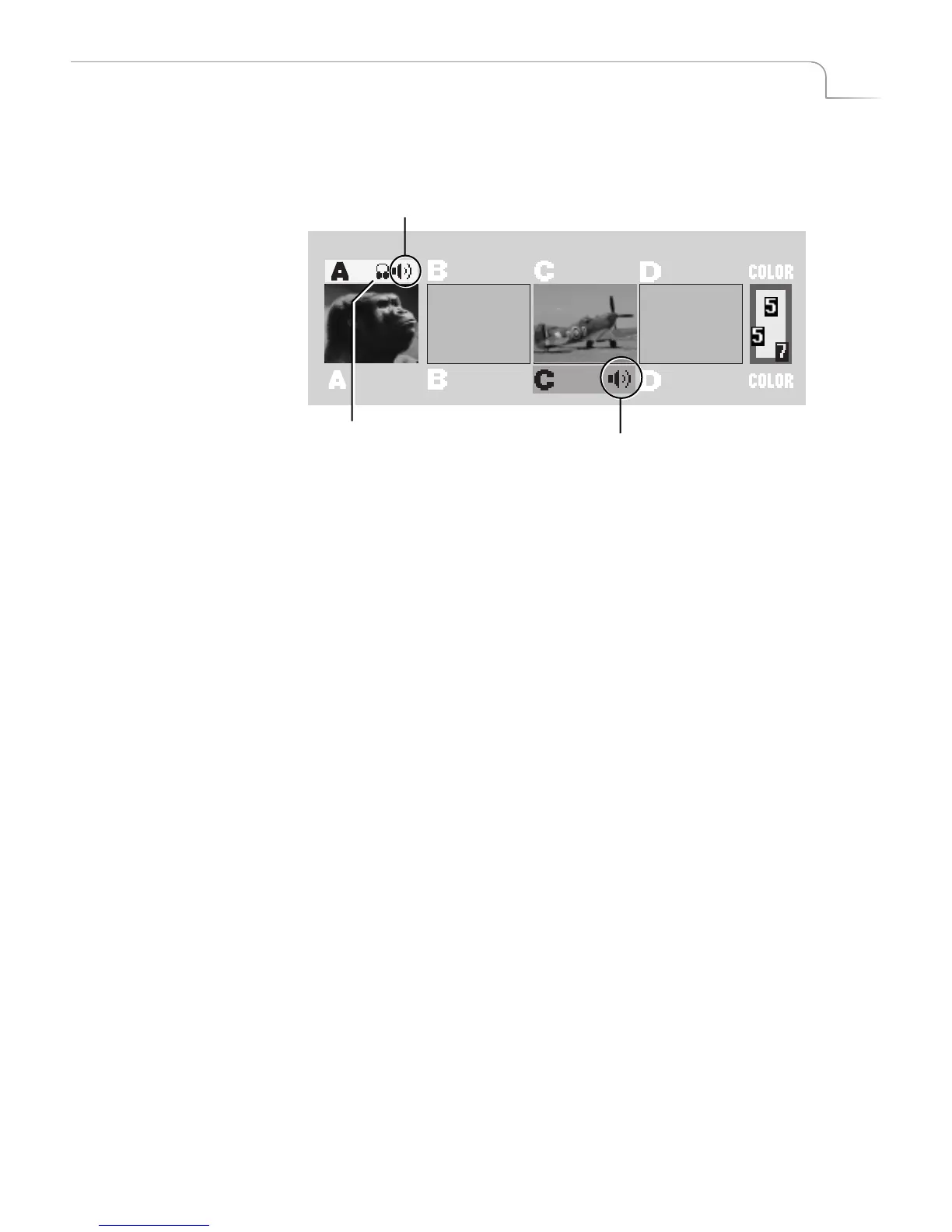
Remember, MXPro highlights the CURRENT video source in yellow (above the Preview
window). The speaker icon inside the highlight indicates that the current audio is on
channel A. MXPro highlights the NEXT video source in green (below the window). The
speaker icon in this location means after you run the next transition, channel C’s
audio plays through.
In addition, the headphones icon indicates you can monitor this particular audio
through the MXPro headphone jack, located on the right side of the unit.
CURRENT Audio Source
NEXT Audio Source
Indicates that source can be
monitored through MXPro’s
headphone jack



 To Next Page