81
Functions Routing Audio through Color Channel
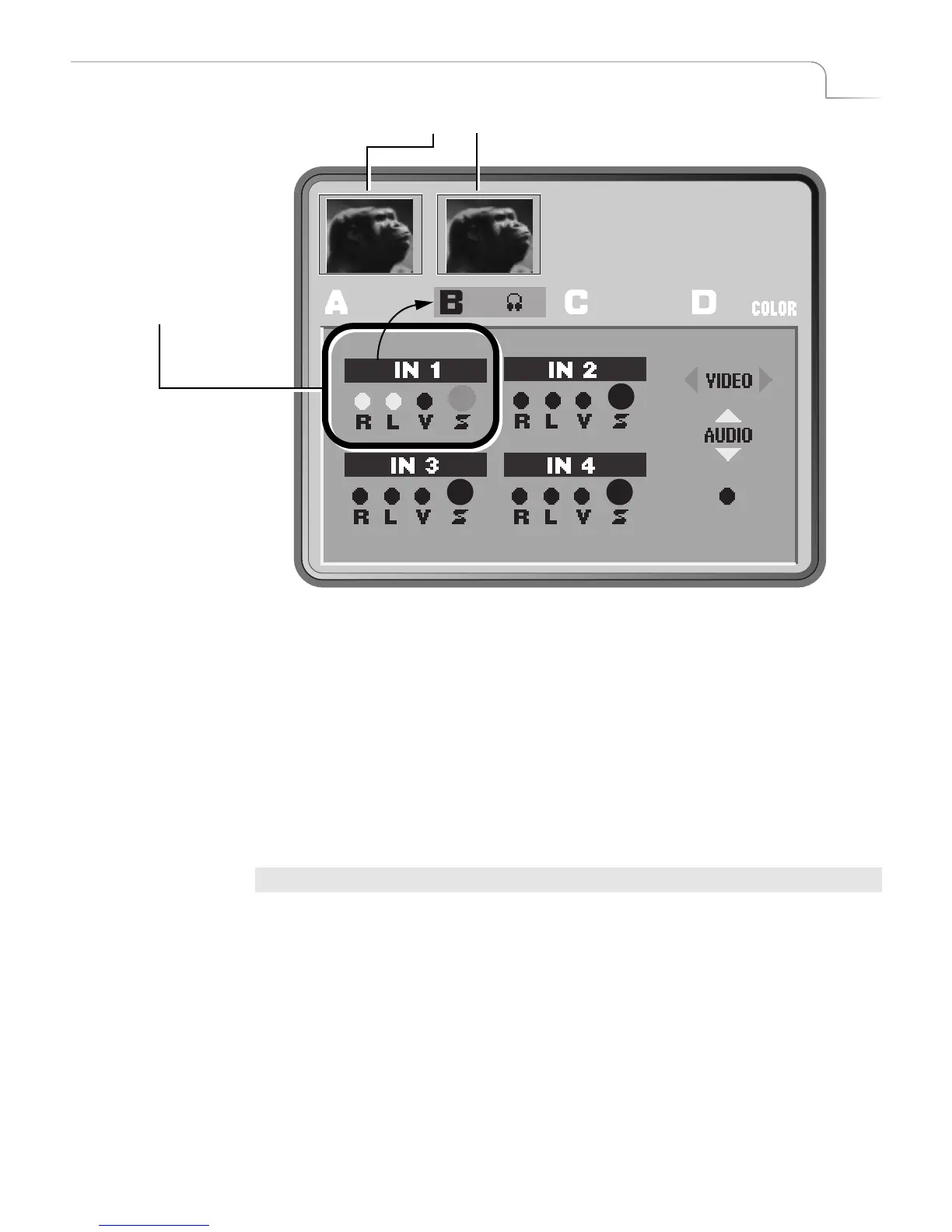
You can now apply whatever effects you want to the B channel. For example, to flip the
image horizontally, go to the Input Effects menu and activate the Flip effect for chan-
nel B. During playback, alternately pressing CUT/A and CUT/B flips the image on the
screen.
You can apply any of the other Input Effects to channel B, or to any channel for that
matter.
Routing Audio through Color Channel
You can route an audio signal through the Color channel. This is useful, for example,
if you want to fade to a solid color and would like to have a corresponding audio
source.
To route audio through the color channel:
1 Press NEXT/COLOR to select the color channel.
2 Make the proper settings for the appropriate IN options (1, 2, 3, or 4) for the
audio source you want to use, the same way you select for the other channels.
Navigating the Route Menu
Use the LEFT and RIGHT ARROW keys to move the Video selector between the input
diagrams – IN 1, IN 2, IN 3, and IN 4.
Use the UP and DOWN ARROW keys to move the Audio selector between the input
diagrams. After cycling through all of the inputs, MXPro highlights the Mute option.
With this option selected, MXPro mutes the audio for the selected channel.
MUTE
e
rev
ew
mage w
n
ow
or
ot
t
e
an
c
anne
s s
ou
s
ow t
e same source
mage.
The input signals (video
and audio) connected to
the MXPro inputs labeled 1
have now been directed
through channel B.



 To Next Page