45
Basic Operations Using Borders
USING BORDERS
Borders have many uses, such as providing a distinct separation between two sources
while running a transition.
You can also use borders to frame images in a picture-in-picture (PIP) image, and so
forth. Whatever purpose you use a border for, you can specify the color and style for
the border.
Note
For the two following procedures, note that not all border styles can be applied in all
cases. Single PIPs as well as Edge and Shape transitions accept any border style. Basic
transitions accept only color borders. You cannot apply border styles to Trailing transi-
tions, nor can you use them in Compose or Multi-PIP modes.
Procedure
To specify border color:
¨ Repeatedly press BORDER COLOR to cycle through the available colors. The
Color Selector shows the current color.
Press BORDER STYLE+0 (zero) to immediately turn off the border.
Procedure
To specify border style:
¨ Repeatedly press BORDER STYLE to cycle through the available styles. The Bor-
der Style indicator in the Color Selector increments by one each time you press
the button. You can specify ten different styles (0 through 9).
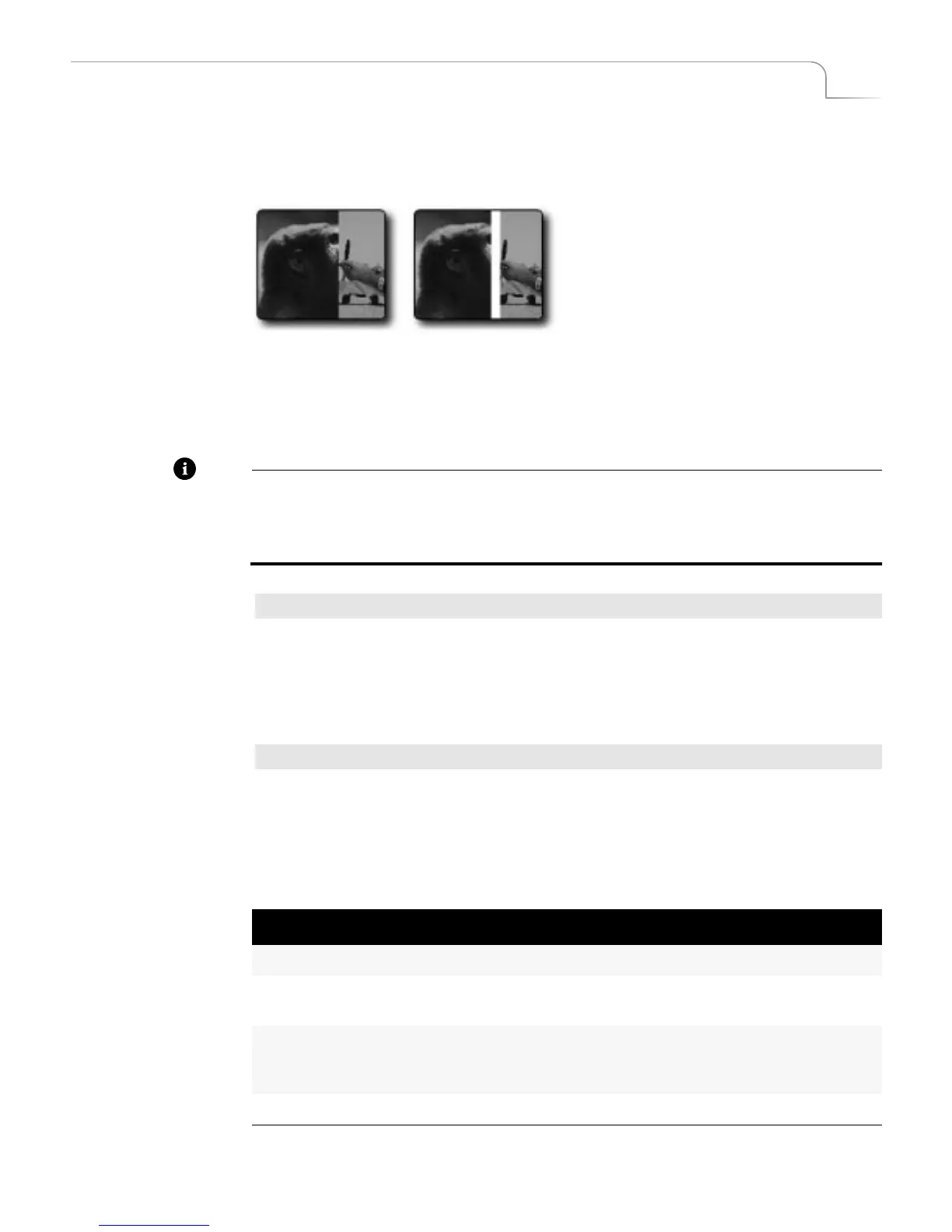
Wipe Transition
No Border
Wipe Transition
White Border
Table 4: Border Styles (Defaults)
No. Result Notes
0 Border and Edges Off
1-3 Soft Edge Border Use LEARN+UP/DOWN ARROW keys to
soften and harden border edges.
4-6 Colored Border LEARN+RIGHT/LEFT ARROW keys adjust
border thickness. LEARN+UP/DOWN ARROW
keys soften the border.
7-9 Drop Shadow Border LEARN+ARROW keys reposition drop shadow.



 To Next Page