15
Quick Start Using CUT Transitions
Manual Transitions
Use the
TAKE BAR
to run transitions and control their speed and direction.
¨
Set up the transition as you would normally. However, instead of pressing PLAY,
simply move the T-BAR.
The transition begins running as soon as you move the
T-BAR
. You can even move
back and forth by moving the
T-BAR
in different directions. Give it a try!
Using CUT Transitions
Most video productions use simple cuts a majority of the time. To cut between any two
sources (for example, you could cut from A to C to COLOR to D), use the
CUT
buttons.
There’s a quick way to cut back and forth between two sources (such as A to B to A to B)
using just the
PLAY
button, instead of having to alternate between two
CUT
buttons:
¨
Press 0 to select transition 0, a simple cut.
¨
Press PLAY again and again.
¨
A solid color screen can be used as if it were a separate source. Press the NEXT/
COLOR button and run any transition, or press CUT/COLOR.
Choosing Transitions
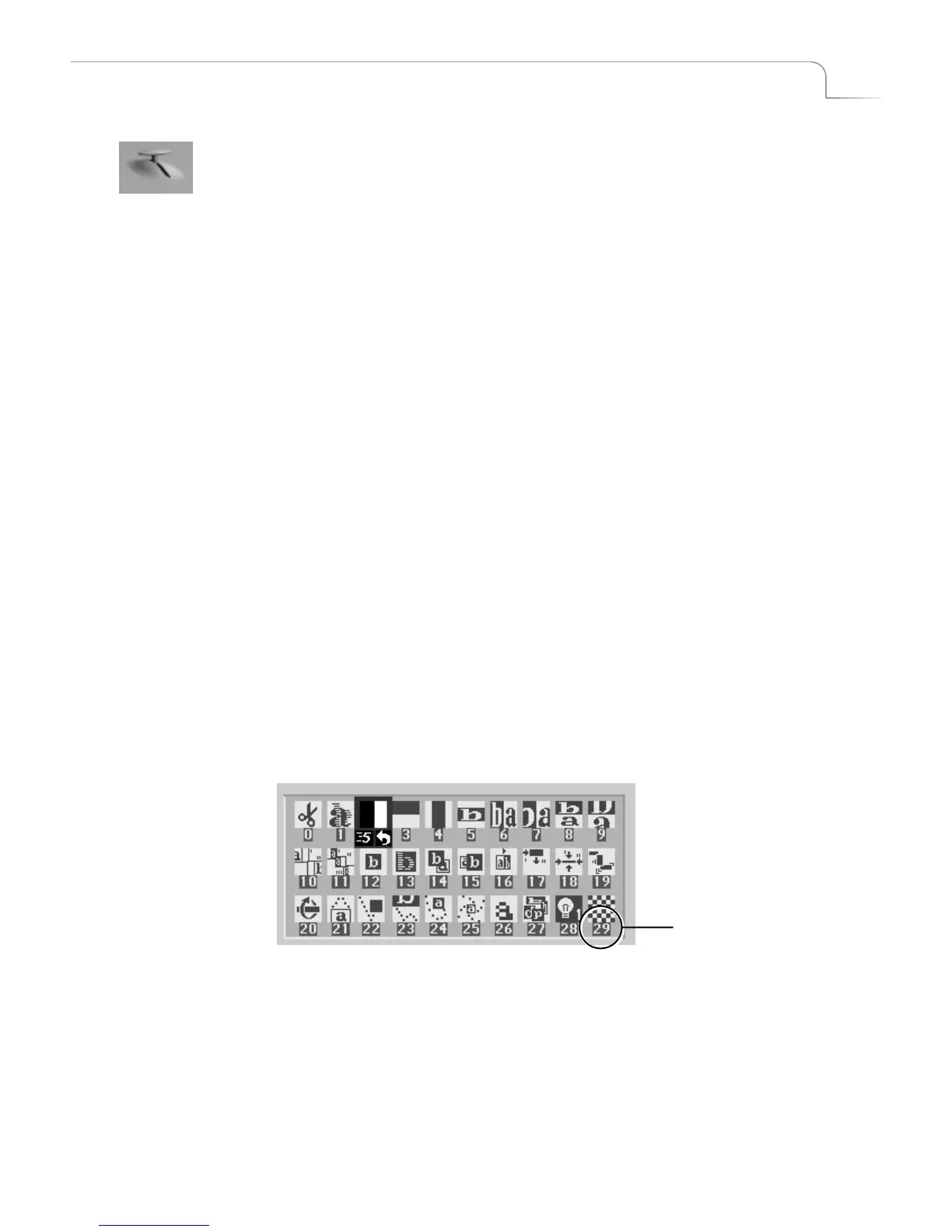
The Preview screen contains the Transitions Menu. This menu contains icons and other
information for all MXPro transitions. A blue highlight indicates the transition selected
for the next transition.
¨
Select Transitions in the following ways:
ARROW
keys
– Simply use the arrow keys to highlight the desired transition.
NUMBER
keys –
MXPro assigns a unique number to every transition. The number
appears below the transition icon on the PREVIEW screen (in the following exam-
ple, the checkerboard transition is number 29). You can use the number to select a
transition. (When you select/highlight a transition in the menu, MXPro shows the
transition’s speed and direction. At this point, the transition number is no longer
visible.)
¨
Enter 106 using the number keys (press 1, then 0, then 6), then press OK to high-
light the transition icon.
MXPro replaces the current Transitions Menu and shows the one that contains the
transition you selected.
¨ Press PLAY.
Transition Number 29



 To Next Page