14
Chapter 2 Videonics MX-Pro User Guide
Setting up a Transition
To set up a transition you need to select the sources you want to use and the transition
you want to use when switching between them. Here’s how to transition from source A
to source B using a horizontal wipe.
¨
Press CUT/A to set A as the CURRENT source. MXPro shows a steadily glowing light
below the CUT button you press.
¨
Press NEXT/B to set B as the NEXT source (the one you want to see after the transi-
tion finishes running). The LED light above the button you press flashes to indicate
it is the NEXT source.
¨
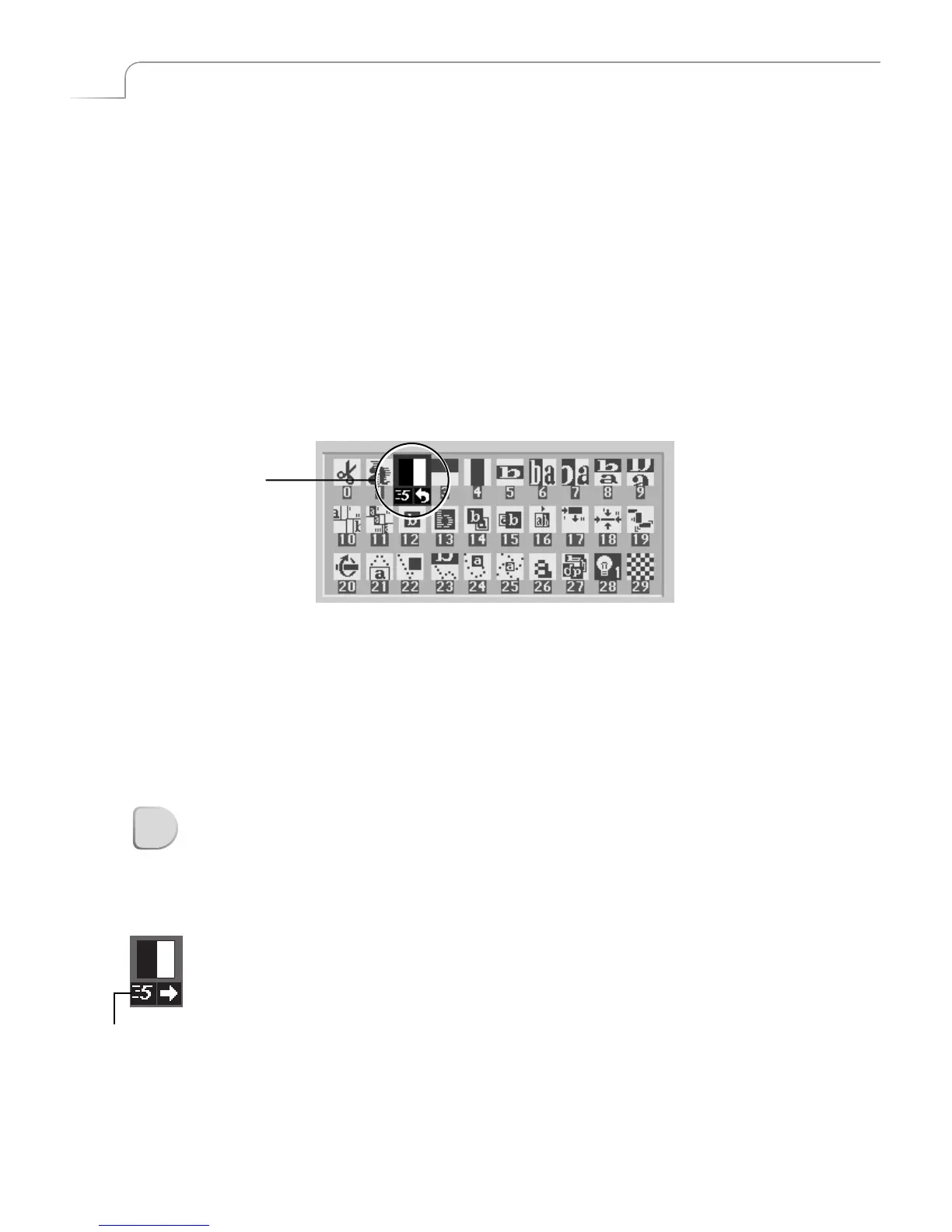
Use the ARROW keys to highlight the Wipe transition in the Transitions Menu, as
shown in the following example.
Use
LEFT
and
RIGHT ARROW
s to move the selection horizontally. Use
UP
and
DOWN ARROW
s to move the selection vertically: or, press
2
then
OK
to select the
transition by number.
The screen shows: The CURRENT source (A), the NEXT source (B), and the desired
effect (the horizontal wipe).
Running Transitions
You can run transitions automatically or manually.
Automatic Transitions
¨
Press PLAY. MXPro runs the transition at a pre-determined speed.
MXPro transitions between the two sources using the horizontal wipe transition.
Both the Preview and Output screens show the results.
At the end of the wipe, B is on the OUTPUT monitor — it has become the CURRENT
source. The yellow highlight above the preview images has changed to reflect that. Fur-
thermore, A is now the NEXT source and the green highlight has been changed to A.
¨
To wipe back and forth between sources A and B, press PLAY repeatedly.
¨
To change the speed at which a transition runs, press the SPEED button. The Speed
indicator under the transition icon changes.
¨
Press the button again until the desired speed appears. 0 is the slowest speed, 9 is
the fastest.
¨
Try this with various speeds: Change the speed and press PLAY.
Selected Transition
Speed
PLAY



 To Next Page