64
Chapter 6 Videonics MX-Pro User Guide
I
NPUT
E
FFECTS
M
ENU
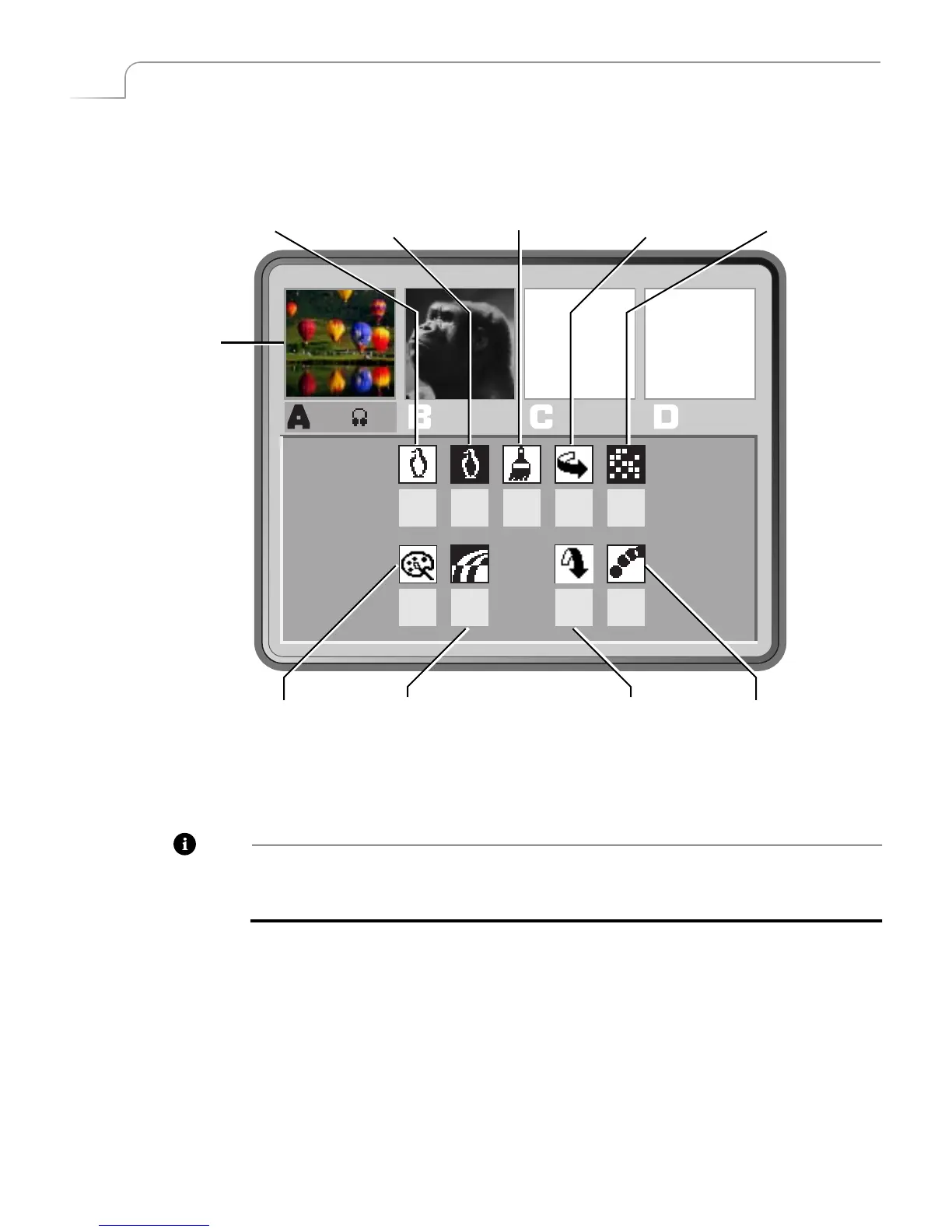
Press any input effects button to display the Input Effects Menu — or, press the
INPUT
EFFECTS
button.
When you press one of the input effects buttons (such as
POSTERIZE
), MXPro auto-
matically selects that effect in the menu. When you press the
INPUT EFFECTS
button,
MXPro selects the first item in the menu —
B&W
.
Note
The menu does
not
contain an icon or settings for the Chroma Key option. When you
press the
CHROMA KEY
button, MXPro takes you directly to the Chroma Key screen.
See Chapter 10,
Chroma Key
, for details.
0 0
00
0
0
0
0
0
B&W
B&W
POSTERIZE
FLIP
MOSIAC
COLOR COLOR FLIP STROBE
NEGATIVE
CORRECT NEGATIVE
VERTICAL
HORIZONTAL
MXPro does NOT
update the preview
images to show
Input Effects



 To Next Page