39
Basic Operations Selecting Sources
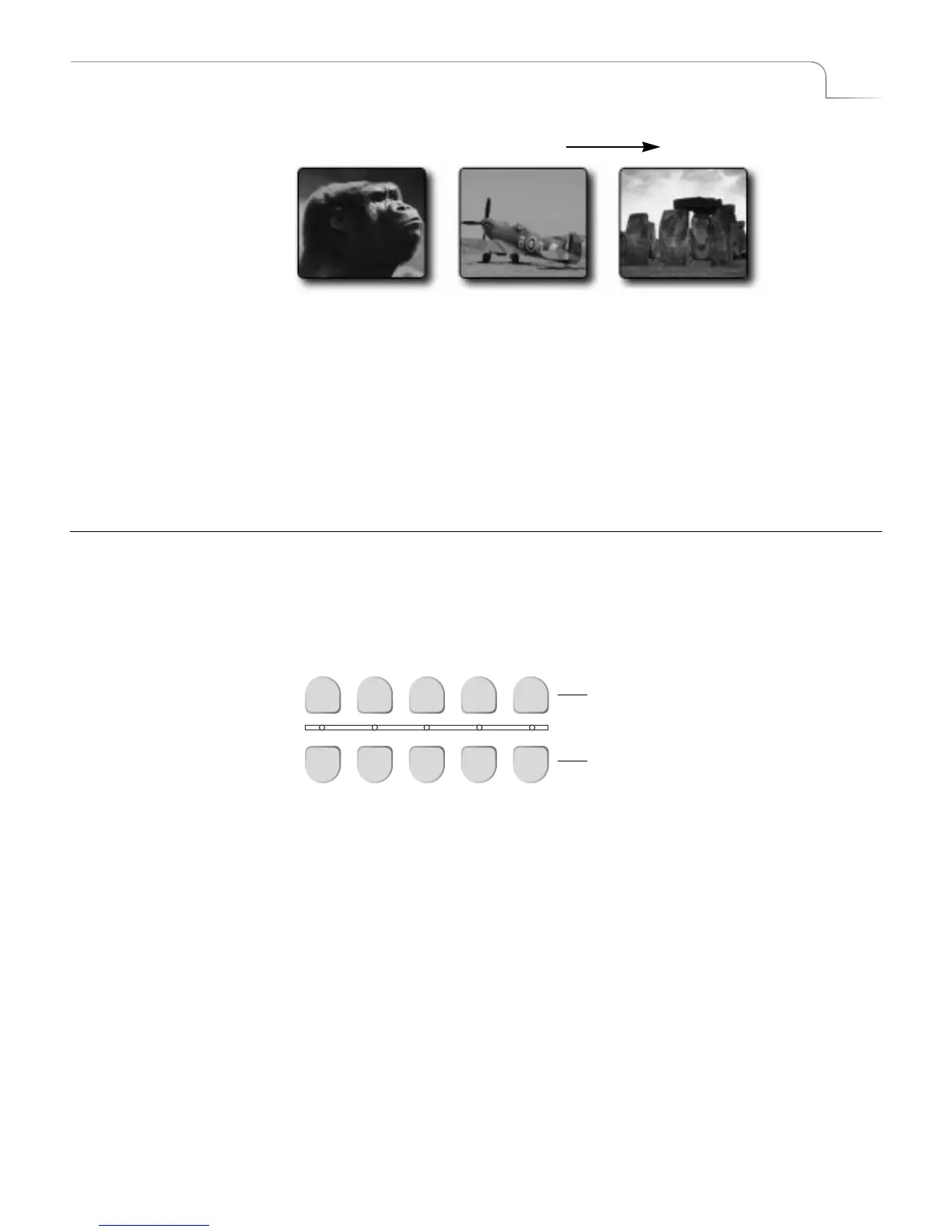
5 Press NEXT/C to select Stonehenge as the NEXT input source.
6 Select a transition to use this time to switch from CURRENT to NEXT source, such
as a slow dissolve. The CURRENT source (the fighter plane) continues running,
and being sent to the output device.
7 To transition to Stonehenge, hold down the SHIFT button and move the T-BAR
to the top of its slot, then drag it down at whatever speed you want the dissolve to
happen.
The T-BAR and the PLAY button run the same transition, except that the T-BAR
lets you manually control the speed at which the transition runs.
SELECTING SOURCES
Now that you understand the distinction between the CURRENT and NEXT source, you
need to know how to select sources for each. Use the CUT and NEXT buttons on the
MXPro keyboard to select sources.
Use the CUT buttons to select the CURRENT source. The four buttons labeled A, B, C,
and D correspond directly to the Input Source Previews on the Preview Screen (see
page 36) and to MXPro’s four channels. Use the COLOR button to select a solid color
background rather than an image coming from a source device (see “Using Color
Backgrounds” on page 43). When you press any CUT button, the indicator light below
that button glows steadily.
After selecting the CURRENT source, use the NEXT buttons to select the NEXT source.
The buttons are labeled the same as the CUT buttons. When you press any NEXT but-
ton, the indicator light above that button flashes.
CURRENT NEXT
Source B
Source C
Source A
CUT
NEXT
A B C D COLOR
A B C D COLOR
Use to select CURRENT source
Use to select NEXT source



 To Next Page