57
Transitions Using Transition Numbers
Procedure
To select a transition from the Transitions Menu:
1 If necessary, press the appropriate Transition Category button to display the set
of transitions containing the one you want.
2 Use the ARROW keys to highlight the transition you want to use.
Blue highlights the currently selected transition. Use the LEFT and RIGHT
ARROWS to move the highlight horizontally. Use the UP and DOWN ARROWS
to move the highlight vertically. When you reach the bottom row of icons in the
current menu, press DOWN arrow to display additional transitions in the cate-
gory, if present.
3 After highlighting the transition you want, press OK.
Using Transition Numbers
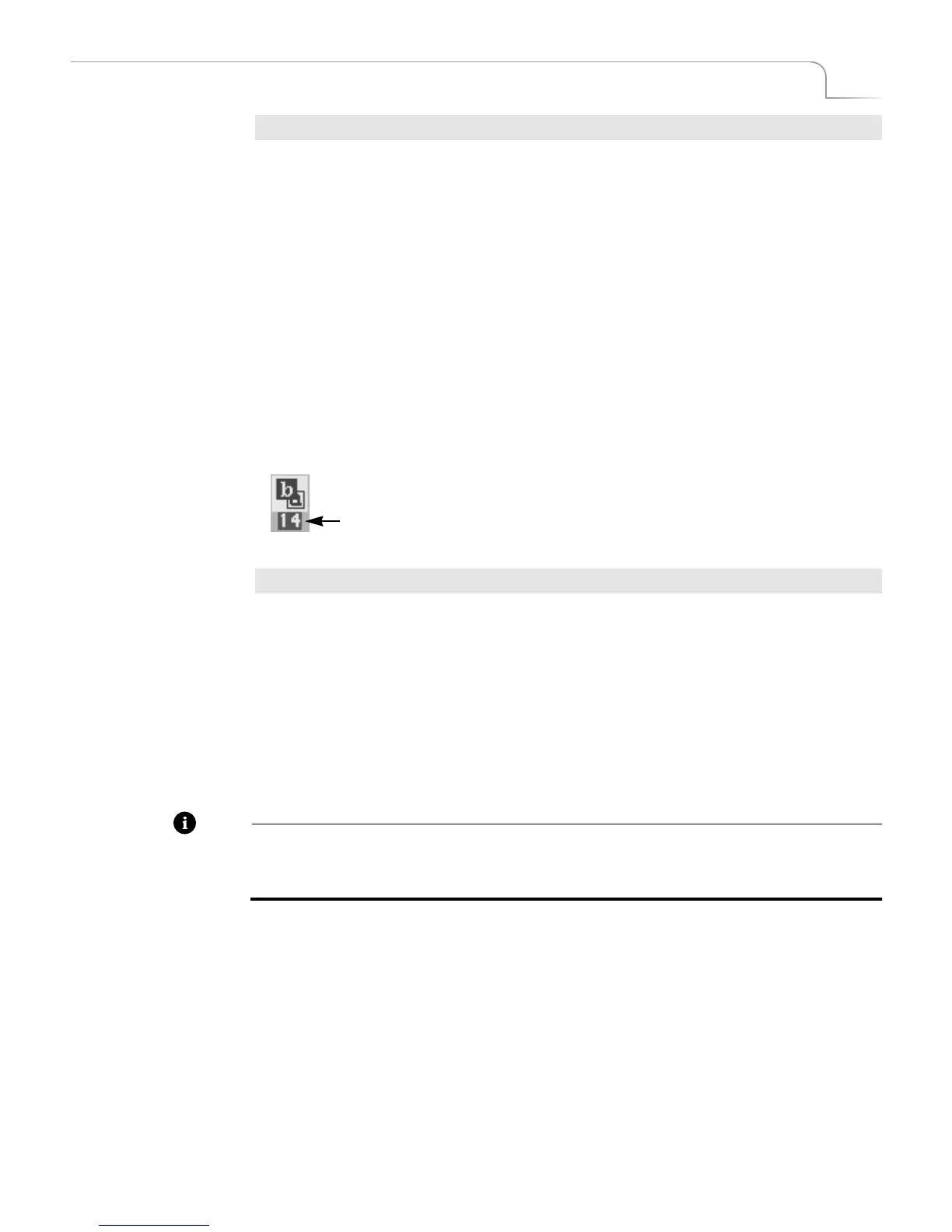
Every transition has a number assigned for reference and identification. The number
appears in the Transitions Menu just below each transition icon.
To select a transition using transition numbers:
1 Enter the transition number on the keyboard.
2 Press OK.
To immediately play back the transition, press PLAY rather than OK.
Refer to Appendix A, Transitions List, for a complete listing of transitions and their
assigned numbers.
If you make a mistake entering a number, press OK, enter the number correctly, then
press OK again.
Note
When you highlight a transition in a Transitions Menu, the highlighting obscures the
transition number. The number below the transition icon represents the speed at which
the transition plays. The following section, “Adjusting Transitions” discusses this.
The transition number…
in this example, number 14



 To Next Page