60
Chapter 5 Videonics MX-Pro User Guide
Using Auto-Reverse Auto-Reverse automatically reverses the direction of transitions each time they run. In
the previous building renovation example, you press REVERSE at the conclusion of
each transition to alternate between left-to-right and right-to-left wipes. When you use
Auto-Reverse, MXPro handles switching automatically. For example, if the transition is
set to run from left-to-right, it automatically alternates between left-to-right and right-
to-left each time it runs.
To invoke the Auto-Reverse feature:
¨ Enter SHIFT+REVERSE.
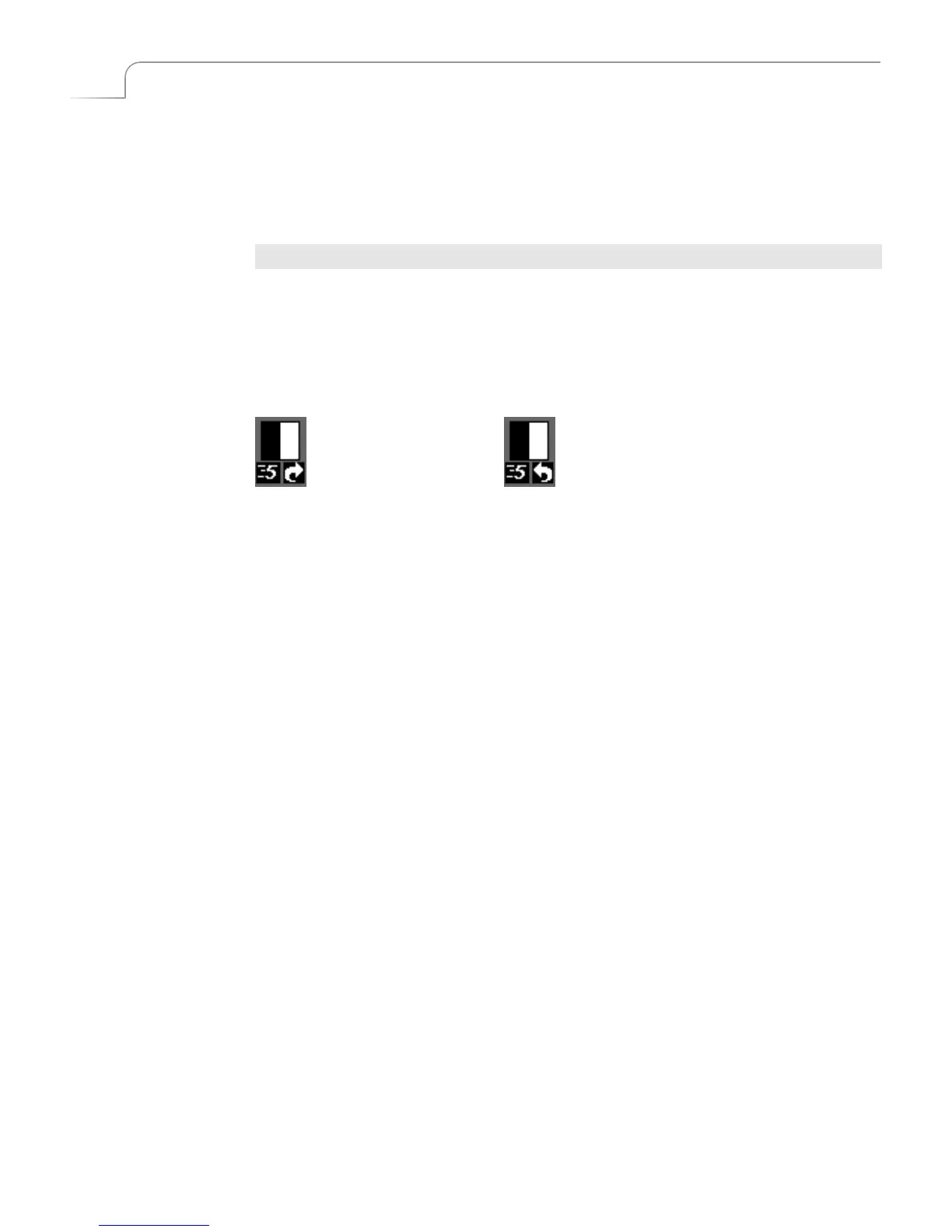
With Auto-Reverse activated, MXPro displays a distinct arrow below the transition’s
icon in the Transitions Menu. To manually reverse the current direction even with
Auto-Reverse activated, press REVERSE at any time.
Auto-Reverse remains active until you press SHIFT+REVERSE again to go back to one-
way transitions. Auto-Reverse has no effect on dissolve and trailing transitions.
Auto-Reverse Forward Auto-Reverse Backward



 To Next Page