— 30 —
DISPLAY Menu
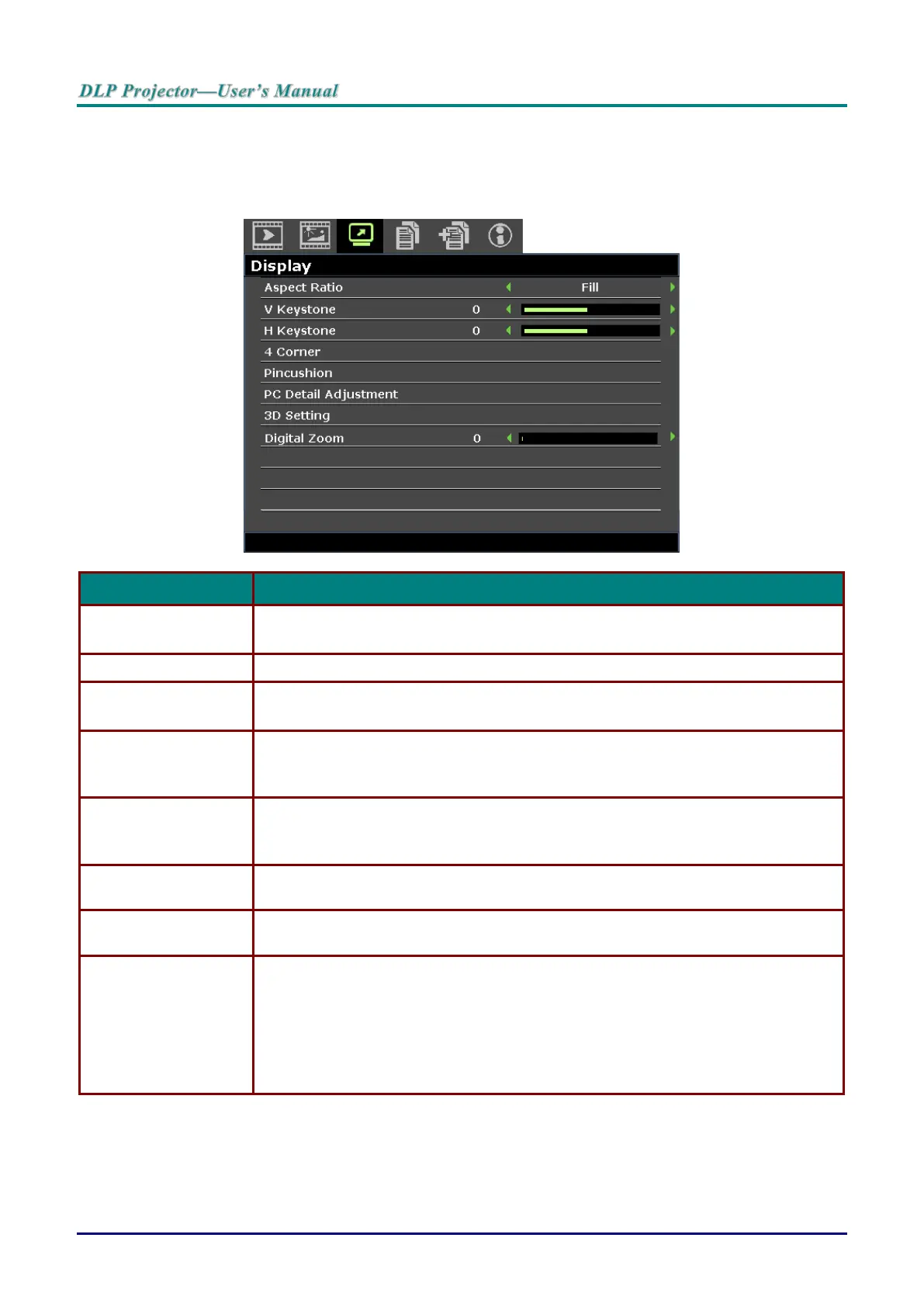
Press the MENU button to open the OSD menu. Press the cursor ◄ / ► buttons to move to the DISPLAY
menu. Press the cursor ▲ / ▼ buttons to move up and down in the DISPLAY menu. Press the cursor
◄ / ► buttons to change values for settings.
Press the cursor ◄ / ► buttons to set the aspect ratio.
Note: Without support when 3D mode activated.
Press the cursor ◄ / ► buttons to adjust the vertical keystone.
Press the cursor ◄ / ► buttons to adjust the horizontal keystone.
Note: Without support when 3D mode activated.
Press the ENTER button to enter the 4 Corner sub menu. See 4 Corner on page
31.
Note: Without support when 3D mode activated.
Press the ENTER button to enter the Pincushion sub menu. See Pincushion on
page 32.
Note: Without support when 3D mode activated.
Press the ENTER button to enter the PC Detail Adjustment sub menu. See PC
Detail Adjustment on page 33.
Press the ENTER button to enter the 3D Setting sub menu. See 3D Setting on
page 34.
Press the cursor ◄ / ► buttons to adjust the digital zoom.
Note:
1. Without support when 3D mode activated.
2. Resync signal will adjust digital zoom to 0 automatically.
3. Aspect ratio adjustment will make digital zoom back to 0 automatically.
4. Signal re-sync will make digital zoom back to 0.
5. Only 0~8 is allowed to adjust for Video/YUV signal.



 To Next Page