75
Creating a new
folder / renaming
a file or folder
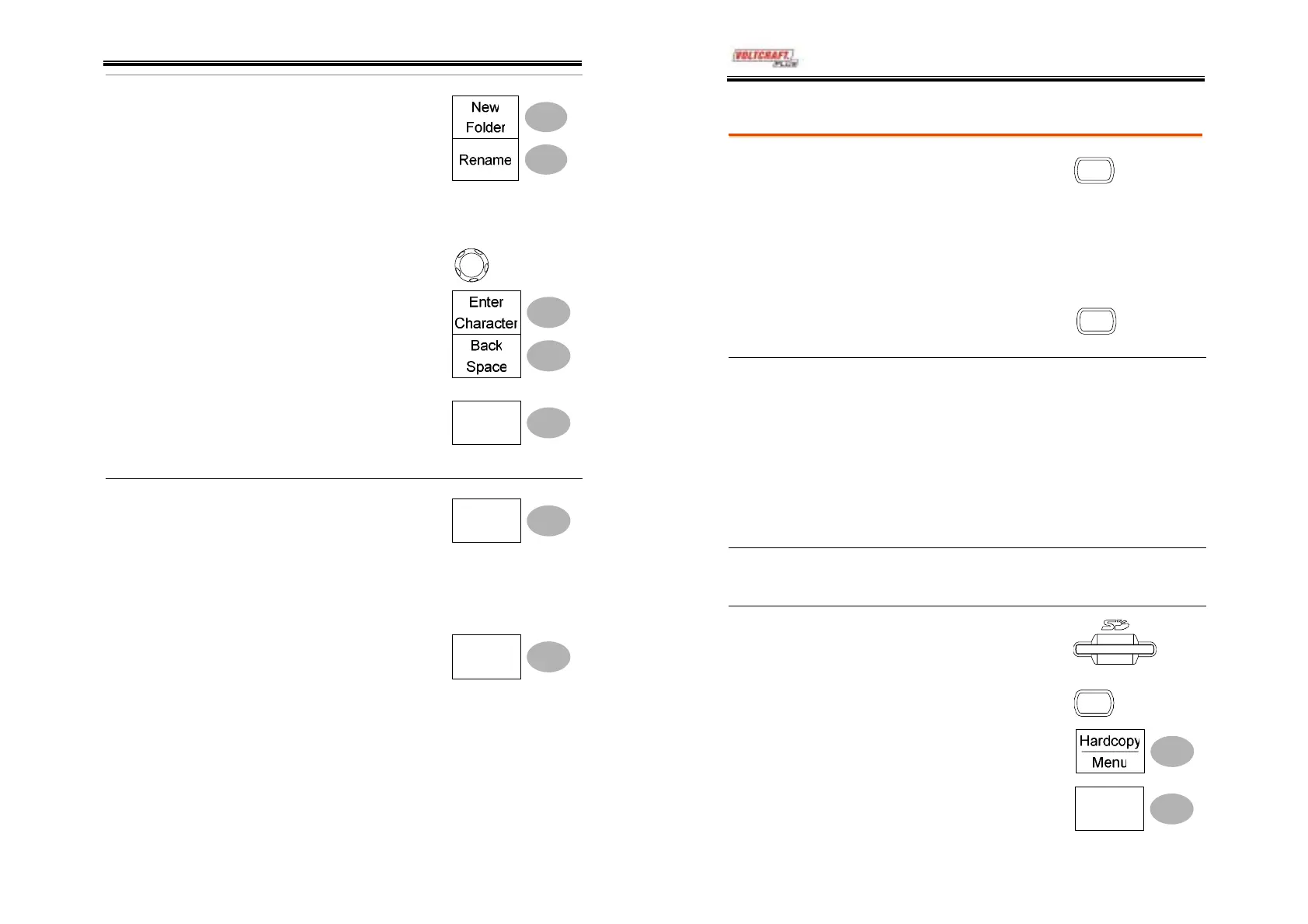
1. Move the cursor to the file
or folder location and press
New Folder or Rename. The
file/folder name and the
character map will appear
on the display.
2. Use the Variable knob to
move the pointer to the
characters. Press Enter
Character to add a character
or Back Space to delete a
character.
V
RIABL
3. When editing is completed,
press Save. The file/folder
creation or rename will be
completed.
Save
Deleting a folder
or file
1. Move the cursor to the
folder or file location and
press Delete. The message
“Press F4 again to confirm this
process” appears at the
bottom of the display.
Delete
2. If the file/folder still needs
to be deleted, press Delete
again to complete the
deletion. To cancel the
deletion, press any other
key.
Delete
DSO-4000 User Manual
76
Quick Save (HardCopy)
Background
The Hardcopy key works as a
shortcut for saving display
image, waveform data, and
panel settings into an SD card.
Hardcop
Hardcopy key can be configured into two types of
operation: save image and save all (image,
waveform, setup).
Using the Save/Recall key can
also save files with more
option. For details, see page78.
Save/Recal
Functionalities Save image
(*.bmp)
Saves the current display image into
an SD card.
Save all
Saves the following items into an SD
card.
• Current display image (*.bmp)
• Current system settings (*.set)
• Current waveform data (*.csv)
• Last stored system settings (*.set)
• Last stored waveform data (*.csv)
SD Card
restriction
The DSO-4000 series accept the following SD card.
Size: 2GB or less
Format: FAT or FAT32
Procedure
1. Insert an SD card to the slot.
2. Press the Utility key.
Utility
3. Press Hardcopy Menu.
4. Press Function repeatedly to
select Save Image or Save All.
Function
Save All



 To Next Page