• Windows 7/Vista/Server 2008 system: Pop up "Autoplay" interface, click “Autorun.exe” to run the installation procedure.
• Windows 8 system: When the " DVD RW driver" window pops up from the right top corner of computer desktop, click
anywhere in the pop-up window, then click "Autorun.exe" to run the installation procedure.
• Windows 10 system: When the "DVD RW driver" window pops up from the right top corner of computer desktop, click
anywhere in the window, then click "Autorun.exe" to run the installation procedure.
• Some computers may be unable to auto play the CD because of system configuration. Please double click
"Computer" icon, find "DVD RW driver", then double click "DVD RW driver" to run the installation procedure.
5. Click on the "I agree" button on the right bottom corner after reading the license agreement and enter into driver installation
interface.
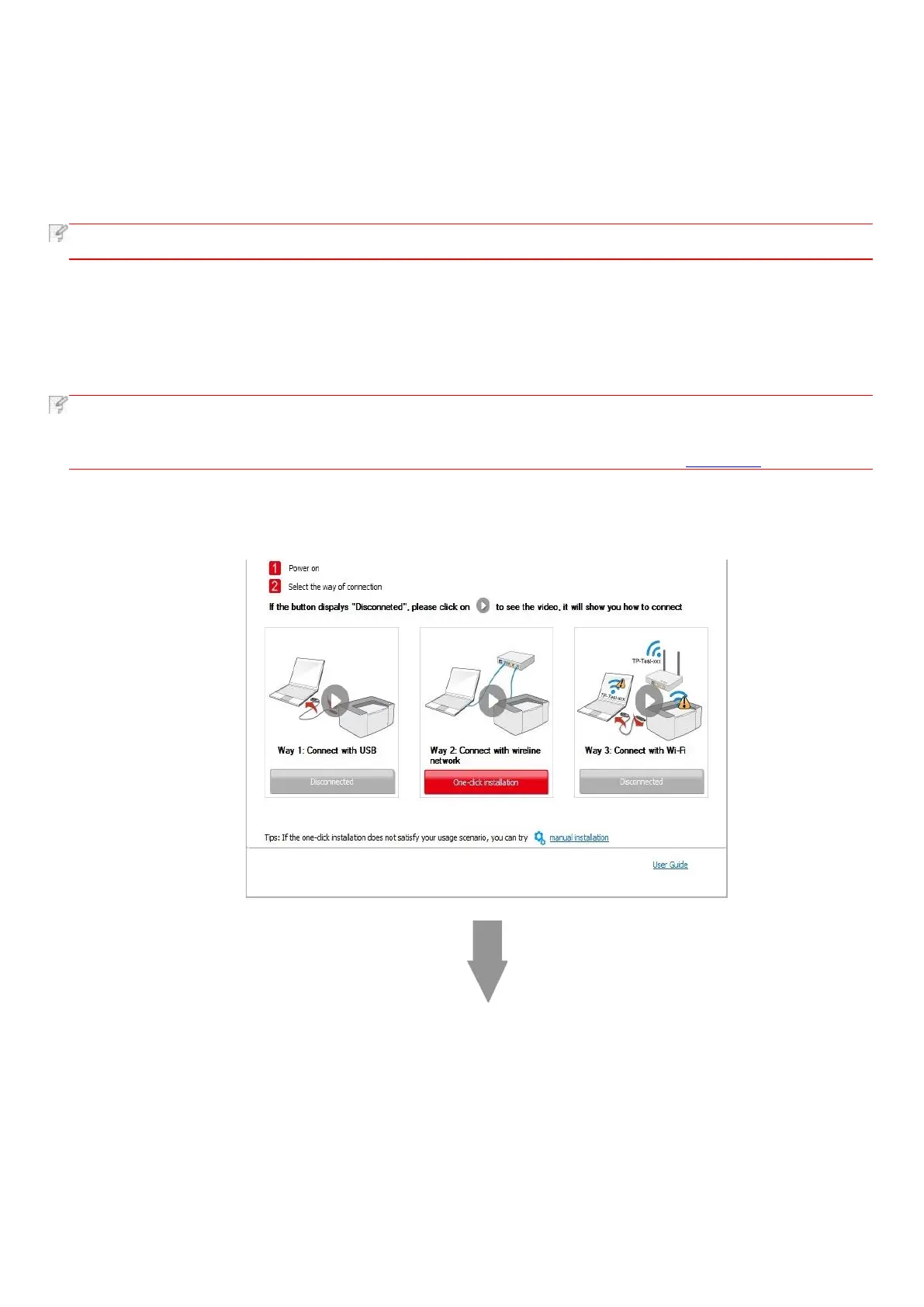
6. Please click on the "One-click installation" button in Method II and install driver software.
• You can put your mouse cursor in the "One-click installation" button to check the popup information in order to
confirm if the current printer is the one you need to install through IP address before you click the button.
• You can check the printer IP address through "Network configuration page" (Please see Chapter 7.2 for how to print)
• Click on the "One-click installation" button to enter installation process if your software has searched only one printer.
The process may need some time, and the duration is related to your computer configuration. Please wait patiently.


 To Next Page