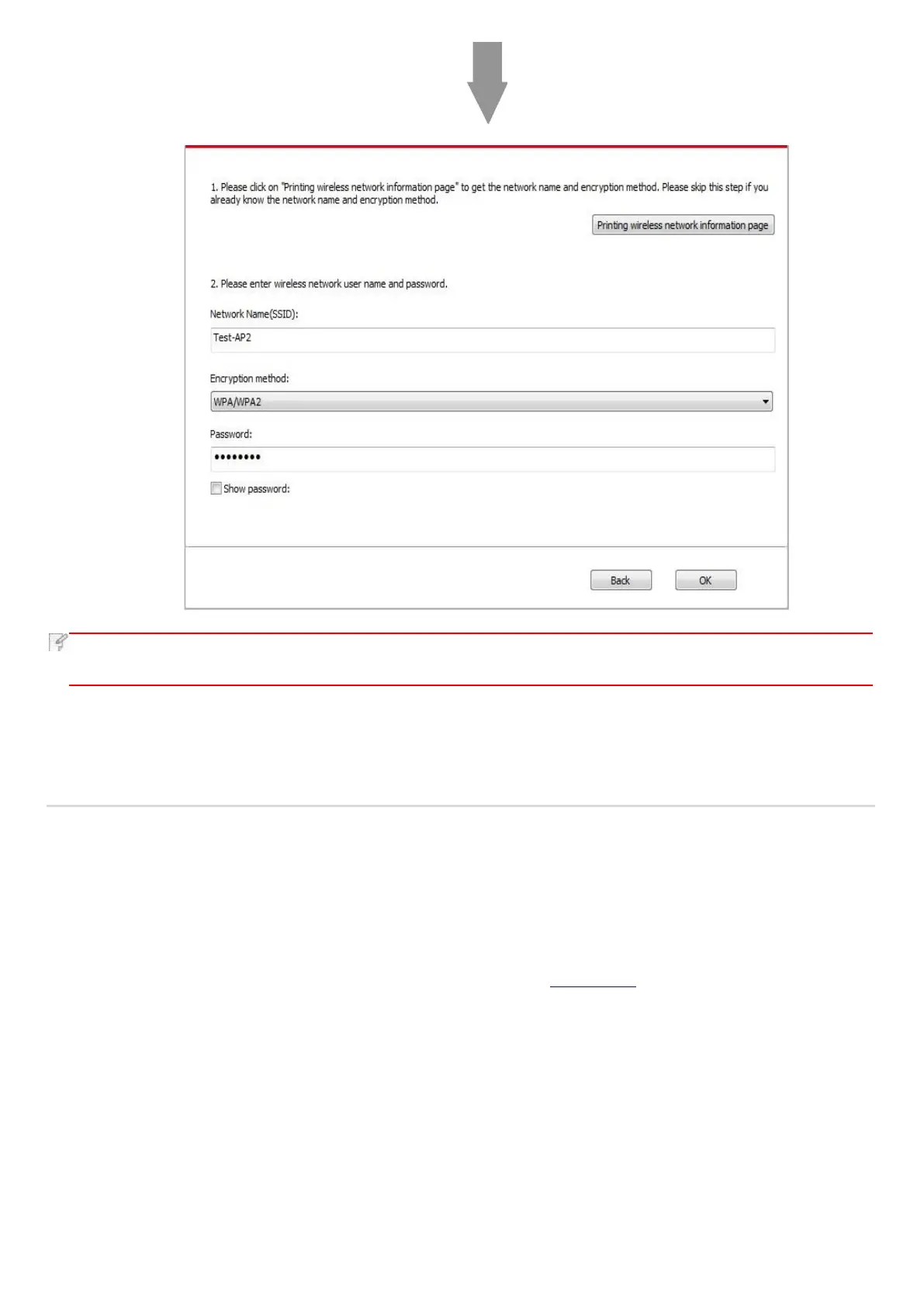
• When the printer IP address changes under printer driver installed with host ID, you can also directly print without re-
installing the driver. If you need to install the printer driver with the host ID, please check the option "Install the printer
in the list with host ID".
6. After the installation, click "Print &Test Page" button. If your printer prints the test page successfully, it means that you have
installed the driver correctly.
3.1.1.3.1.2. Connect PC to printer via Wi-Fi hotspot and install the driver
Connect the computer to printer via Wi-Fi hotspot that applicable to wireless network without infrastructure mode. But it needs
scenario of temporary use of printer via wireless network. You can connect the computer which equipped with wireless function
to printer to realize printing function.
1. Turn the power of printer and computer on.
2. Connect computer to the Wi-Fi Direct network of the printer (please refer to Chapter 5.2.2 for setup method).
3. Place the attached installation CD in the computer CD-ROM:
• Windows XP system: automatically run the installation procedure.
• Windows 7/Vista/Server 2008 system: Pop up "Autoplay" interface, click “Autorun.exe” to run the installation procedure.
• Windows 8 system: When the " DVD RW driver" window pops up from the right top corner of computer desktop, click
anywhere in the pop-up window, then click "Autorun.exe" to run the installation procedure.
• Windows 10 system: When the "DVD RW driver" window pops up from the right top corner of computer desktop, click
anywhere in the window, then click "Autorun.exe" to run the installation procedure.


 To Next Page