8. After the installation, click "Print &Test Page" button. If your printer prints the test page successfully, it means that you have
installed the driver correctly.
3.1.2.2. Installation via wired network connection
1. Turn the power of printer and computer on.
2. Connect the computer to wired network.
3. Connect network cable to the network interface of printer, to make sure the printer is connected to computer network (please
refer to Chapter 4 for network setup).
4. Place the attached installation CD in the computer CD-ROM:
• Windows XP system: automatically run the installation procedure.
• Windows 7/Vista/Server 2008 system: Pop up "Autoplay" interface, click “Autorun.exe” to run the installation procedure.
• Windows 8 system: When the " DVD RW driver" window pops up from the right top corner of computer desktop, click
anywhere in the pop-up window, then click "Autorun.exe" to run the installation procedure.
• Windows 10 system: When the "DVD RW driver" window pops up from the right top corner of computer desktop, click
anywhere in the window, then click "Autorun.exe" to run the installation procedure.
• Some computers may be unable to auto play the CD beacase of system configuration. Please double click
"Computer" icon, find "DVD RW driver", then double click "DVD RW driver" to run the installation procedure.
5. Click on the "I agree" button on the right bottom corner after reading the license agreement and enter into driver installation
interface.
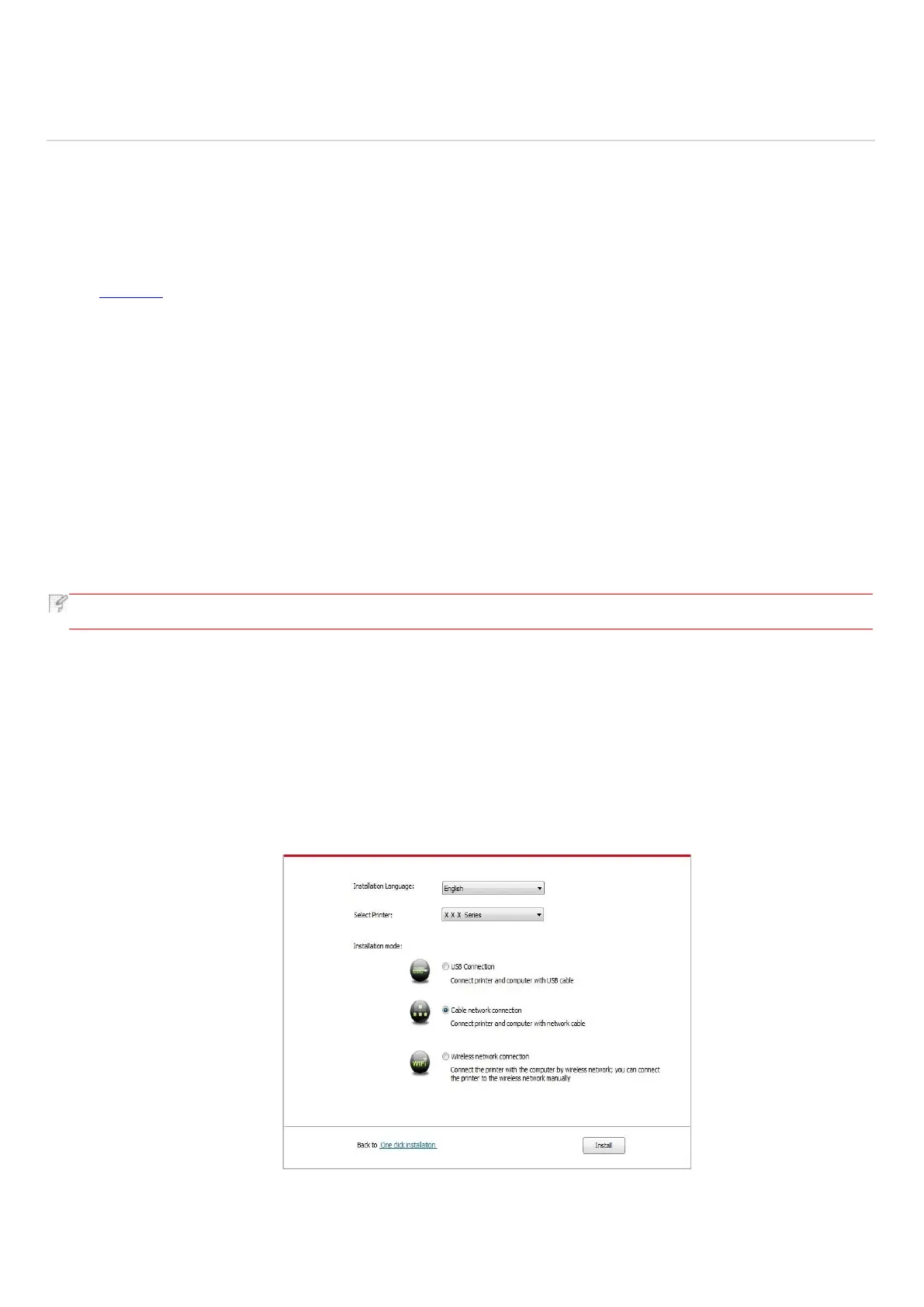
6. Click on the "Manual installation" at the bottom of driver installation interface, and enter into manual installation interface.
7. Please select installation language and printer model.
8. Select "Wireline network connection" and click on "Install".
9. The installation software will search the printer automatically and the searching process may need some time.
10. After finishing searching, select the printer that needs to be connected and click “Next”.


 To Next Page