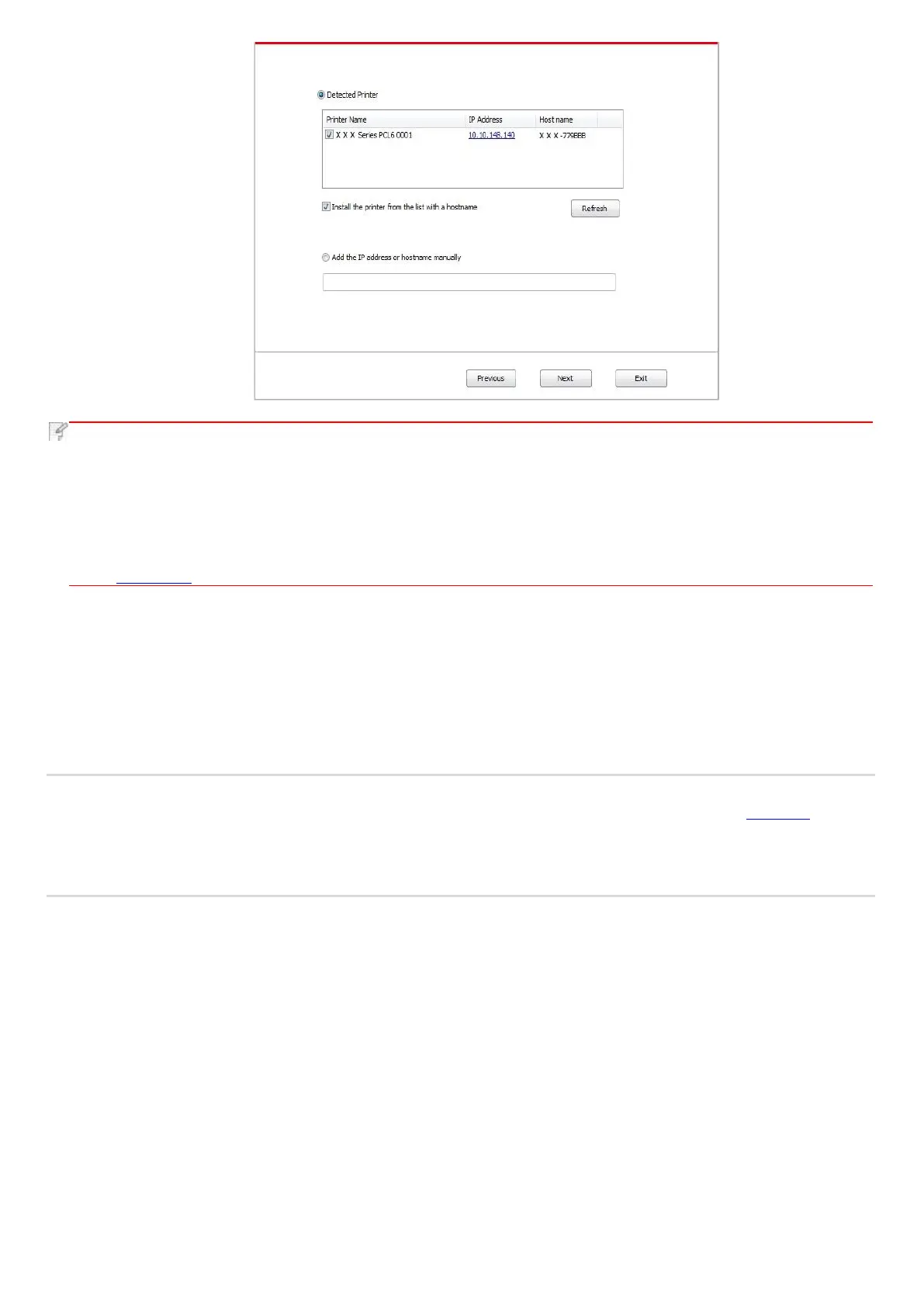
• If the printer you need to connect is not in the list of printers searched, please click “Refresh” to search again.
• When the printer IP address changes under printer driver installed with host ID , you can also directly print without re-
installing the driver. If you need to install the printer driver with the host ID, please check the option "Install the printer
in the list with host ID".
• If IP address or host name is added manually, you need to know the IP address of the printer connected or host
name. If they are not made clear, please print the “NetConf Pg” and view “IP Address” and “Host name” (Please refer to
Chapter 7.2).
11. The software installs the driver automatically and the installation process may need some time. The duration is related to your
computer configuration, please wait patiently.
12. After the installation, click "Print &Test Page" button. If your printer prints the test page successfully, it means that you have
installed the driver correctly.
3.1.2.3. Installation by wireless network connection mode
Wireless network connection type is divided into basic structure mode and Wi-Fi Direct mode (please refer to Chapter 5 for
details).
3.1.2.3.1. Installation in basic structure mode
1. Connect computer to access point (wireless router).
2. Connect the printer to computer via USB cable, then power the printer on.
3. Place the attached installation CD in the computer CD-ROM:
• Windows XP system: automatically run the installation procedure.
• Windows 7/Vista/Server 2008 system: Pop up "Autoplay" interface, click “Autorun.exe” to run the installation procedure.
• Windows 8 system: When the " DVD RW driver" window pops up from the right top corner of computer desktop, click
anywhere in the pop-up window, then click "Autorun.exe" to run the installation procedure.
• Windows 10 system: When the "DVD RW driver" window pops up from the right top corner of computer desktop, click
anywhere in the window, then click "Autorun.exe" to run the installation procedure.


 To Next Page