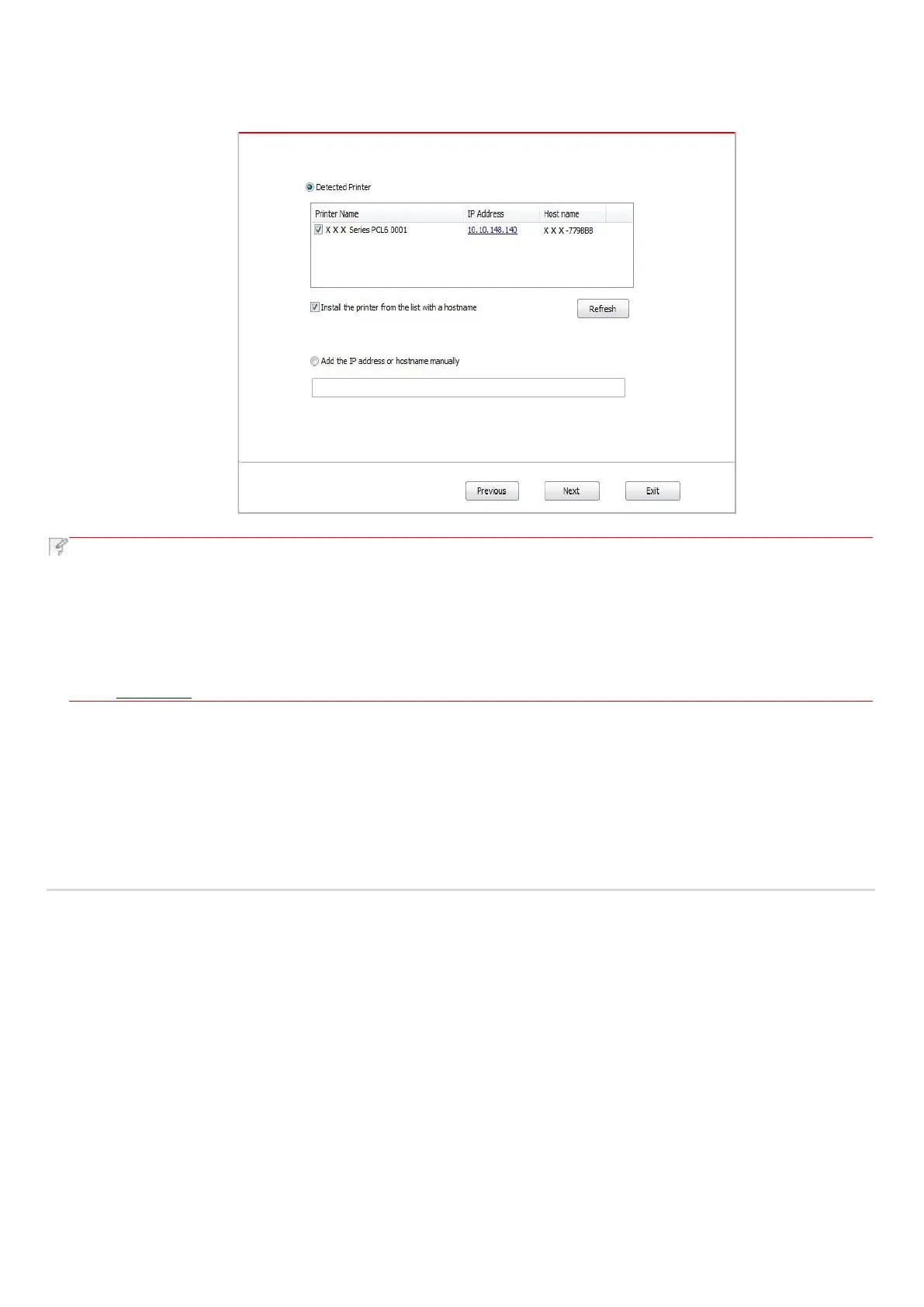
9. The installation software will search the printer automatically and the searching process may need some time.
10. Select the printer needs to be connected and click “Next”.
• If the printer you need to connect is not in the list of printers searched, please click “Refresh” to search again.
• When the printer IP address changes under printer driver installed with host ID , you can also directly print without re-
installing the driver. If you need to install the printer driver with the host ID, please check the option "Install the printer
in the list with host ID".
• If IP address or host name is added manually, you need to know the IP address of the printer connected or host
name. If they are not made clear, please print the “NetConf Pg” and view “IP Address” and “Host name” (Please refer to
Chapter 7.2).
11. The software installs the driver automatically and the installation process may need some time. The duration is related to your
computer configuration, please wait patiently.
12. After the installation, click "Print &Test Page" button. If your printer prints the test page successfully, it means that you have
installed the driver correctly.
3.1.3. Method of driver uninstallation
Windows 7 is taken as the example in the following operation. The information on your computer screen may differ because of
multiple operating systems.
1. Click the Start menu of computer and then click All programs.
2. Click Printon, and then Click Printon XXX Series.
Printon XXX Series where XXX represents product model.
3. Click uninstall to delete the driver according to instructions on uninstall window.
4. Restart computer after finishing unloading.


 To Next Page