Waves eMotion LV1 Classic User Guide | Chapter 2: Channel
Window Window
Plugin Menu: Plugins Section
These menu items add, remove, and manage plugins.
P
LUGIN
L
IST
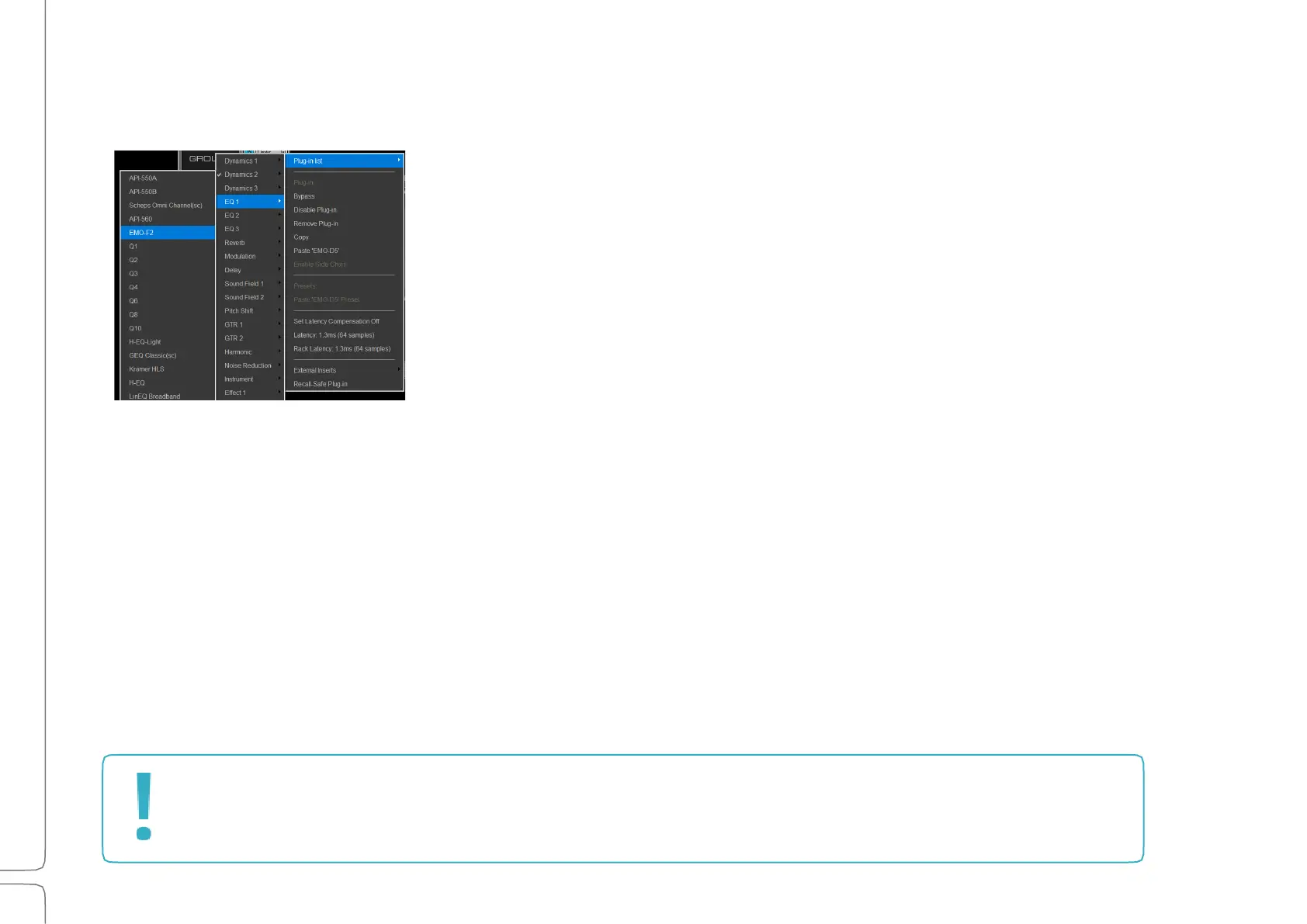
The Plugins List is a multi-level drop-down menu that lists all available
plugins. Plugins are organized by category. If there are many plugins in
a category (typically EQ or Dynamics), the plugin list will be divided into
pages. This avoids scrolling through long submenus. Click on a plugin
name, and its icon will appear in the selected rack slot. Unauthorized
plugins are not displayed.
B
YPASS
Bypasses the plugin while keeping it in the processing chain. This serves the same function as the IN button on
the rack slot.
D
ISABLE
P
LUGIN
Removes the plugin from the processing chain without deleting it from the rack. Disabling a plugin removes its
latency from the rack. It also frees up processing power. You can re-enable the plugin without losing its settings,
controls, or automation assignments. When a plugin is disabled, its name remains visible above the slot, and its
icon is replaced with DISABLED. You can also disable and enable a plugin by clicking its rack slot while holding
down the Control key. Disabling or enabling a plugin may cause a brief audio drop, so it should be done at a
time when this would not be problematic.
R
EMOVE
P
LUGIN
Deletes the plugin from the rack slot. All parameter settings and control assignments are lost.
Adding, removing, disabling, or moving a plugin changes the structure of the rack, which may result
in a brief audio mute. Do not make these changes when an audio interruption is unacceptable.
Wait until there is a pause in the performance.


 To Next Page