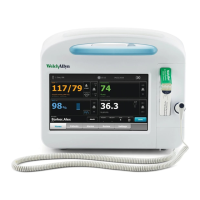
If a system error is detected, the monitor becomes inactive until you press or until the
monitor shuts down automatically. The monitor displays a system fault message that contains
a wrench icon
and a system fault code to aid service and engineers in diagnosing the
problem.
Power down the monitor
1. Touch the Settings tab.
2. Touch the Device tab.
3. Touch Power down.
This power-down method, which places the monitor into Standby mode, ensures that patient
measurements are retained in the monitor memory for a maximum of 24 hours. (These saved
measurements are available for recall, printing, or to send electronically to the network.) This
method also ensures that any configuration settings you have changed and saved will be
maintained at the next startup.
Note Because power is still available to charge the battery and power the monitor, the
monitor is in Standby mode.
Reset the monitor
If the monitor stops functioning, you can press and hold
for approximately 6 seconds to
allow the hardware to completely cycle off and to reset the monitor configuration settings to
the last saved default power-up configuration. The button is located on the side of the monitor.
Caution Do not use a long press of to power down the
monitor when it is functioning normally. You will lose patient data
and configuration settings.
Note Because power is still available to charge the battery and power
the monitor, the monitor is in Standby mode.
Set the date and time
1. Touch the Settings tab.
2. Touch the Device tab.
3. To change the date and time values: Touch the up and down arrow keys or touch and
enter a value.
Repeat for each value you want to change.
Note The date and time stamps on saved patient measurements will
adjust in response to new date and time settings.
Directions for use Startup 27


 To Next Page
 Loading...