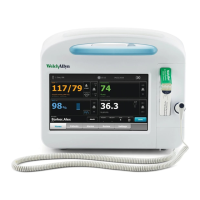
Create a clinician ID
1. Go to the Clinician tab using one of these methods:
• Touch the Clinician ID section (left edge) of the Device Status area on the Home tab.
• Touch the Settings tab and then touch the Clinician tab.
2. To enter the clinician name, touch , located at the right of the text field, and enter
characters.
You can enter up to 32 characters for the clinician's first and last name. Enter only 1 character
for the middle initial.
3. To enter the clinician ID:
• Touch
and enter the ID.
• Scan the clinician's barcode with a barcode scanner. The scanned ID appears in the field.
4. Touch Select to save your entries and return to the Home tab.
Set the default configuration
1. Touch the Settings tab.
2. Touch the Device tab.
3. Enter or adjust the desired settings you want to add or change.
Note The new settings appear as they are completed but are temporary
until they are saved.
4. Touch Save as default.
5. Touch OK to confirm that you want to overwrite your previous settings and replace them with
your current settings in the startup default configuration. Or touch Cancel to retain the
previous settings.
The new settings are stored as the default startup settings once you restart the monitor.
Note If your monitor is connected to the network, the date and time settings are
synchronized with the network settings.
Note The date and time stamps on saved patient measurements will adjust in response to
new date and time settings.
28
Startup Welch Allyn Vital Signs Monitor 6000 Series™


 To Next Page
 Loading...