34 1 Printer Environment Settings
1.5 Enabling Ports
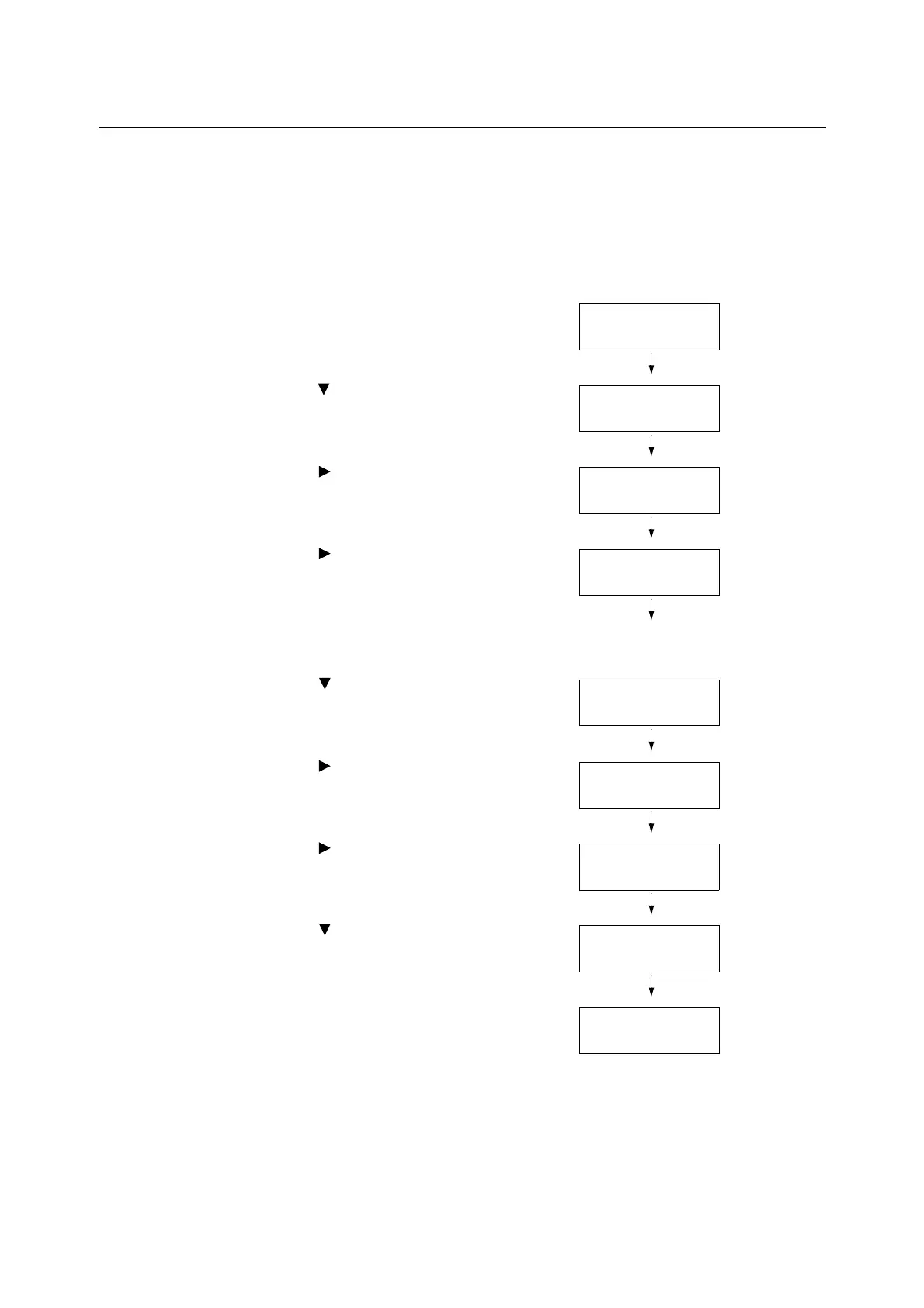
Set all ports you want to use to [Enabled] on the control panel.
When using the standard setup, this operation is unnecessary as the default for the port is
set to [Enabled].
Use the following procedure to enable each port.
The following procedure uses IPP as an example.
1. On the control panel, press the <Menu>
button to display the menu screen.
2. Press the < > button until [Admin Menu] is
displayed.
3. Press the < > or <OK> button to select.
[Network/Port] is displayed.
4. Press the < > or <OK> button to select.
[LPD] is displayed.
Note
• [Parallel] appears only when the Parallel Port
(optional) is installed.
5. Press the < > button until the desired
protocol is displayed. (Example: IPP)
6. Press the < > or <OK> button to select.
[Port Status] is displayed.
7. Press the < > or <OK> button to select.
The current set value is displayed.
8. Press the < > button to display [Enabled].
9. Press the <OK> button to confirm your
selection.
10. The setting is now complete.
Press the <Menu> button to close the
menu.
The printer automatically restarts.
Menu
LanguageEmulation
Menu
Admin Menu
Admin Menu
Network/Port
Network/Port
LPD
Network/Port
IPP
IPP
Port Status
Port Status
•
Disabled
Port Status
Enabled
Port Status
•
Enabled



 To Next Page