3-56
IM 04L51B01-01EN
Note
• Folders and files are not displayed if their names contain single quotation masks or semicolons.
• If a file with the same name exists, an overwrite confirmation message is displayed.
Loading Settings into the GX/GP
You can load GX/GP setting parameters from an SD memory card or USB flash memory into
the GX/GP.
1
On the Data tab, click Save load.
The save/load screen appears. The folders and les on the SD memory card are displayed.
2
Select SD or USB from the Folder list. The folders and files on the selected folder are
displayed.
3
Select the file you want to load.
The selected le name appears in the File Name text box.
If you double-click the file name, the Load from configuration file dialog box
appears. In this case, proceed to step 5.
4
Click Load.
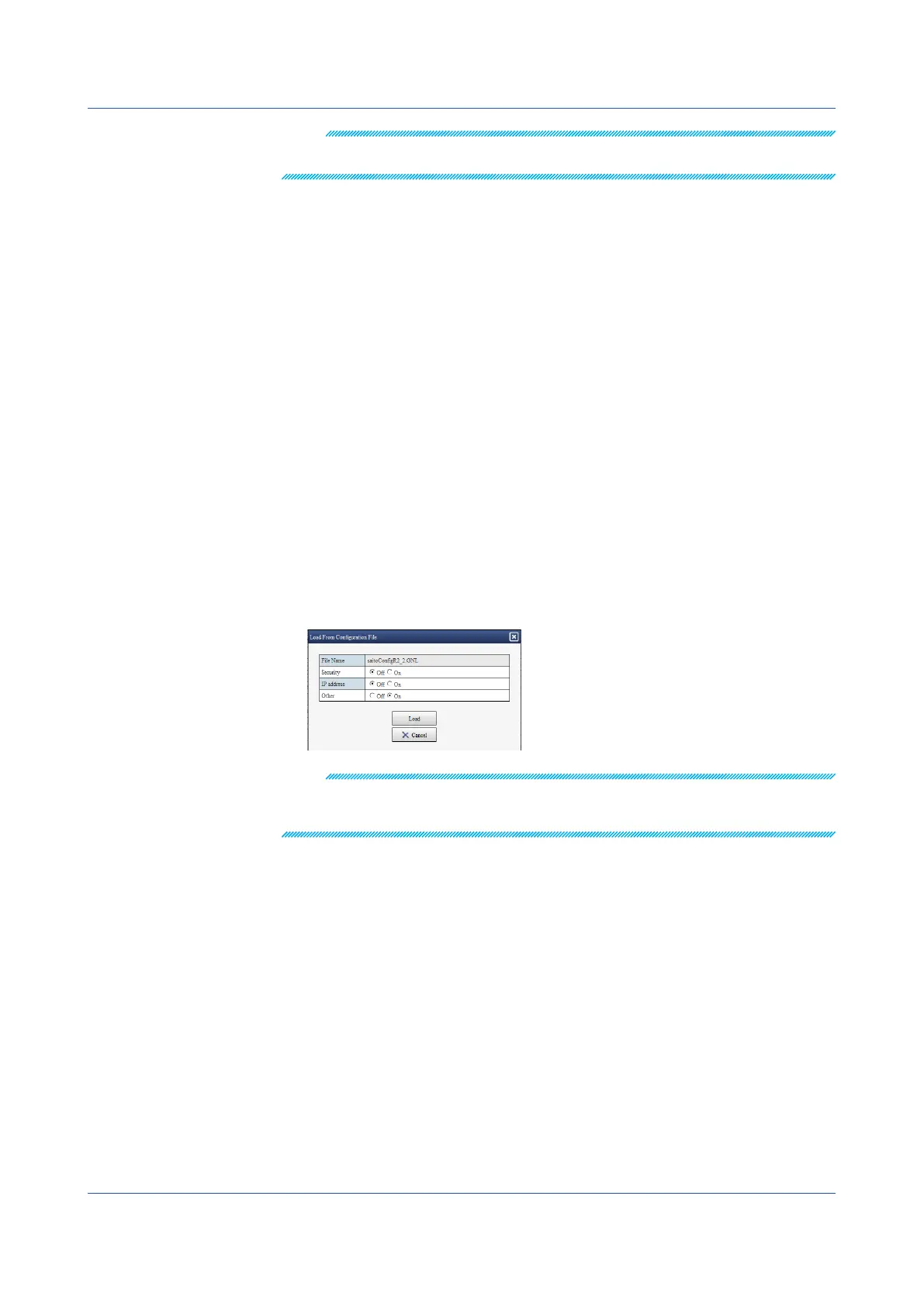
The Loadfromcongurationle dialog box appears.
5
Specify what types of settings to load into the GX/GP using On and Off. Settings that
are set to On will be loaded.
6
Click Load.
To not load, click Cancel.
The setting parameters are applied to the GX/GP, and the Loadascongurationle dialog box
closes.
Note
• Folders and files are not displayed if their names contain single quotation masks or semicolons.
• It is possible that as a result of loading setting parameters, the Web application no longer runs
properly or the GX/GP restarts automatically.
DownloadingFiles
You can download files in the SD memory card or USB flash memory to your PC.
1
Under Save/Load on the Data tab, show the screen containing the file you want to
download.
2
Select the file you want to download.
The selected le name appears in the File Name text box.
3
Click Download.
Follow the instructions in the dialog box that appears.
3.1 Using the Web Application to Change the GX/GP Settings, Monitor Data, and Control the GX/GP (Web server function)


 To Next Page
 Loading...