Setting recording (input) levels
Input levels can be adjusted for signals to be recorded.
1.
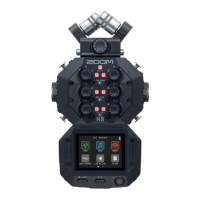
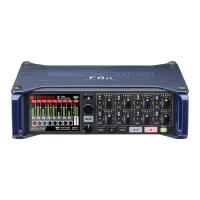
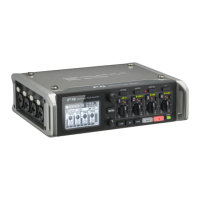
Turn the input volume knob ( ) for the selected track to adjust its input level.
Adjust so that the peak level stays around −12 dB.
Input volume 1/3/A
Input volume 2/4/B
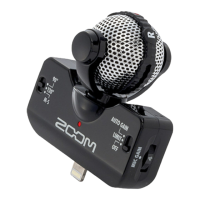
Mic input volume L/R
HINT
• If the sound distorts even after lowering the input level, try changing mic positions and adjusting the output
levels of connected devices.
• Plug-in power can be provided to the MIC/LINE IN input jack on the mic capsule.
(
→
“Using plug-in power” on page 27)
• The Lo Cut function can be used when adjusting levels. (
→
page 31)
• The Comp/Limiter/Gate function can be used when adjusting levels. (
→
page 32)
Backup recording (MUSIC and PODCAST apps only)
When using a mic capsule with up to two channels on the MIC IN, a backup recording le can be recorded 12 dB
lower than the set input level. This can be used to replace the regular recording le if its recording level was too
high, causing distortion, for example.
1.
Open the Track Setting Screen in the app.
Tap in the following order:
• FIELD app screen >
> select track
• PODCAST app screen >
> select track
26



 To Next Page