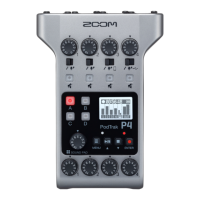
Error message list
This is a list of error messages that could pop up on the display. Respond as described below when
necessary.
Pop-up message Explanation
Read Only!
The le is set to be read only.
Use a computer to unlock the read only status of the le.
Choose 16-bit or 24-bit File!
Select a le that is 16-bit or 24-bit.
The
P4
does not support playback or conversion of the le.
Choose Mono or Stereo File!
Select a mono or stereo le.
The
P4
does not support playback or conversion of the le.
Choose 44.1kHz or 48kHz File!
Select a le that has a 44.1 kHz or 48 kHz sample rate.
The
P4
does not support playback or conversion of the le.
Choose WAV or MP3 File!
Select a le that uses WAV or MP3 format.
The
P4
does not support playback or conversion of the le.
File Convert. 48kHz->44.1kHz
This le requires sample rate conversion.
Convert to a le that is supported by the
P4
.
File Convert. 24-bit->16-bit
This le requires bit rate conversion.
Convert to a le that is supported by the
P4
.
File Convert. MP3->WAV
This le requires le format conversion.
Convert to a le that is supported by the
P4
.
Invalid File!
This le is damaged or invalid.
Select a good le.
Card Full!
The SD card has no more open space.
Delete unnecessary les ( “Deleting les” on page 30), or use a different
SD card.
File Name Already Exists!
A le with the same name already exists.
Change the le name. ( “Changing the names of recorded les” on page
29)
Input File Name!
Input the le name.
Input the le name. ( “Changing the names of recorded les” on page 29)
Character Limit Reached!
The maximum number of characters has been exceeded.
Reduce the number of characters.
Card Error!
An error occurred with the SD card.
See “Troubleshooting” on page 54.
No Card!
No SD card is loaded.
Load an SD card.
Invalid Card!
The SD card is invalid.
Load an SD card that is supported by the
P4
. ( “Troubleshooting” on page
54)
Card Protected!
SD card write-protection is enabled.
Disable write-protection.
Low Battery!
The remaining battery charge has become low.
Install new batteries or supply power by connecting an AC adapter, mobile
battery or computer, for example. ( “Providing power” on page 15)
Date/Time Reset!
The date and time setting has been reset.
Set the date and time again. ( “Modifying the date and time” on page 41)
52


 To Next Page